
You may be thinking about purchasing an OBDLink® adapter and want to evaluate the free OBDLink application, which supports iOS and Android devices. You can use Demo mode to try the OBDLink app.
This article describes how to explore some of the app’s features in Demo mode using simulated vehicle data.
- Download the OBDLink app either through the App Store (iOS) or Google Play (Android), depending on the type of phone or tablet you have.
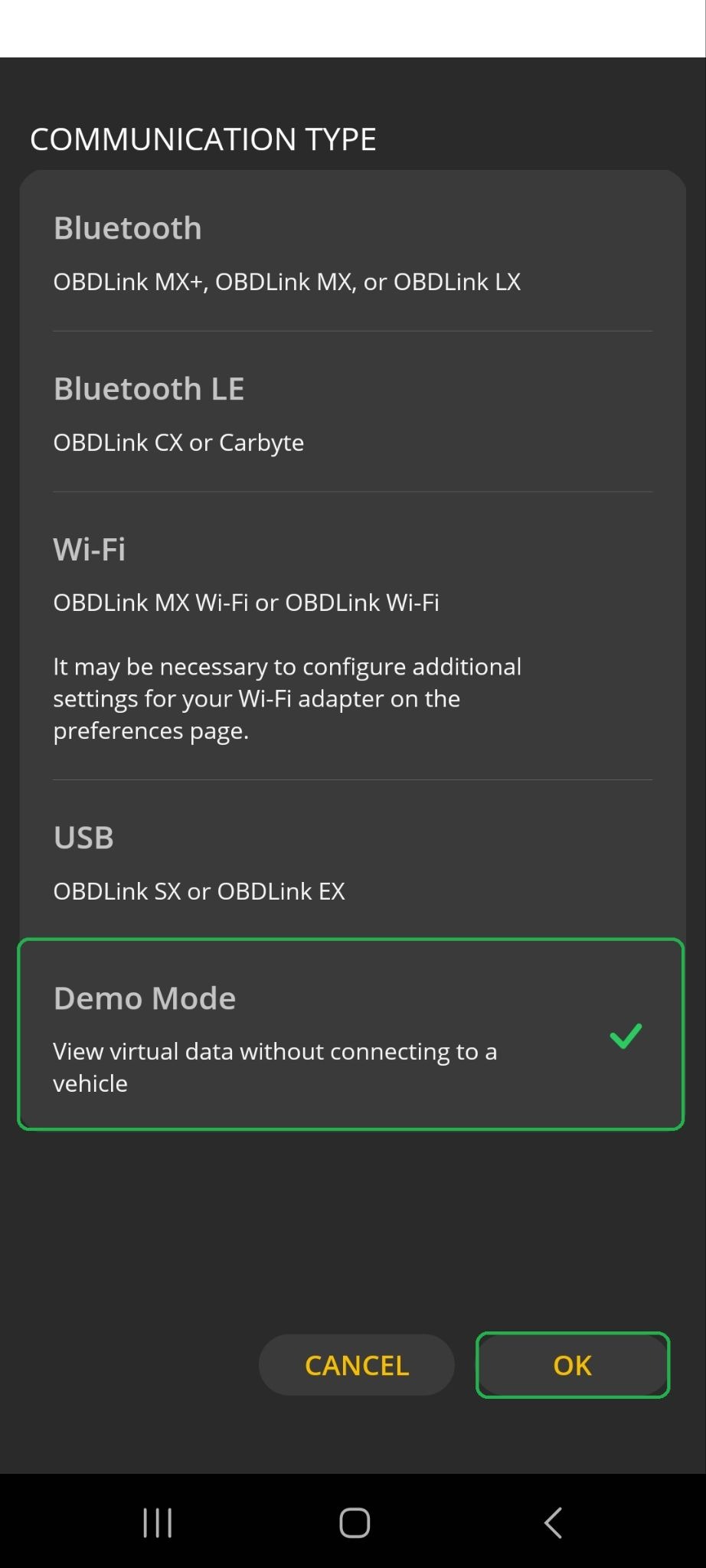
- Open the OBDLink app and navigate to Settings > Preferences > Communications > Communication Type.
iOS Android 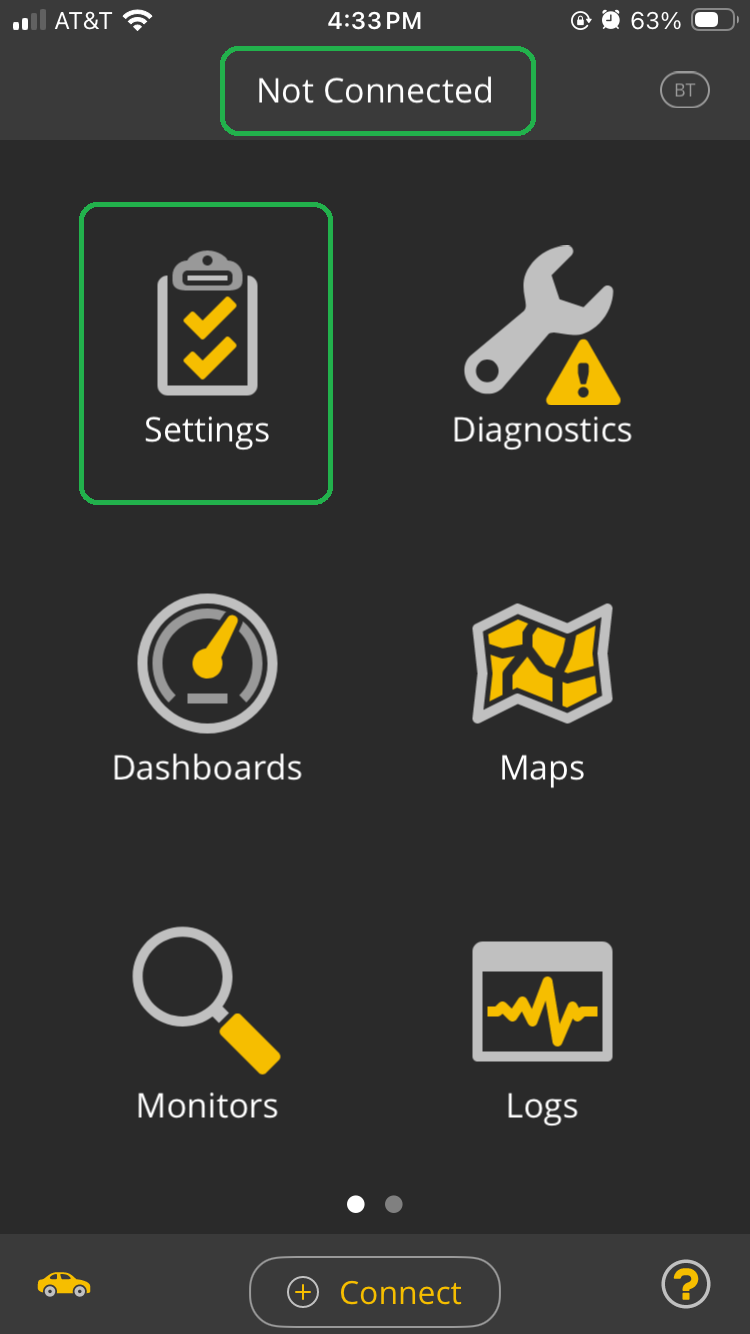
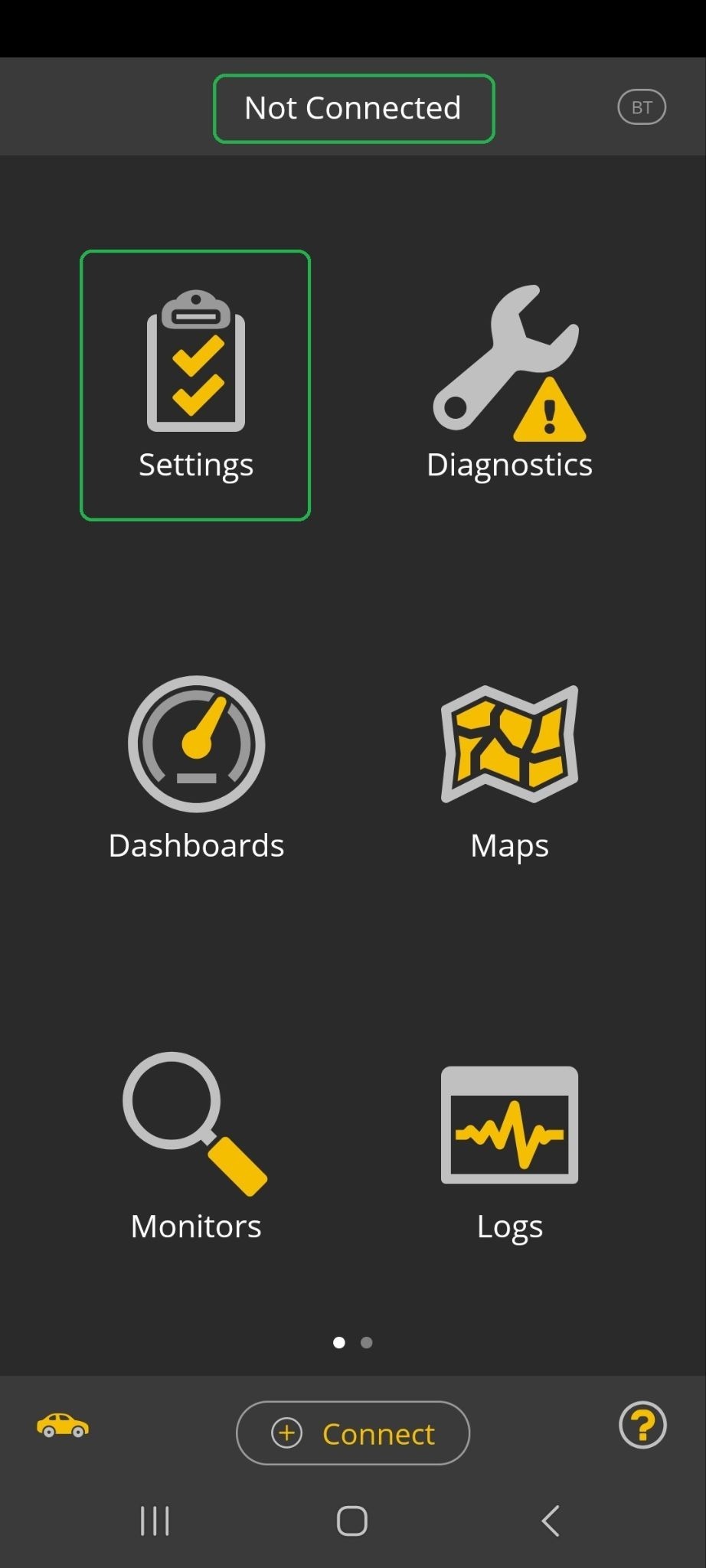
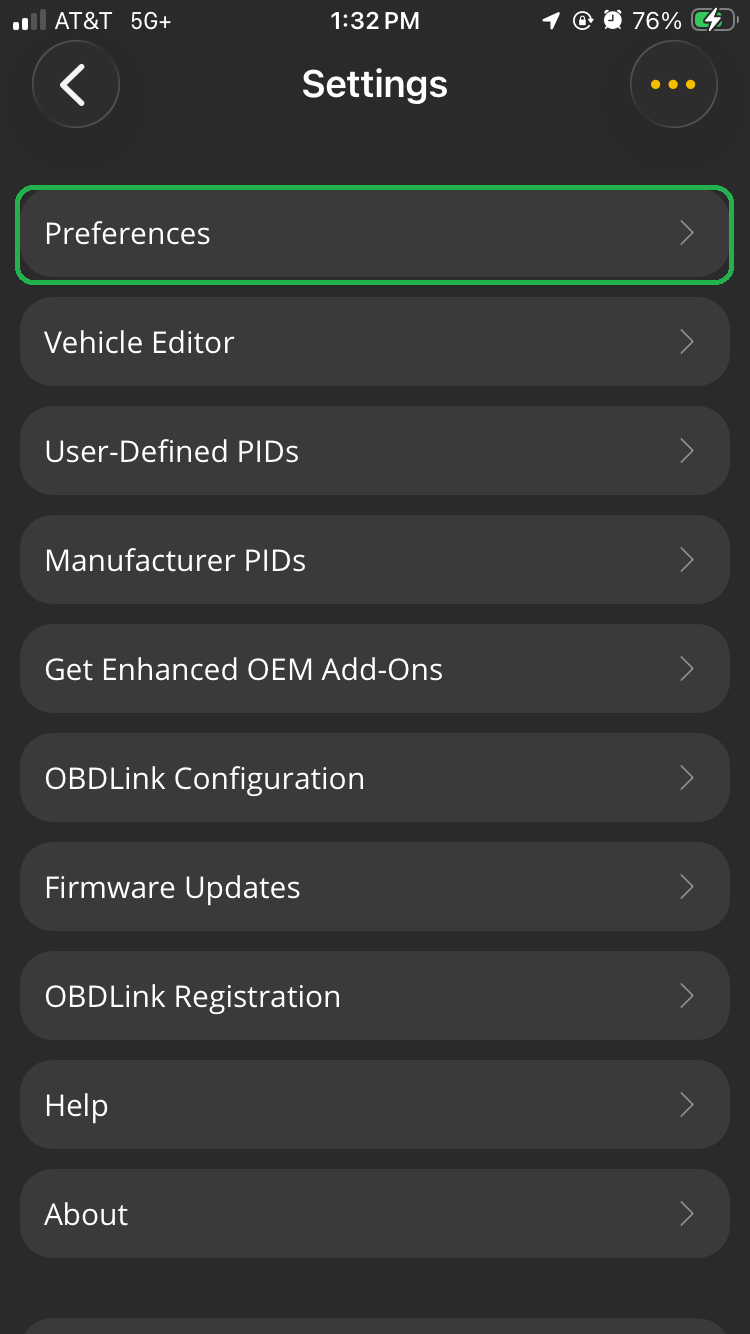
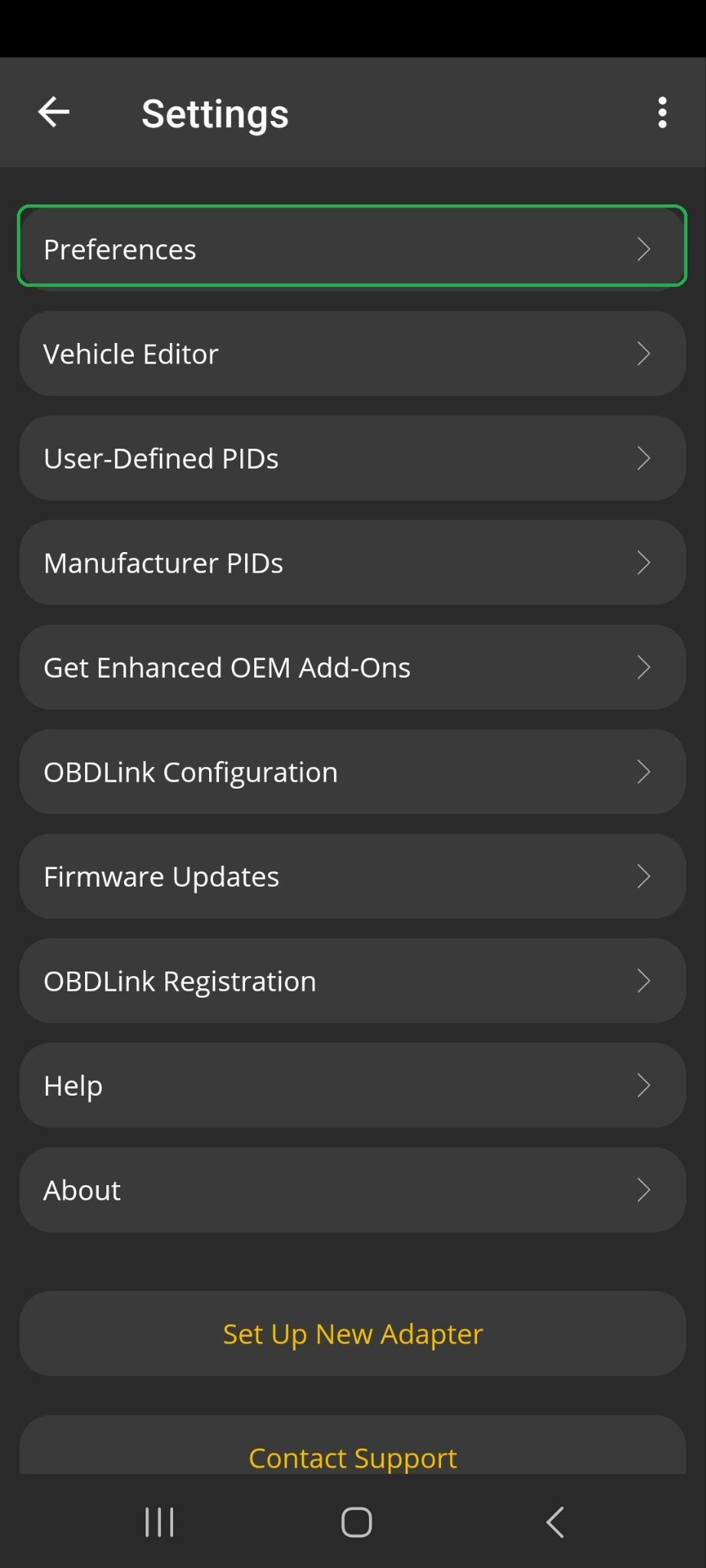
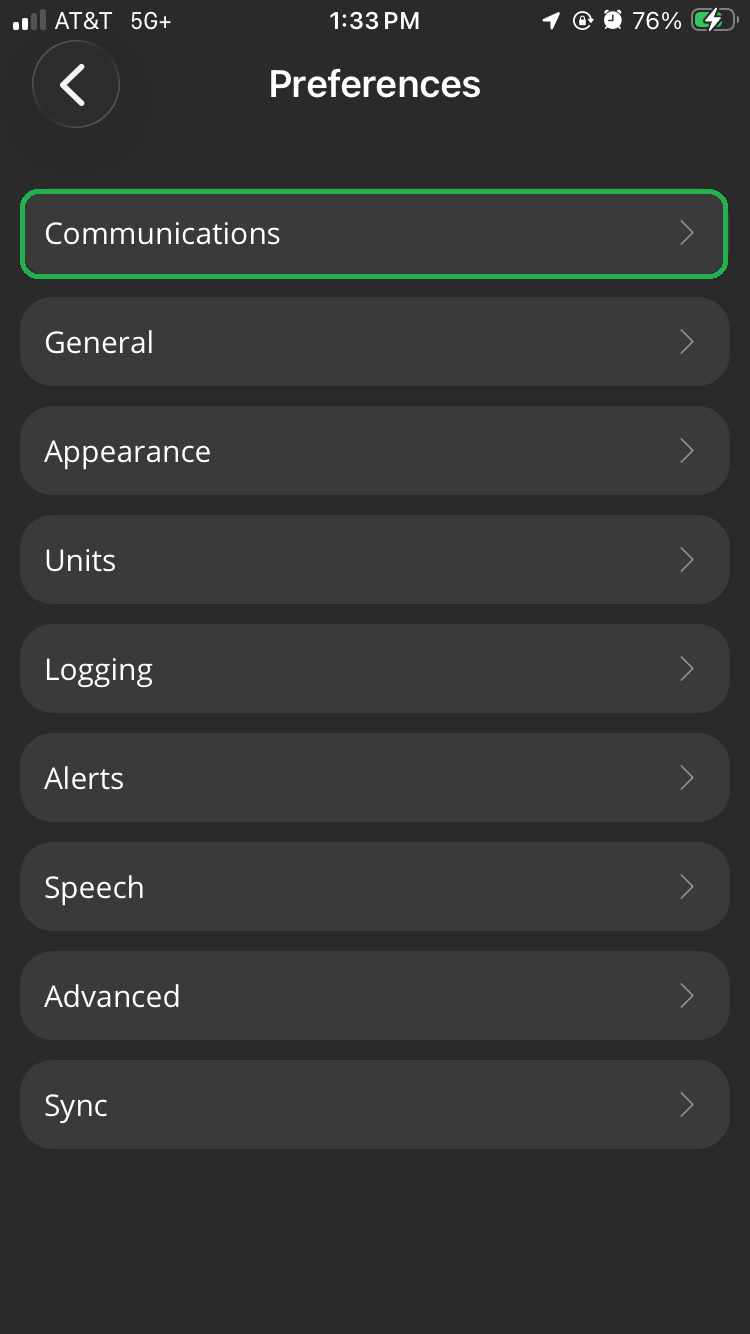
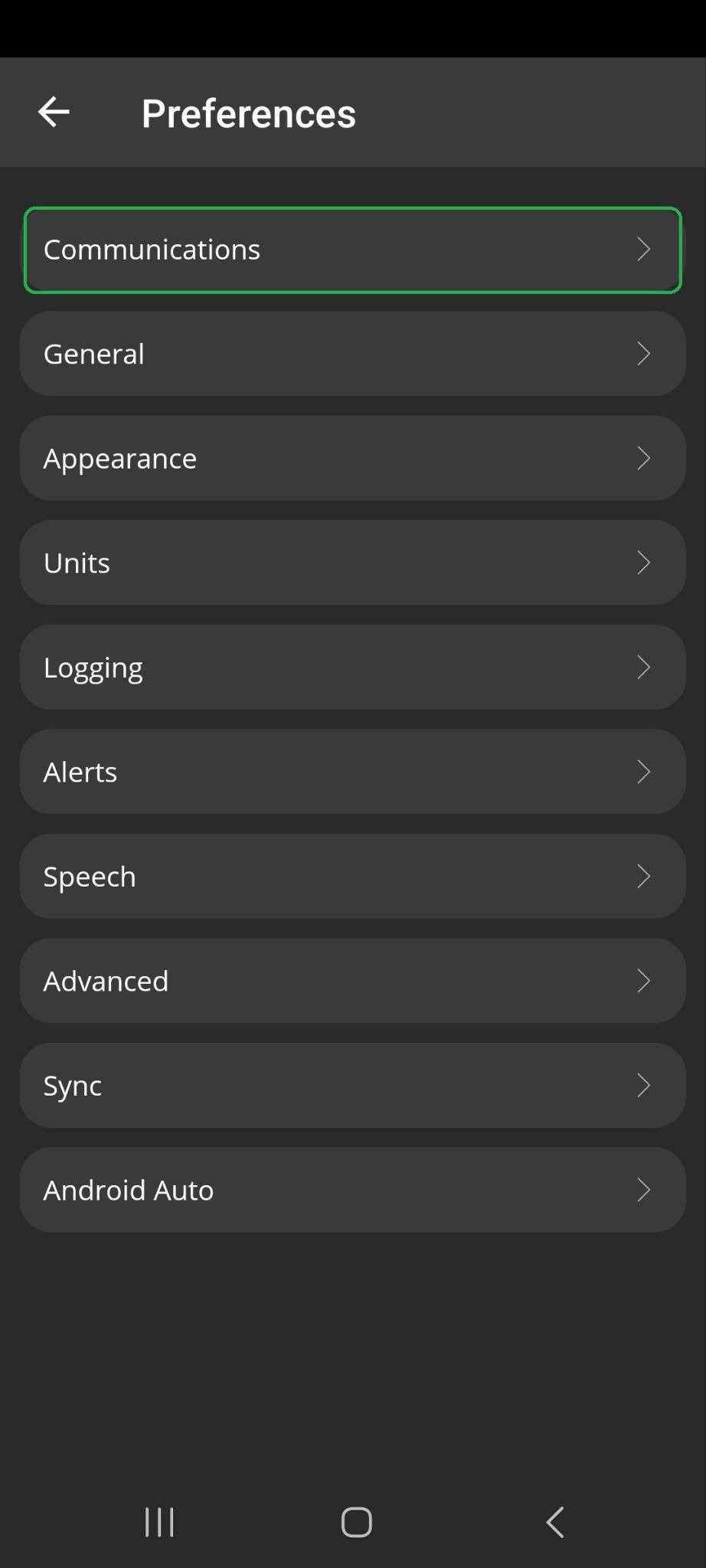
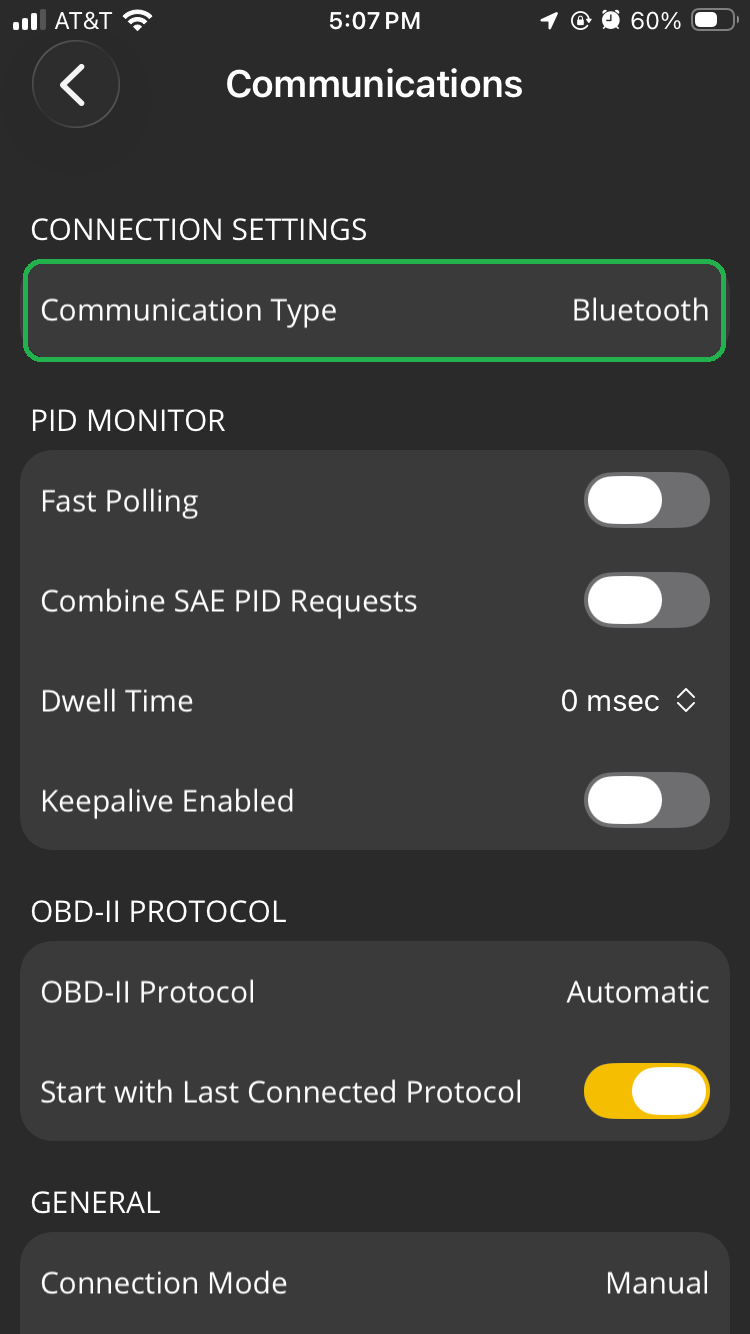
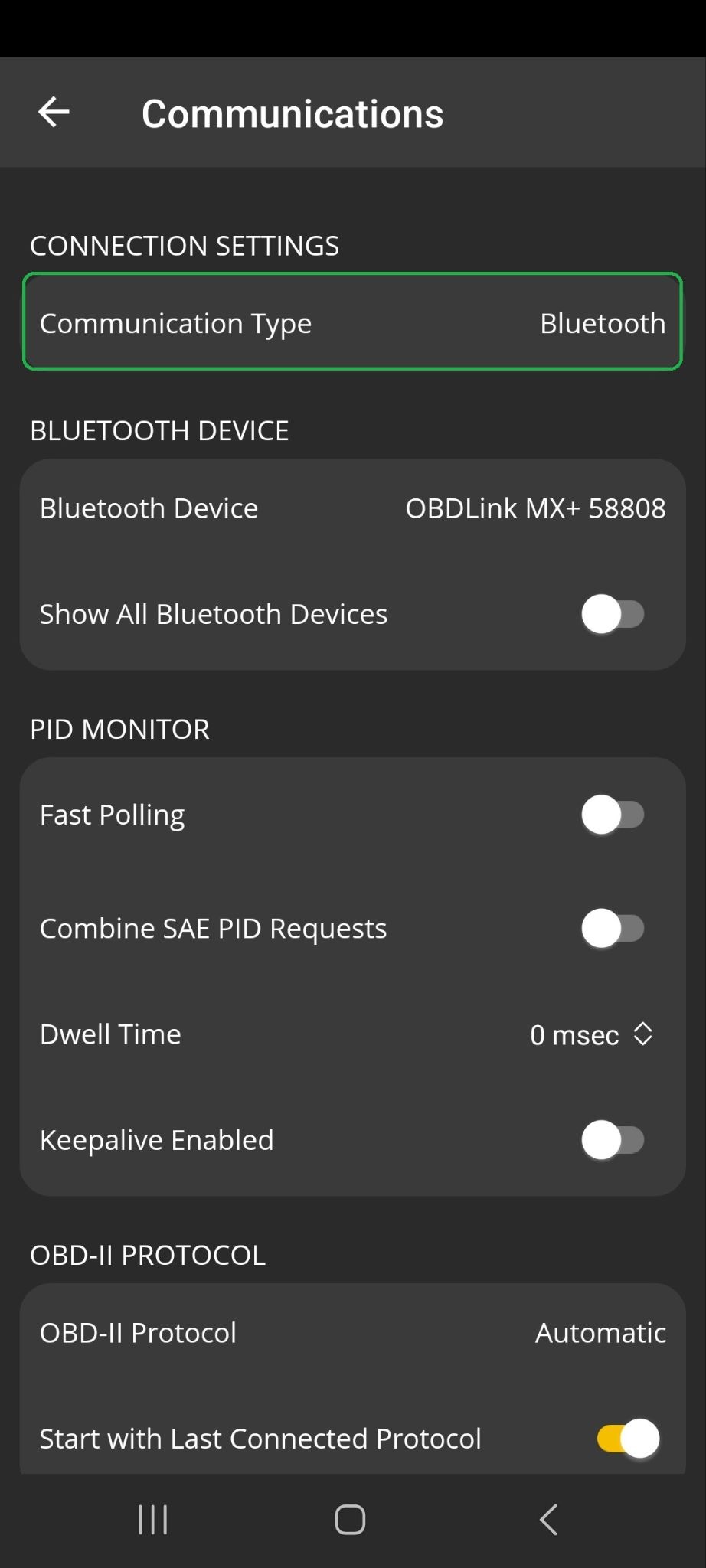
- Tap Demo Mode and tap OK to make your selection.
Note: Demo mode was recently added to the OBDLink app. If you don't see this option, download the latest version of the OBDLink app from the App Store (iOS) or Google Play (Android).
Tap the back arrow (<) in the upper left corner several times to return to the home screen.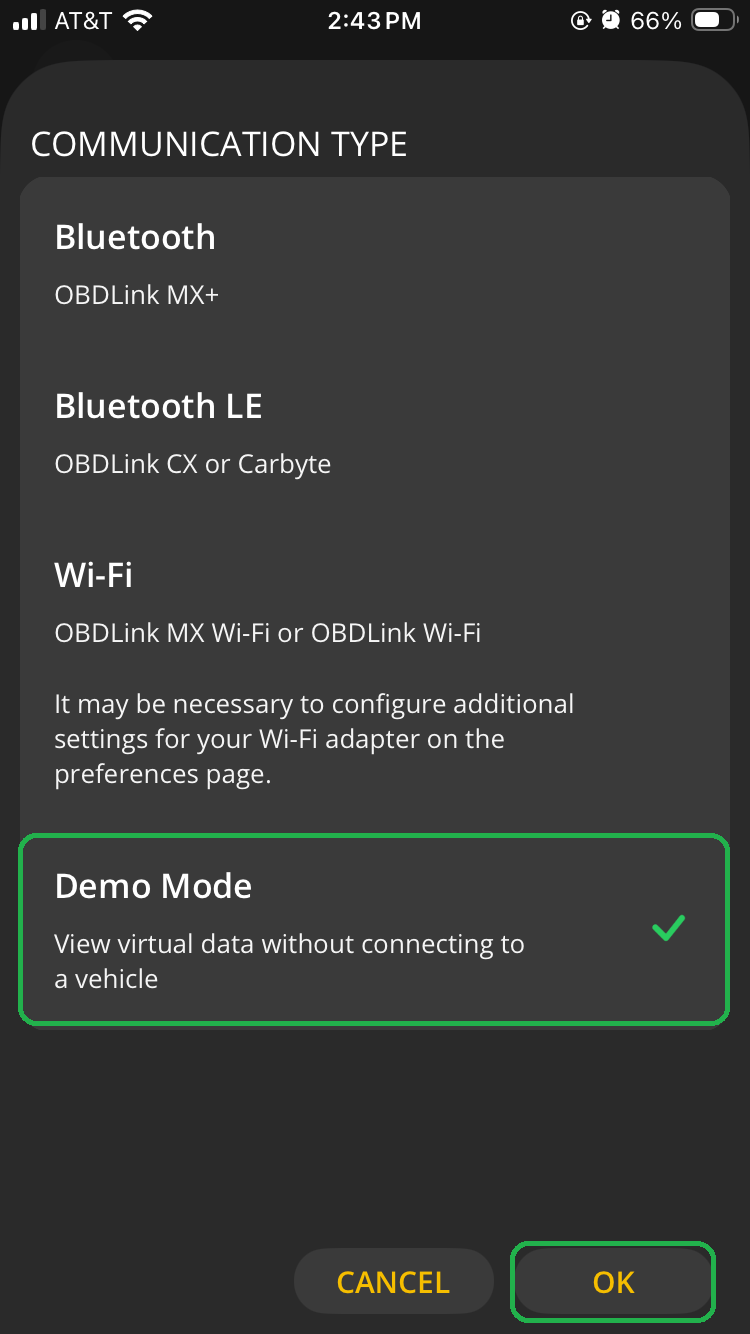
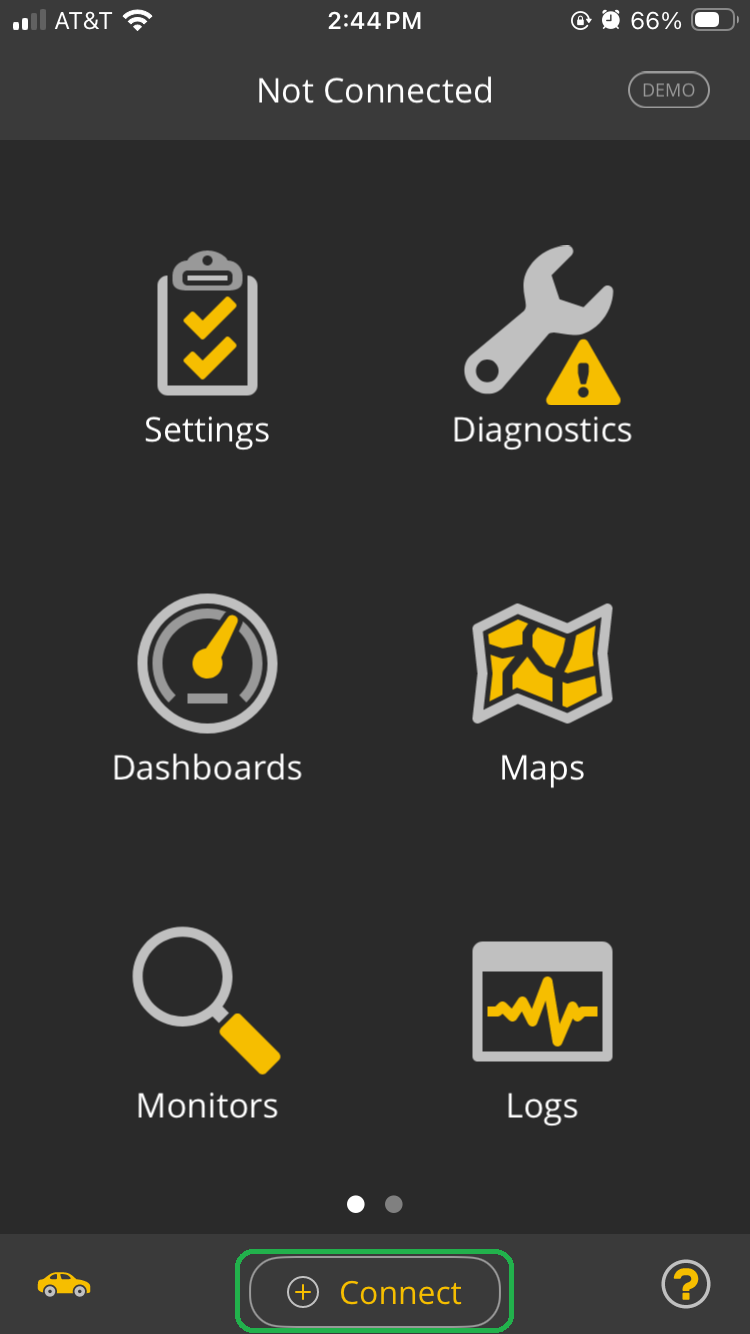
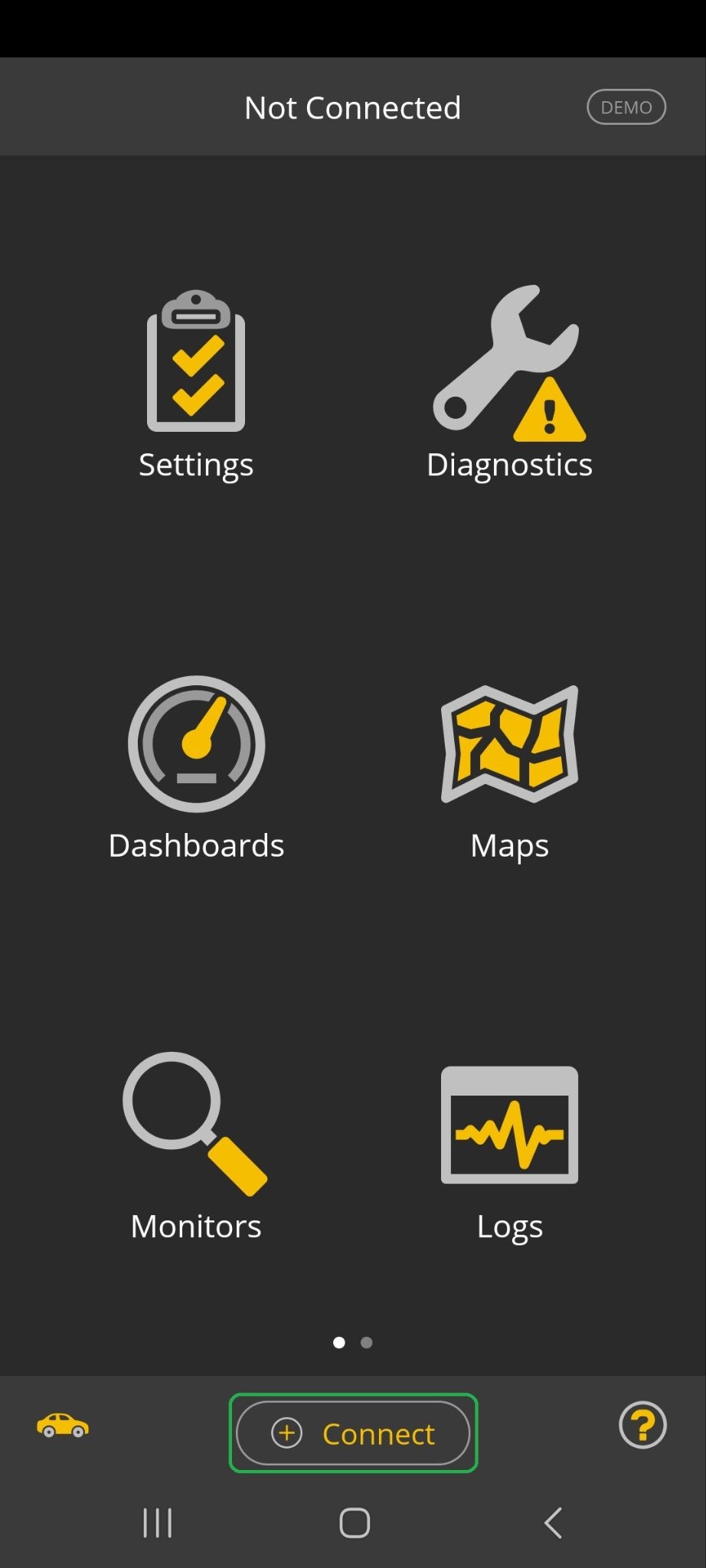
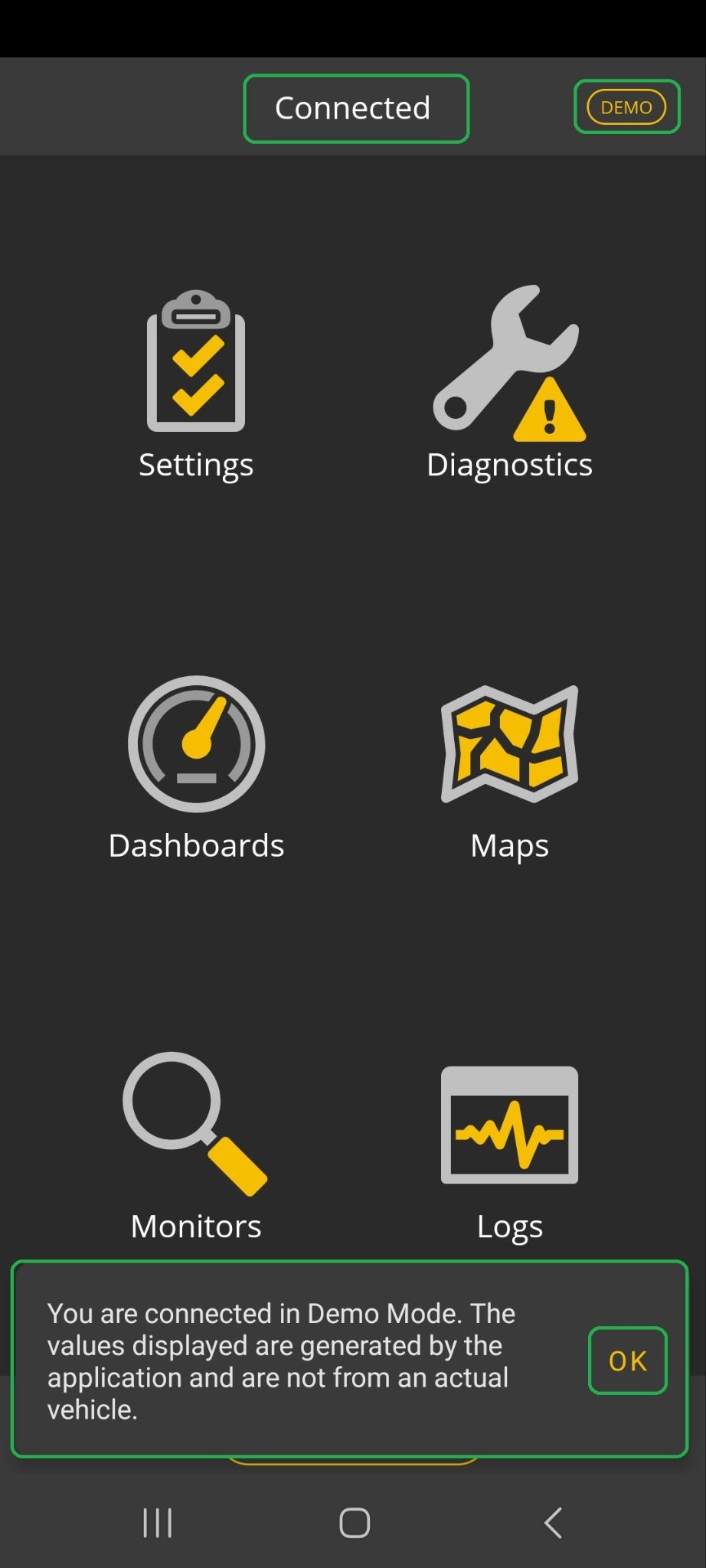
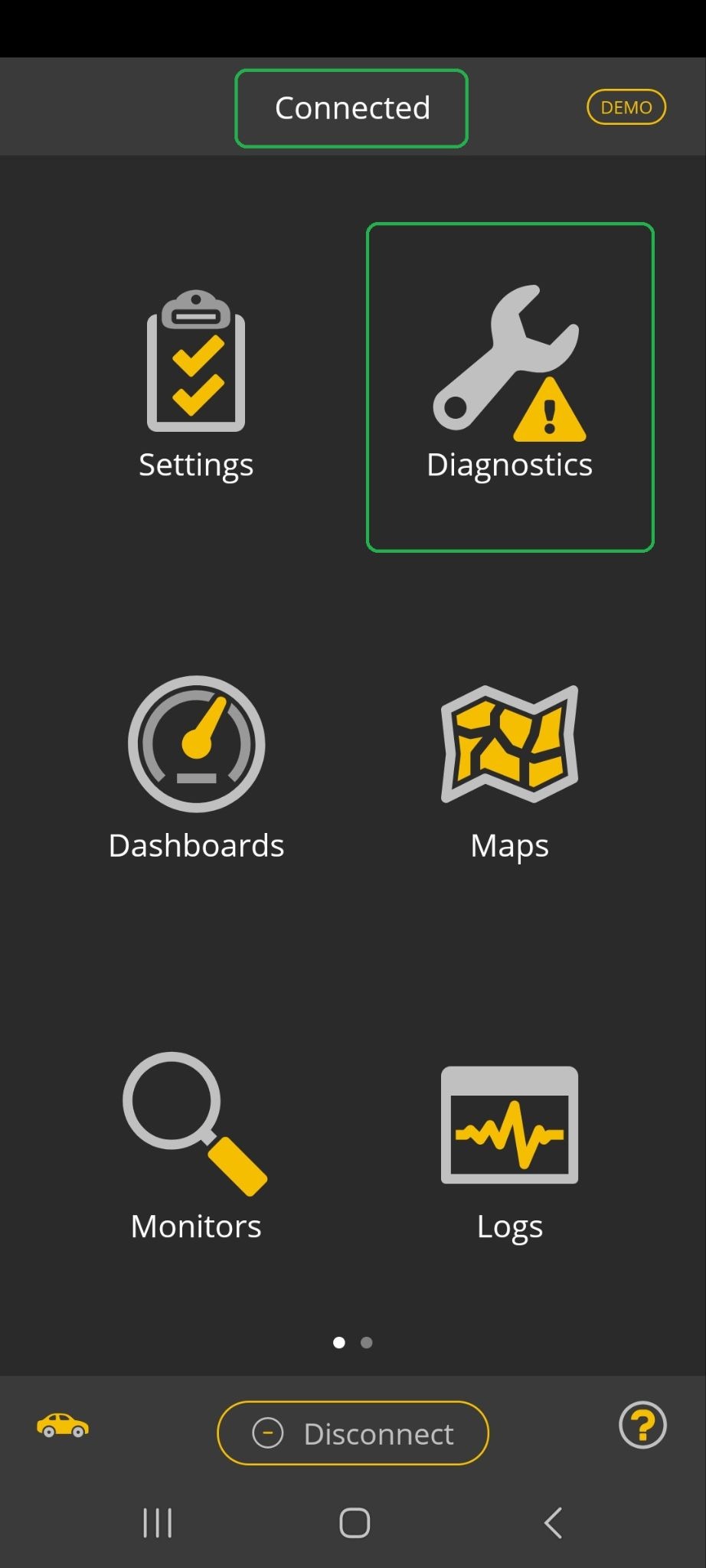
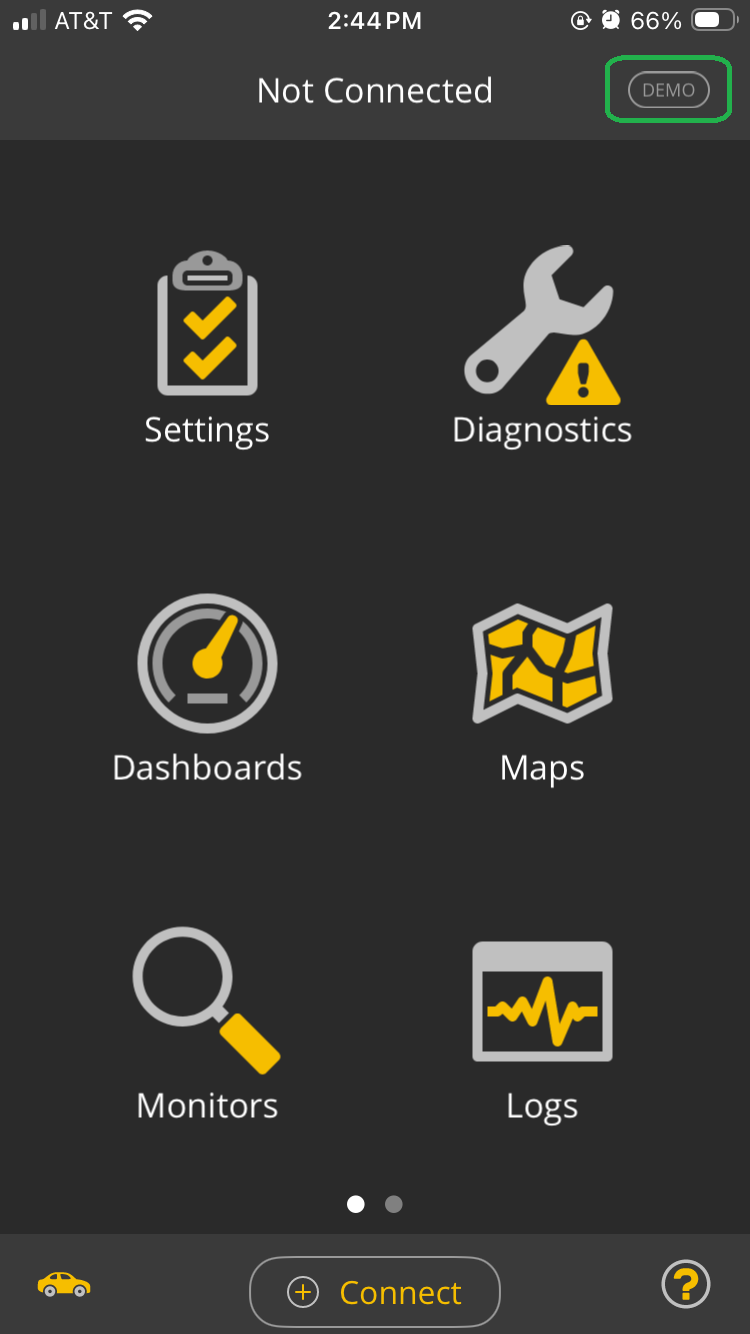
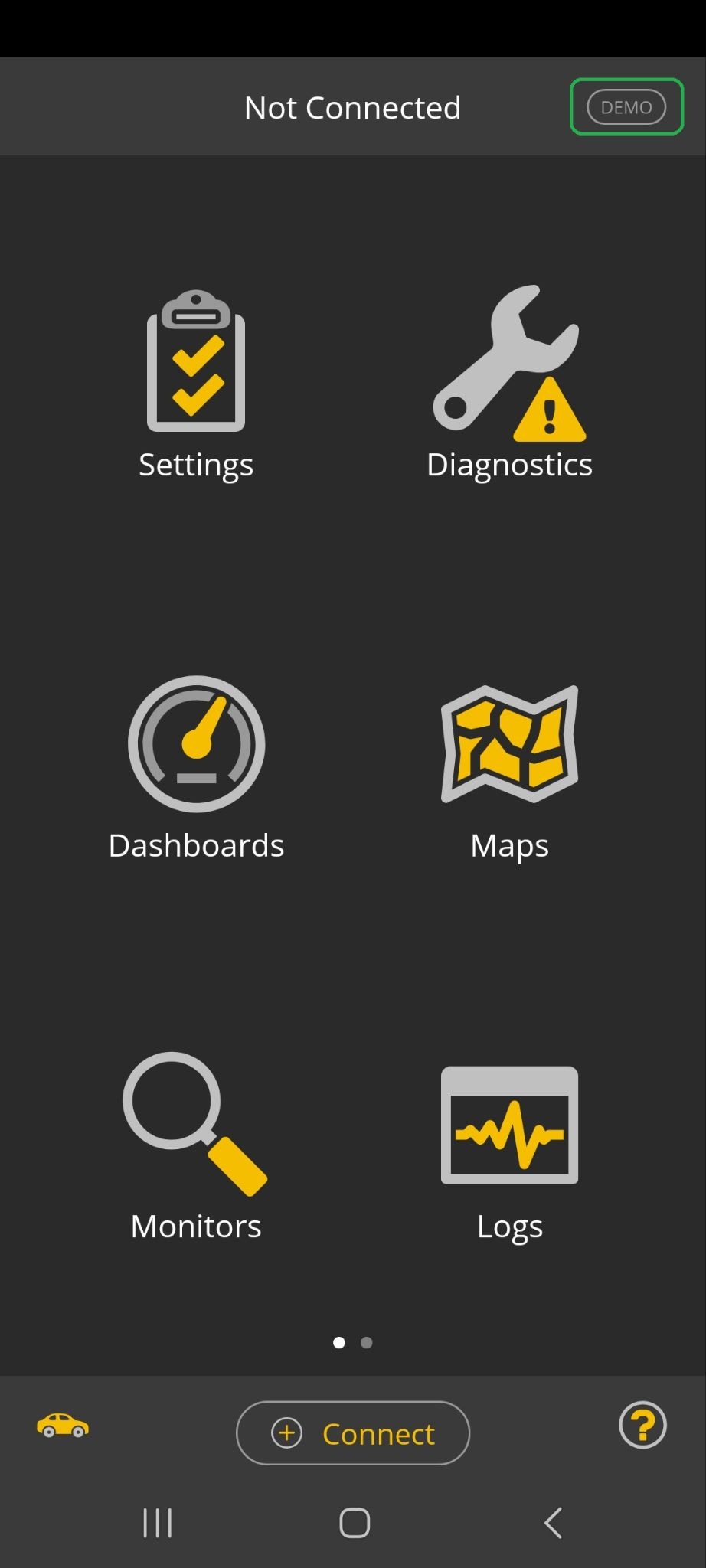
- In the app home screen, you will see the Demo mode indicator in the upper right corner (highlighted).
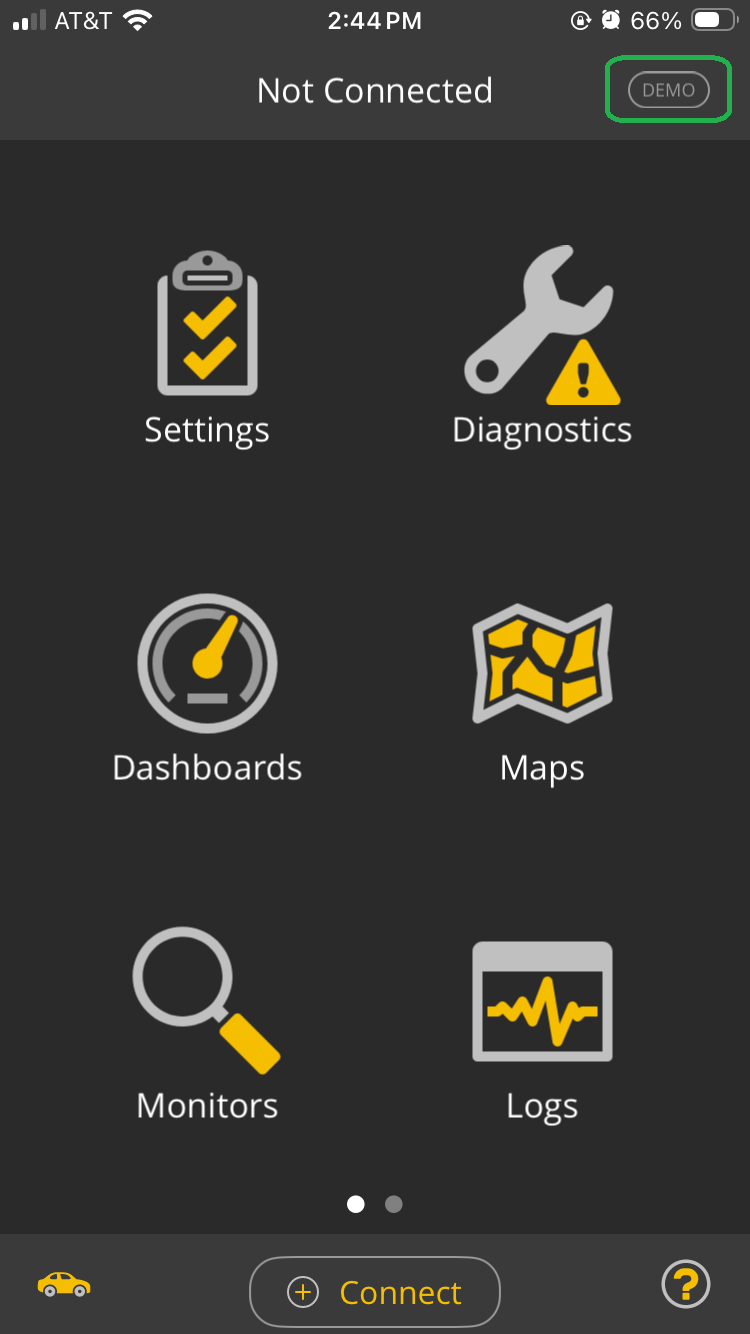
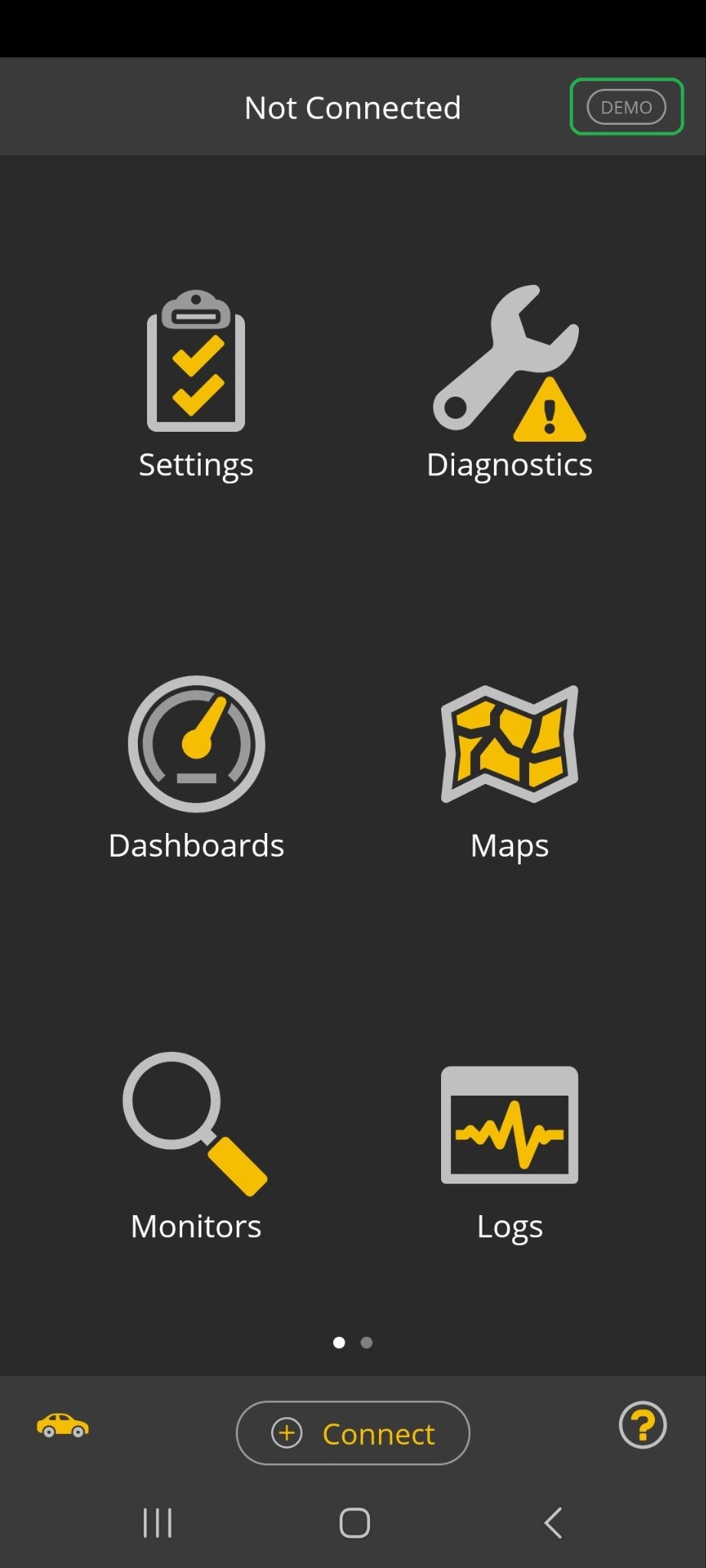
- Tap the Connect button at the bottom of the screen.
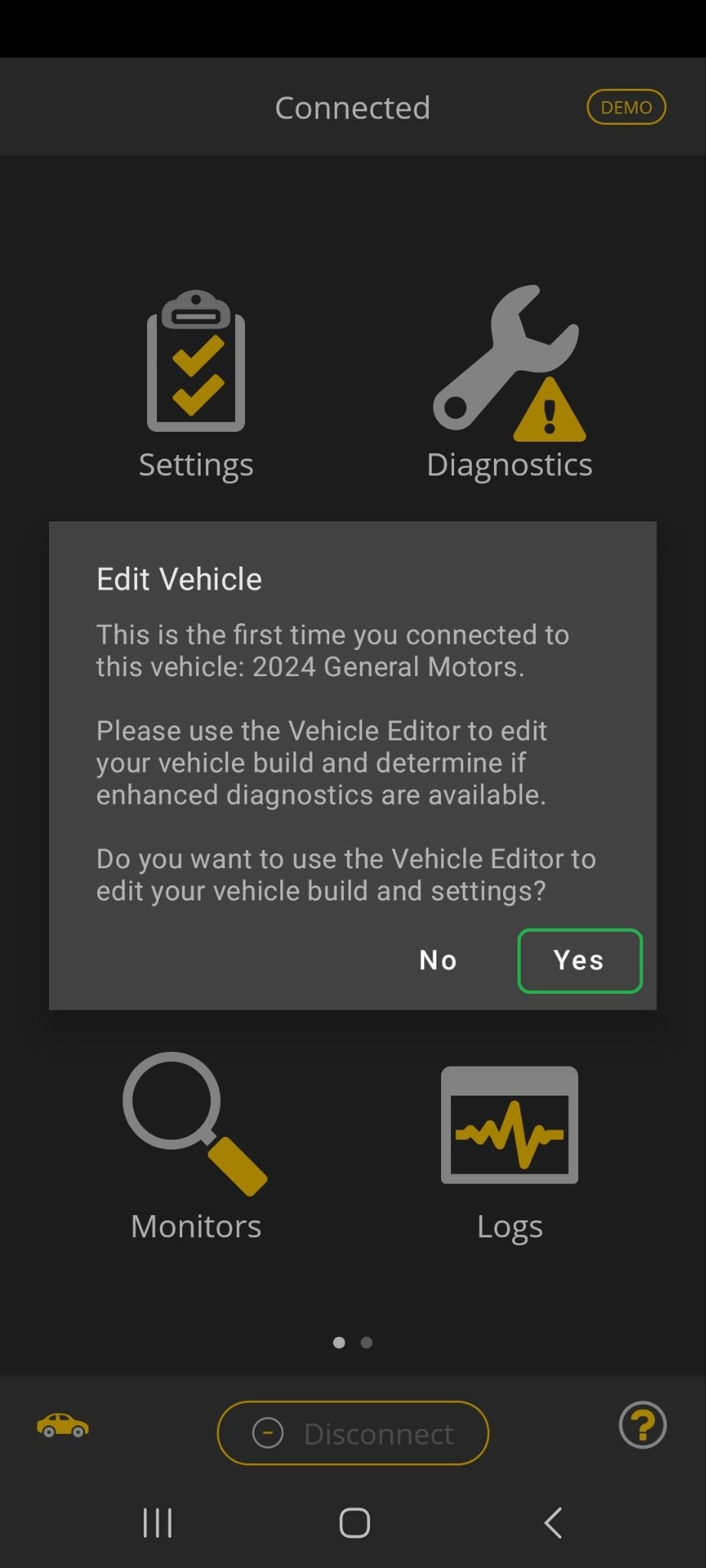
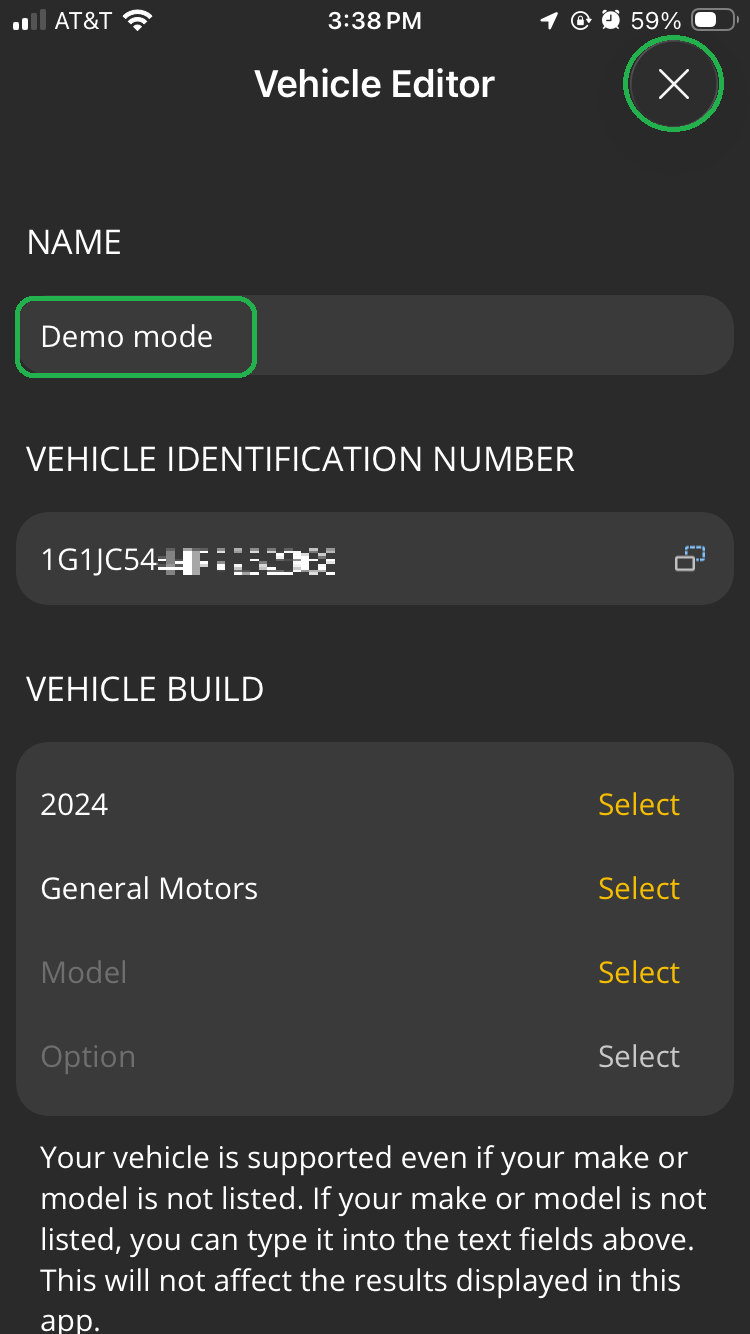
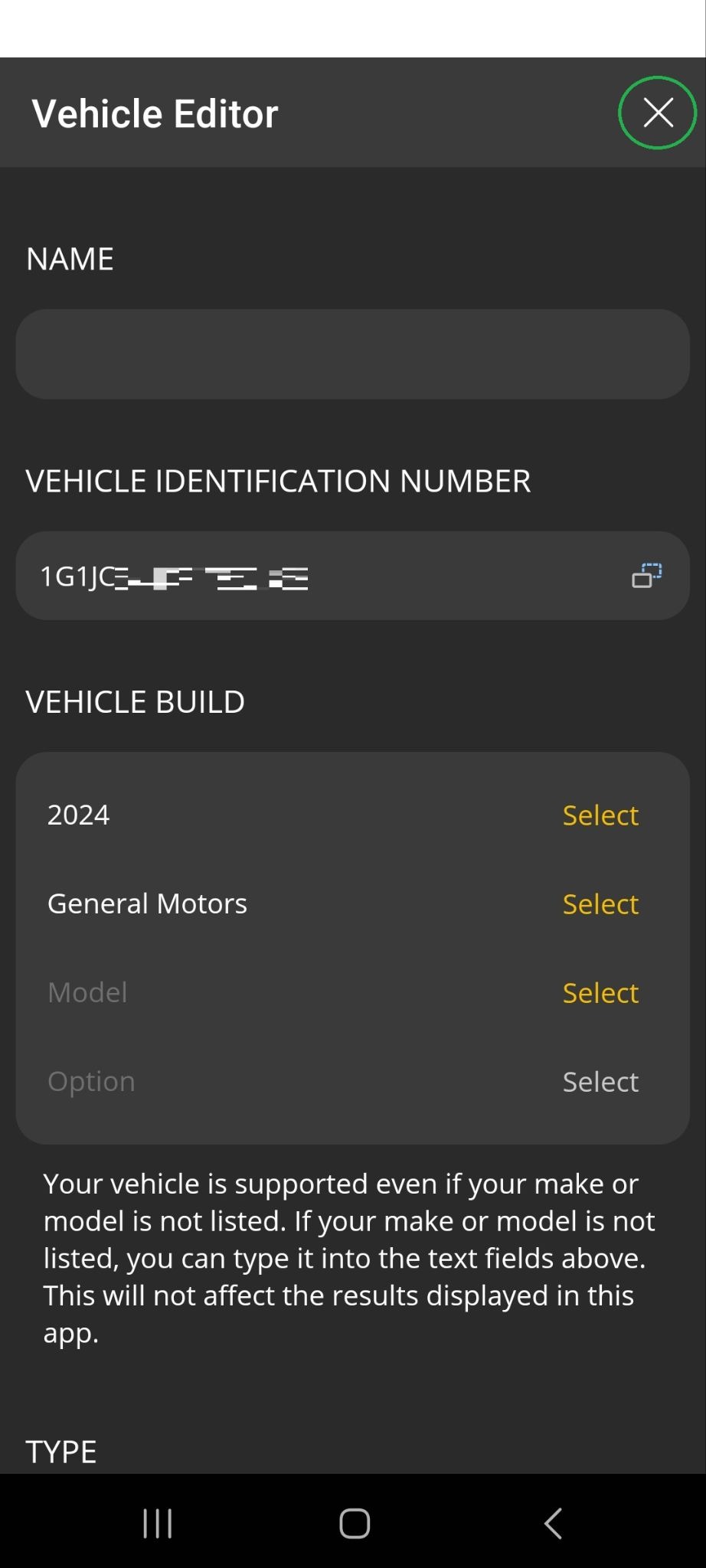
- When you connect a vehicle to your OBDLink adapter for the first time, a dialog appears asking if you want to edit the settings for the vehicle. Tap OK to open the Vehicle Editor.
For an actual vehicle, you can use the Vehicle Editor options to provide the most precise fuel economy, power, and torque estimates possible.
In Demo mode, you can scroll down to review all the options. You can add an optional vehicle name (highlighted) in the Name field or leave it blank.
When you’re done, tap the X button in the upper right corner of the screen to save your settings.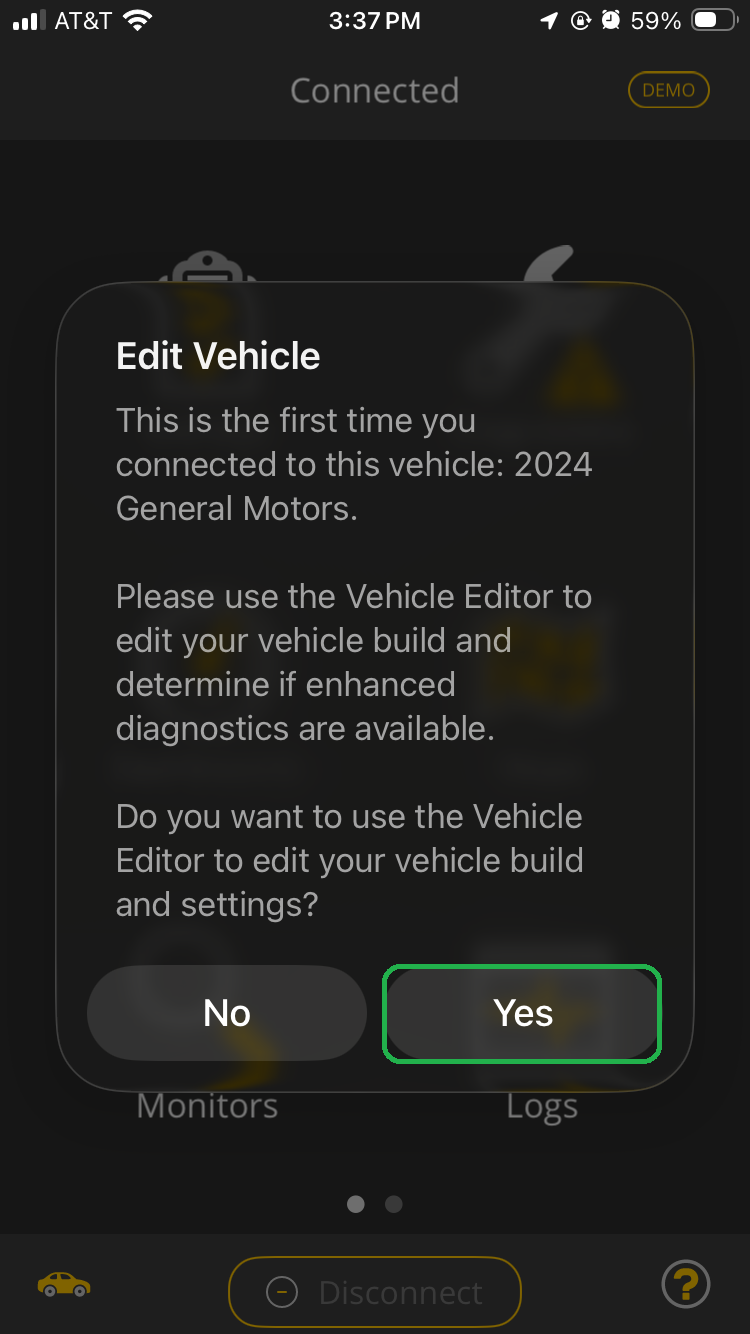
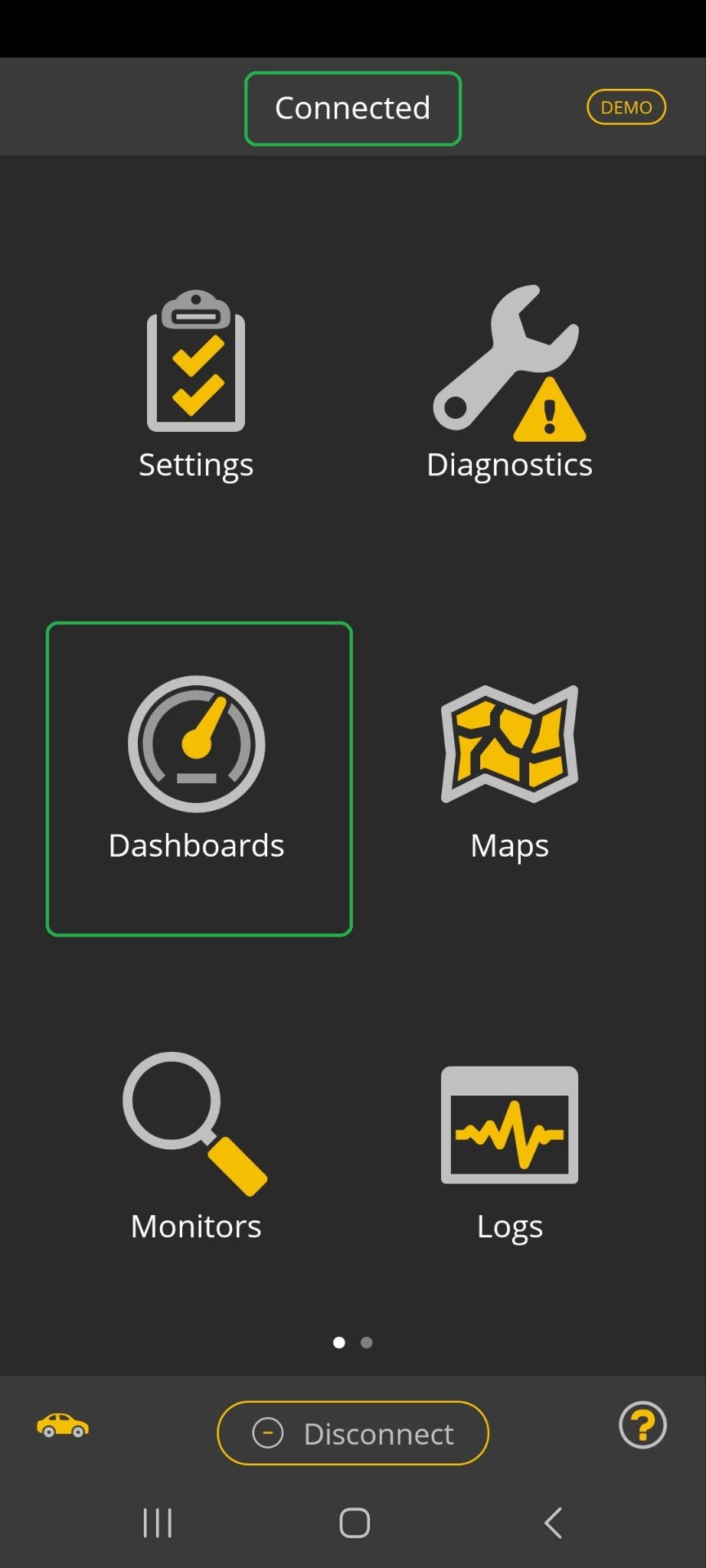
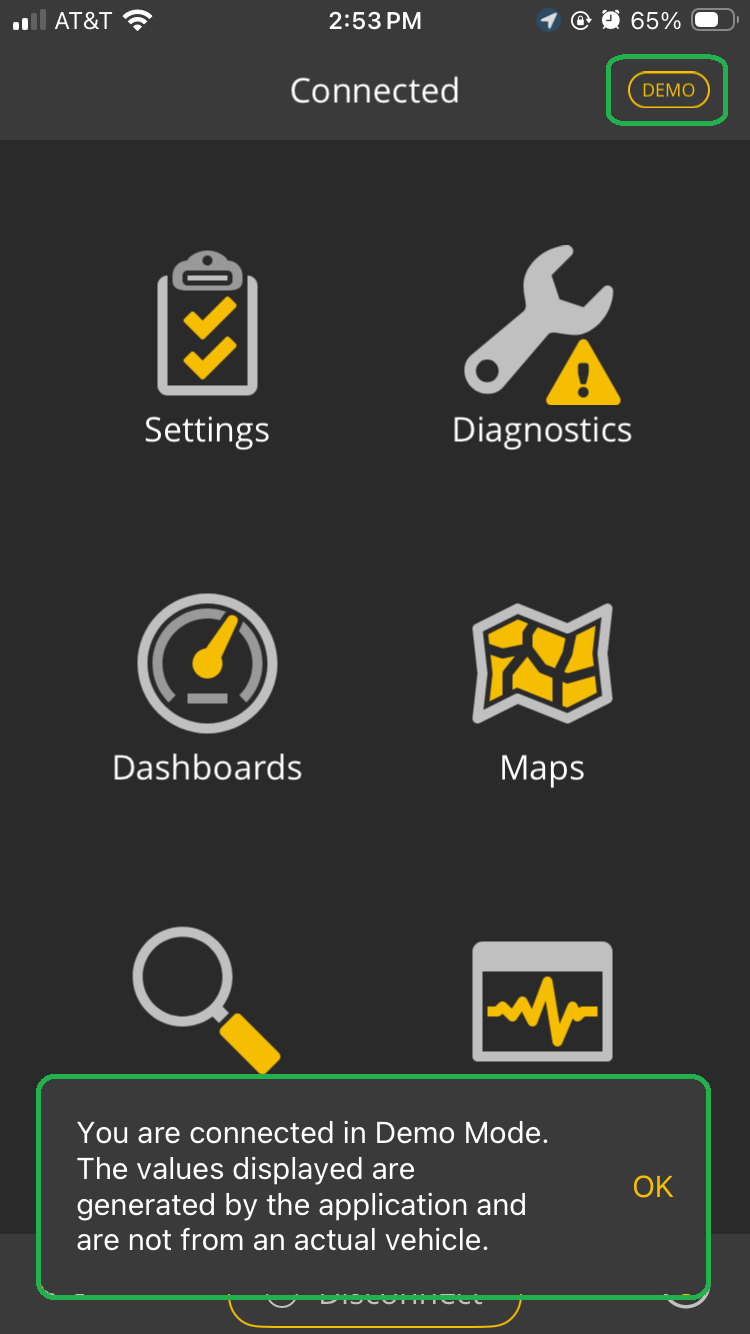
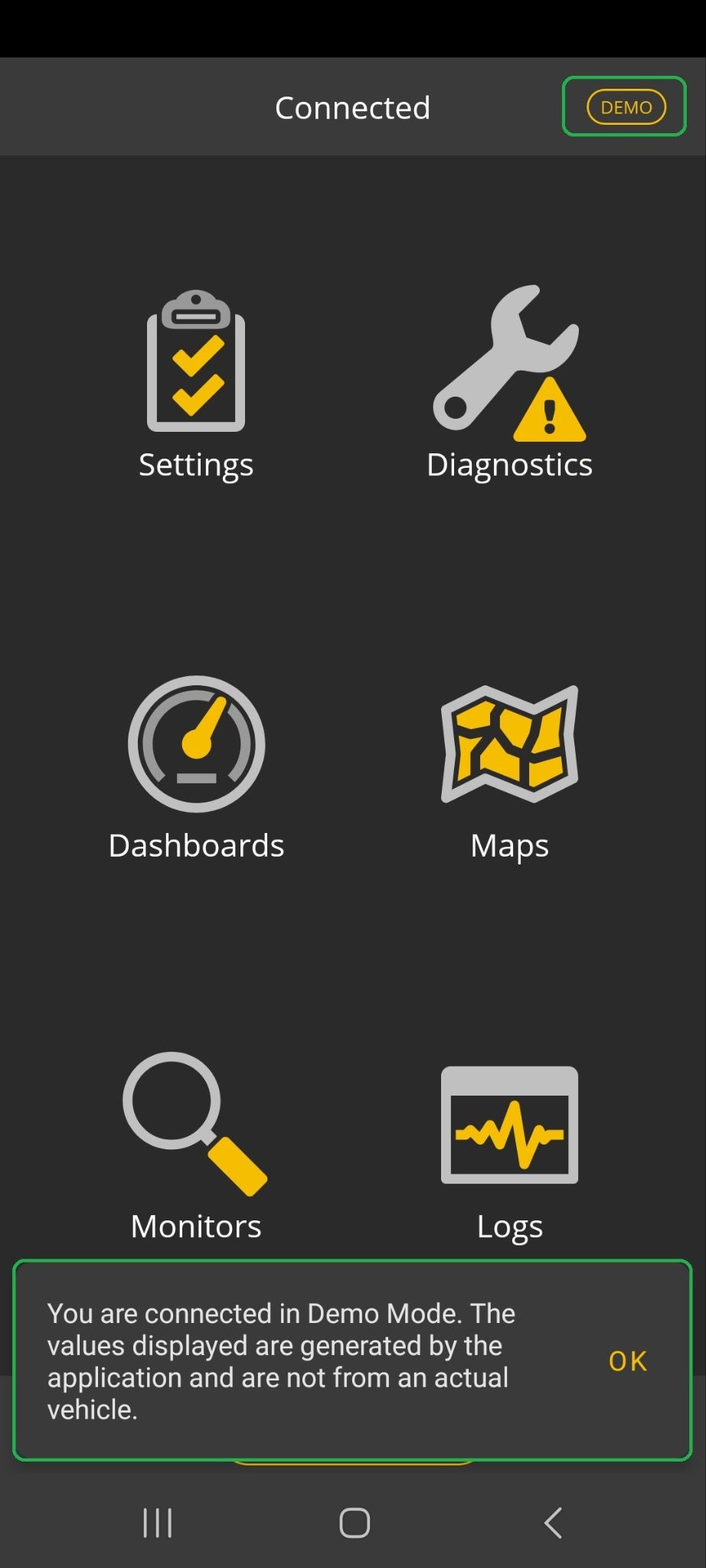
- The app home screen shows Connected at the top and the Demo mode indicator is displayed in yellow.
You may see a message explaining that Demo mode values are simulated by the OBDLink app (highlighted).
Tap OK to close the message.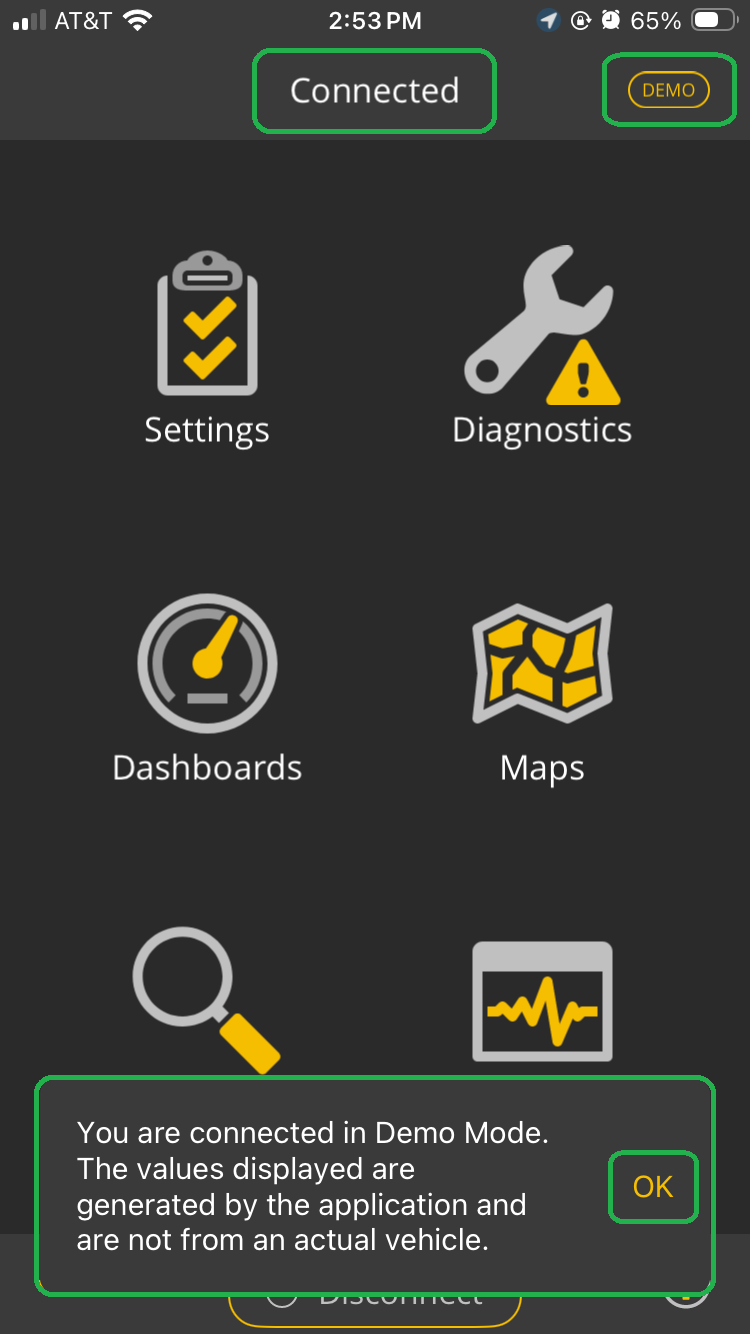
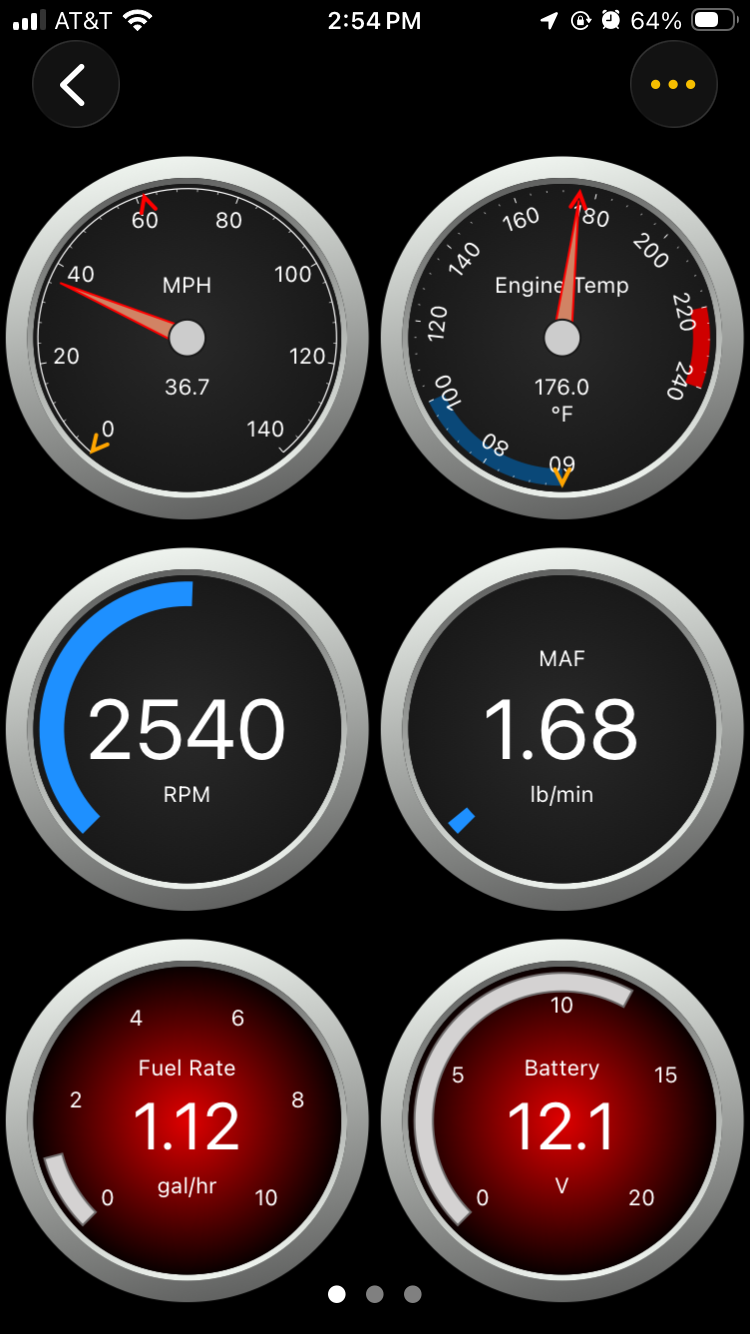
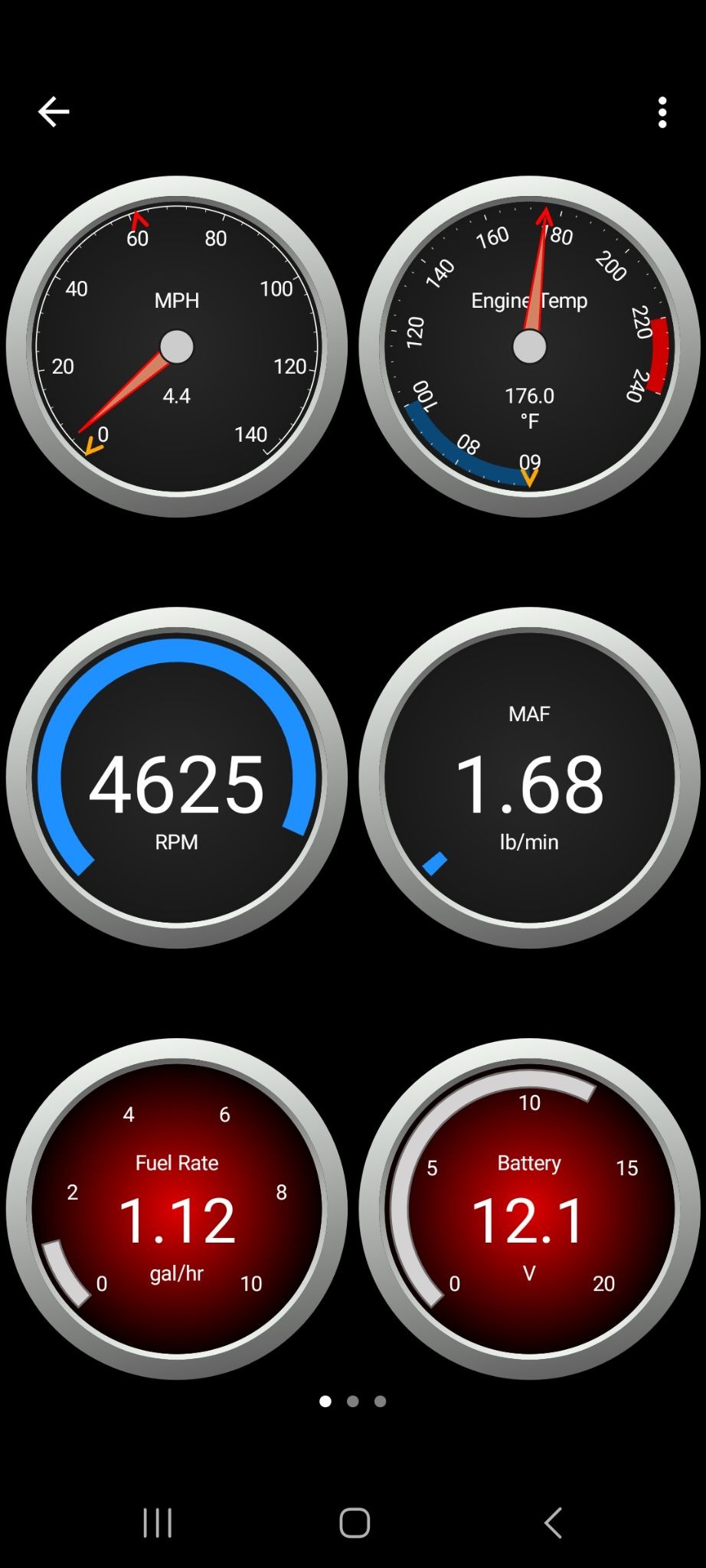
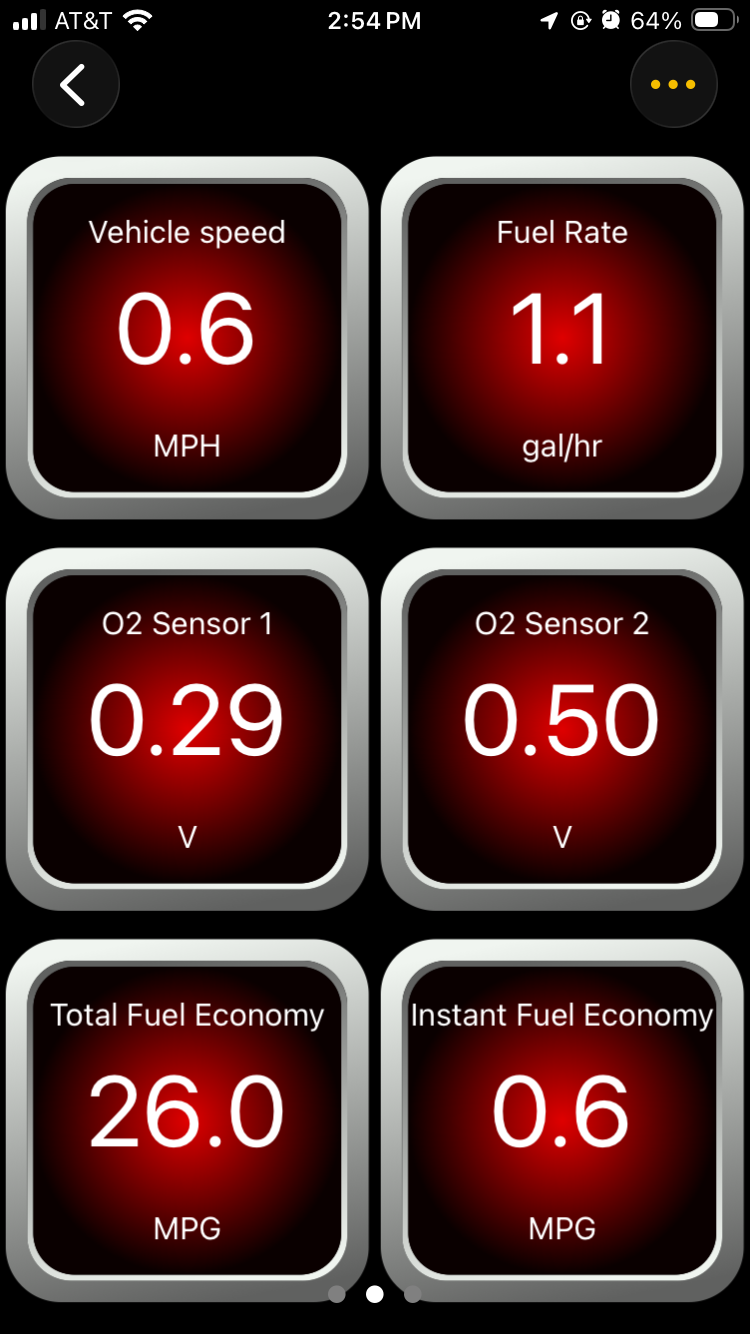
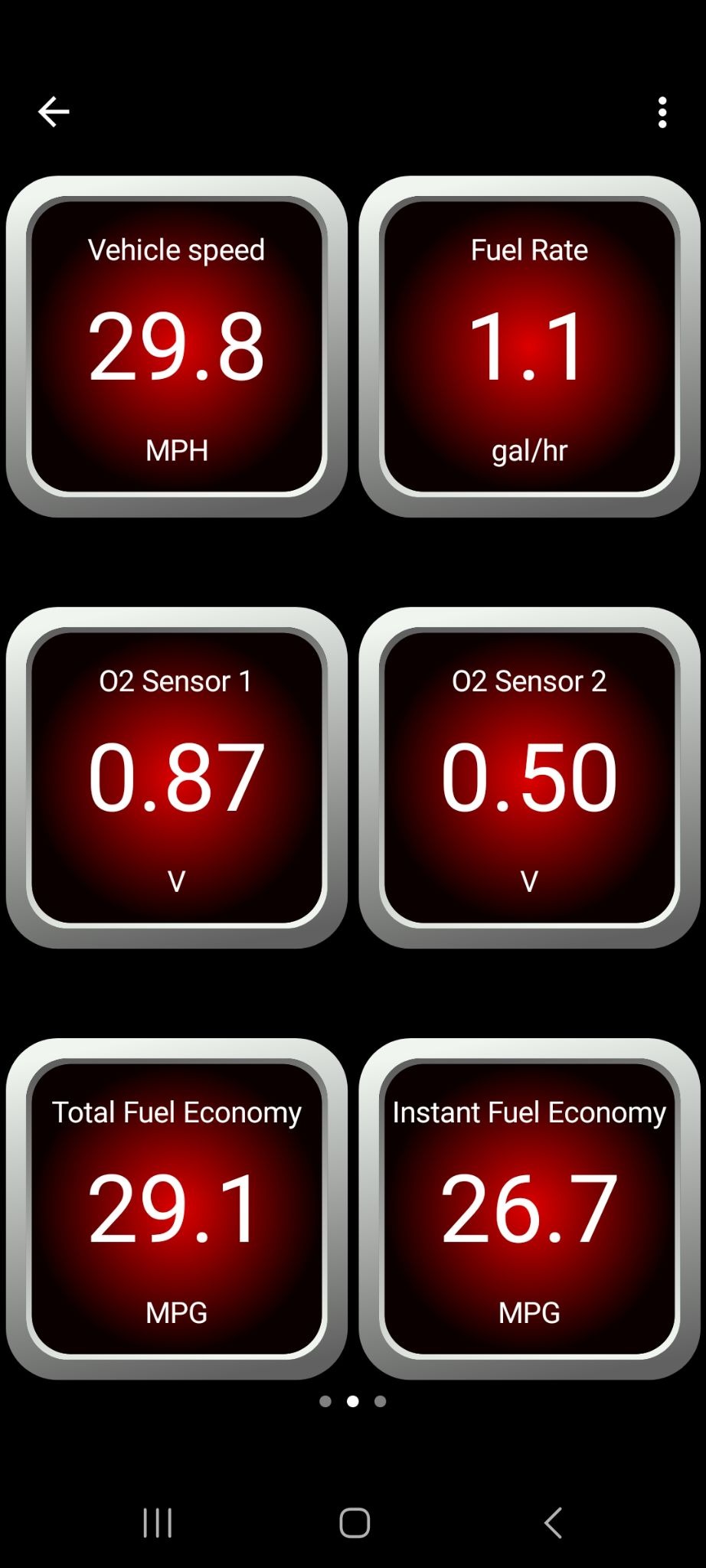
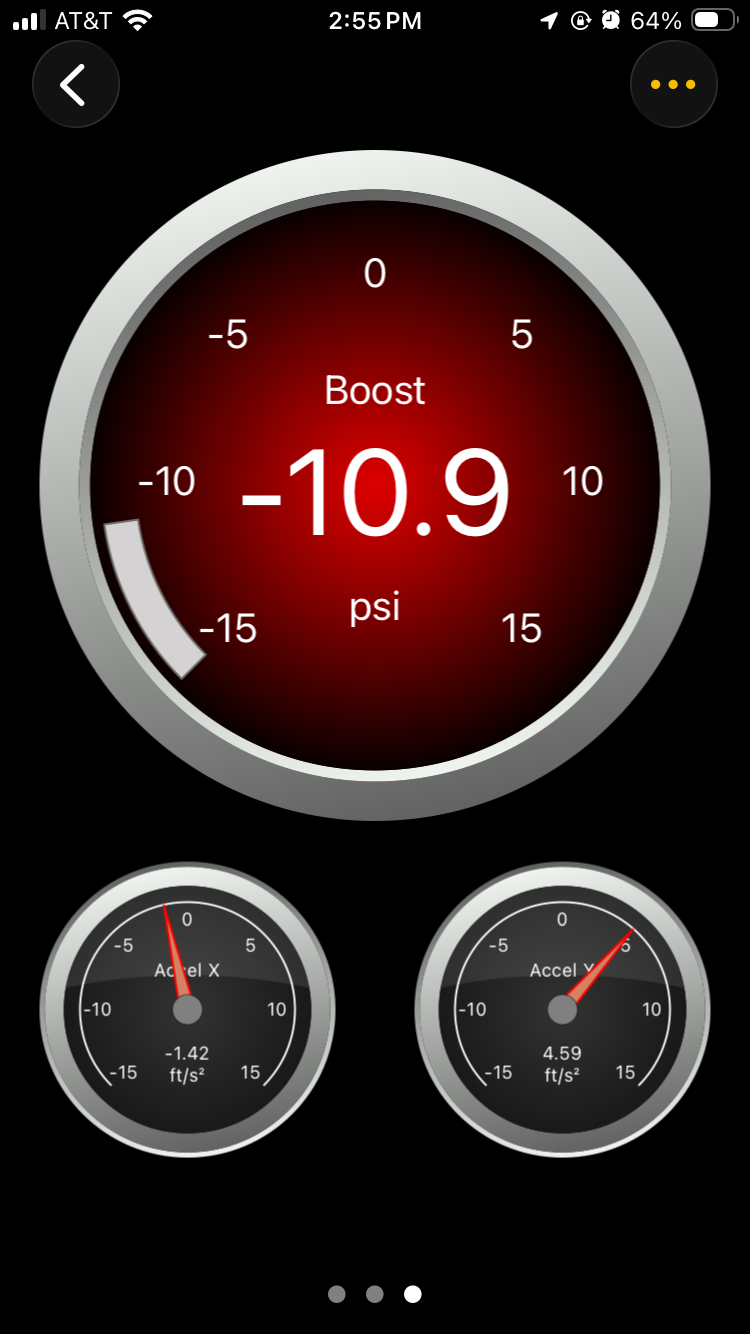
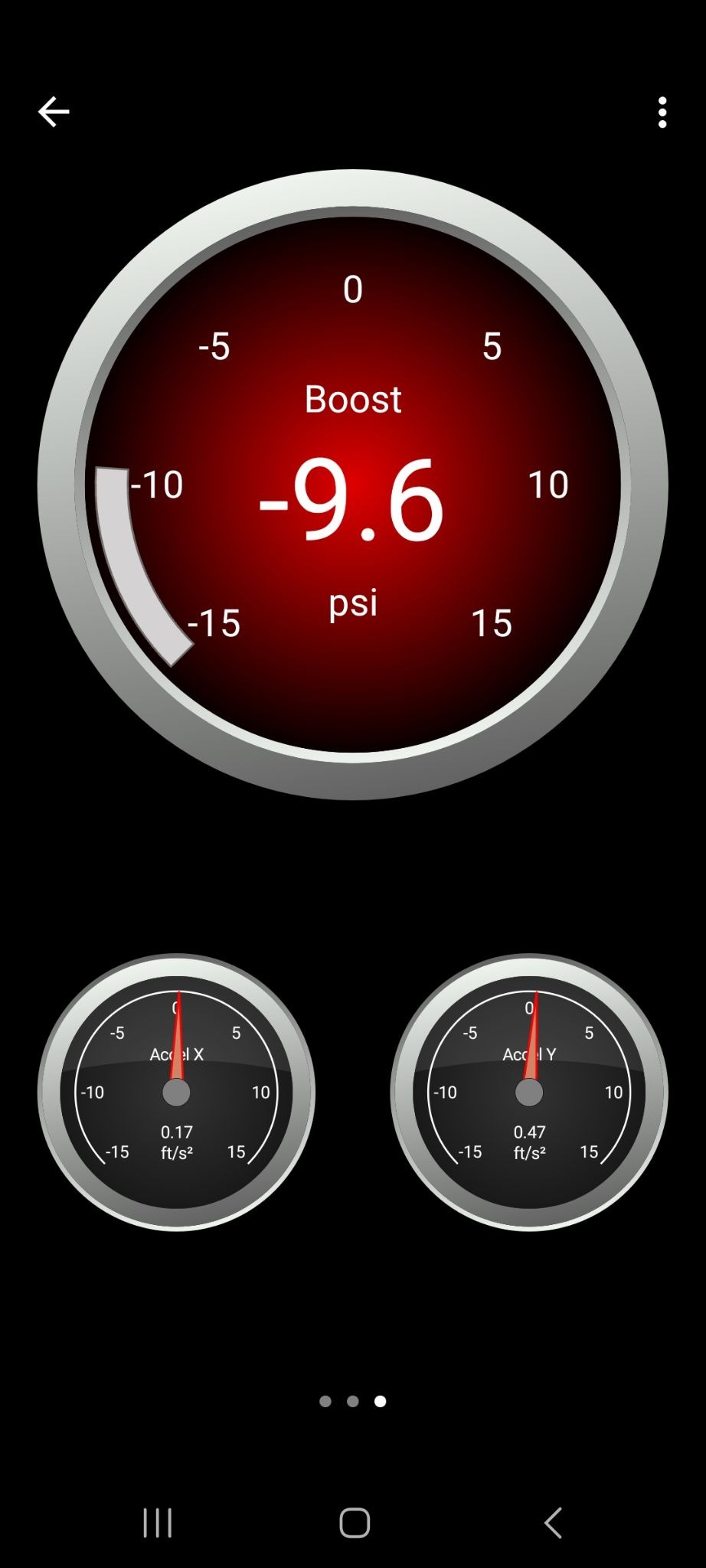
Tap the Dashboards icon to view simulated vehicle data that changes as if you were driving a vehicle. Swipe to see all three dashboard pages.
Tap the back arrow (<) in the upper left corner to return to the home screen.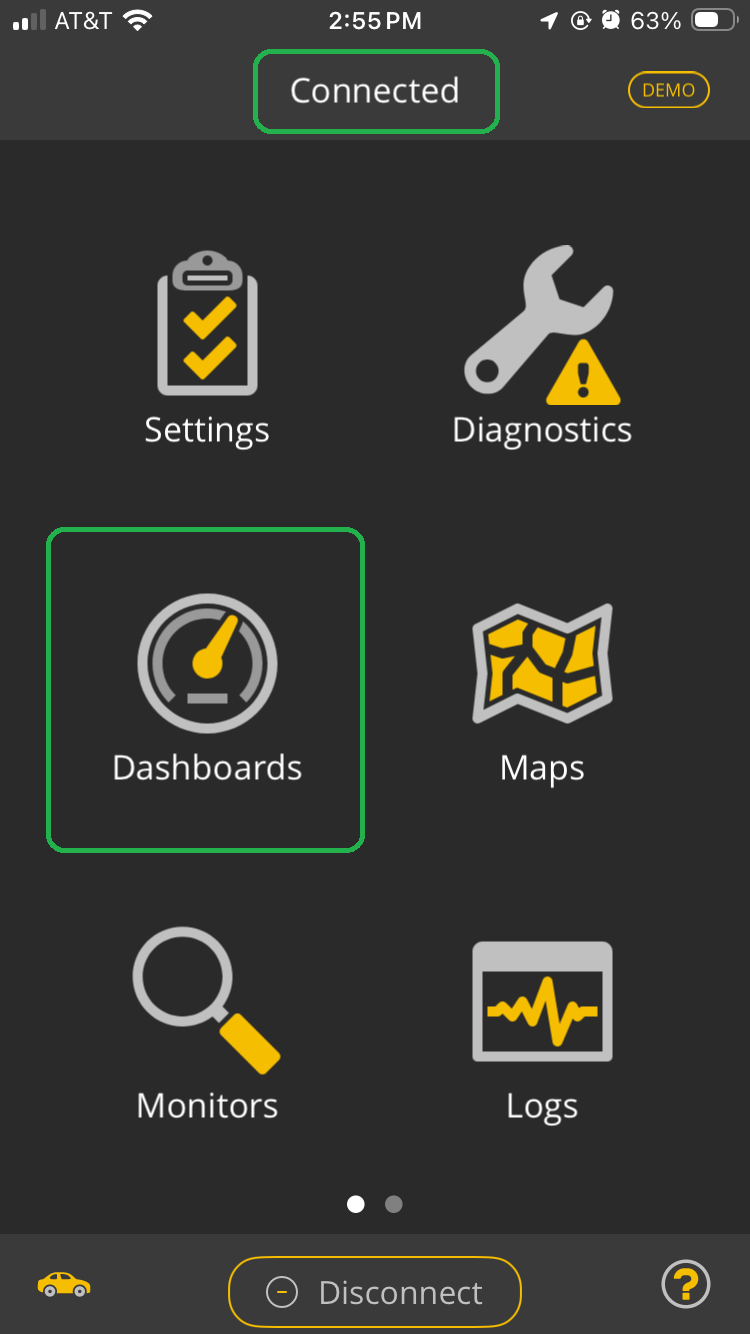
- Tap the Diagnostics icon to view simulated vehicle data. Tap Yes to close the Warning message.
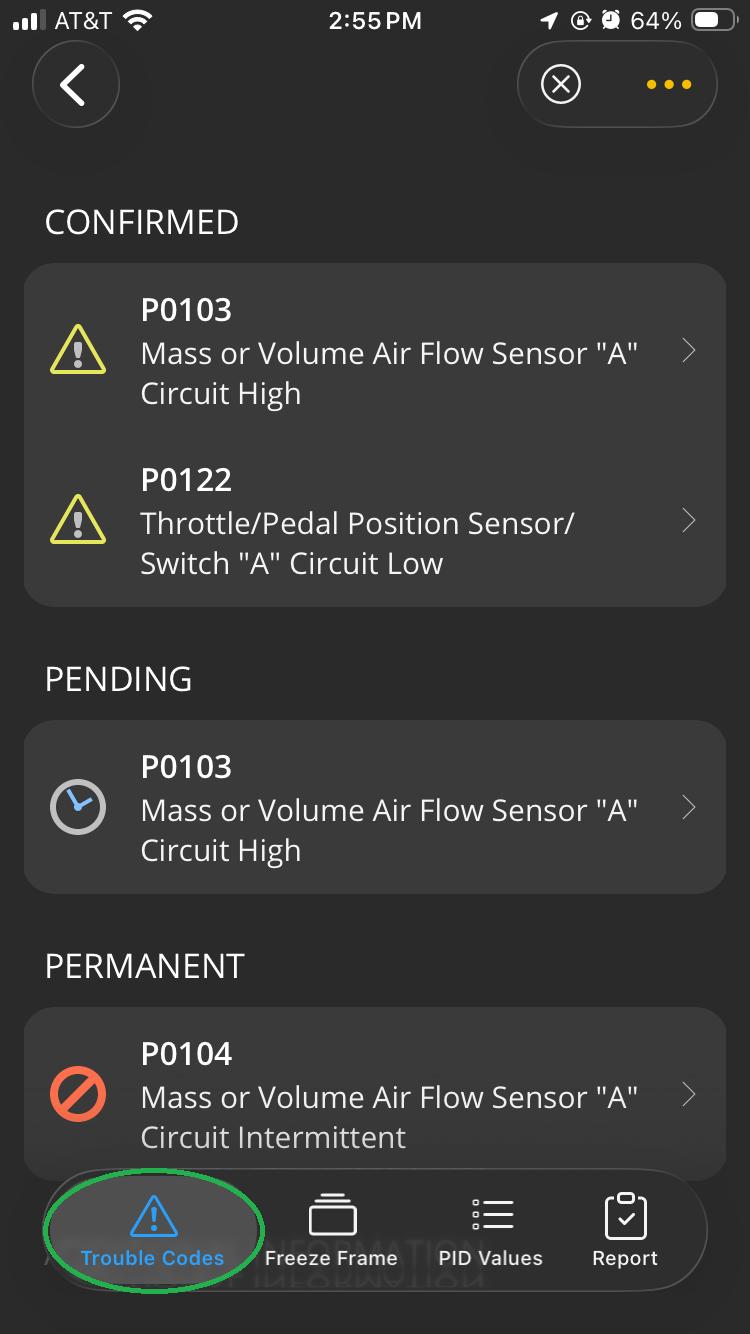
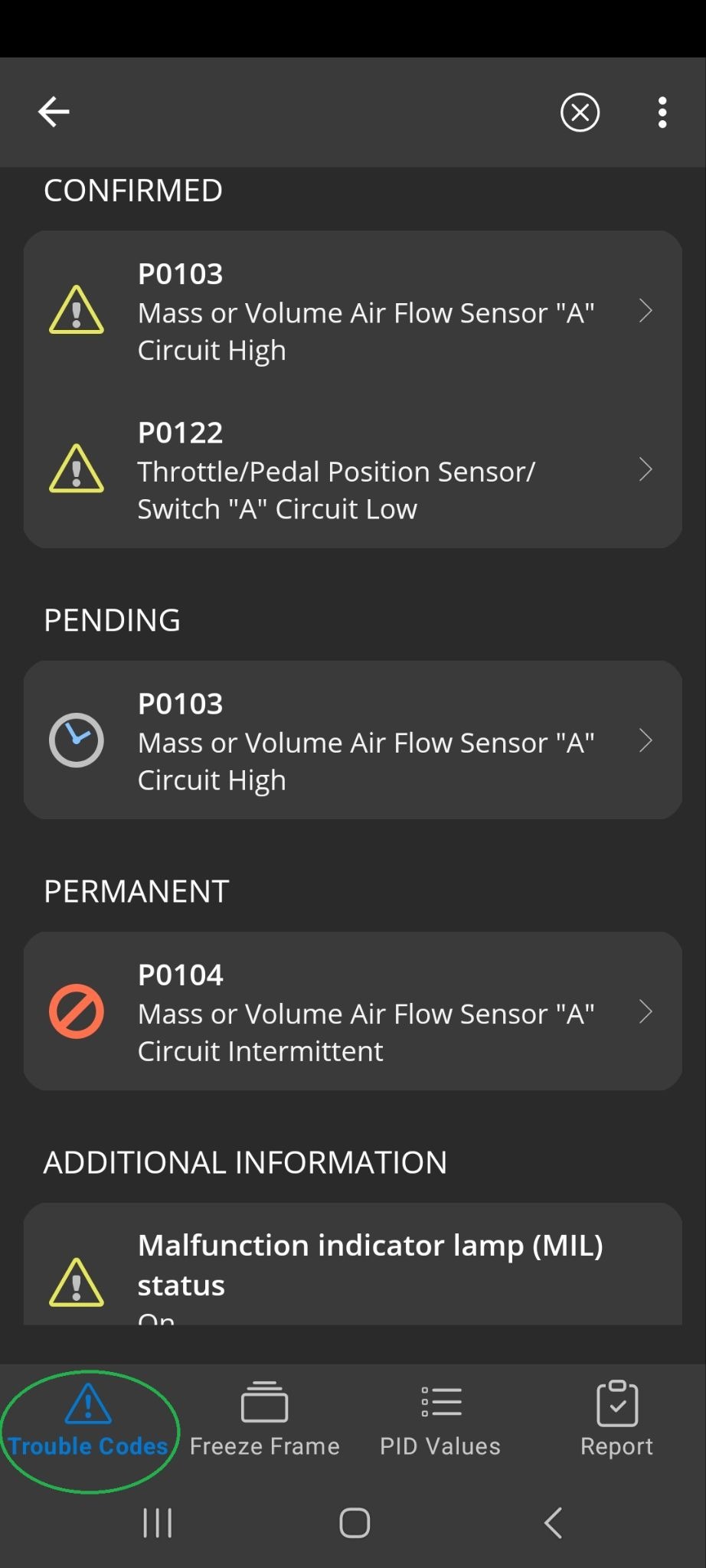
Tap the Trouble Codes tab to see simulated trouble code information. Tap a code to learn more about it.
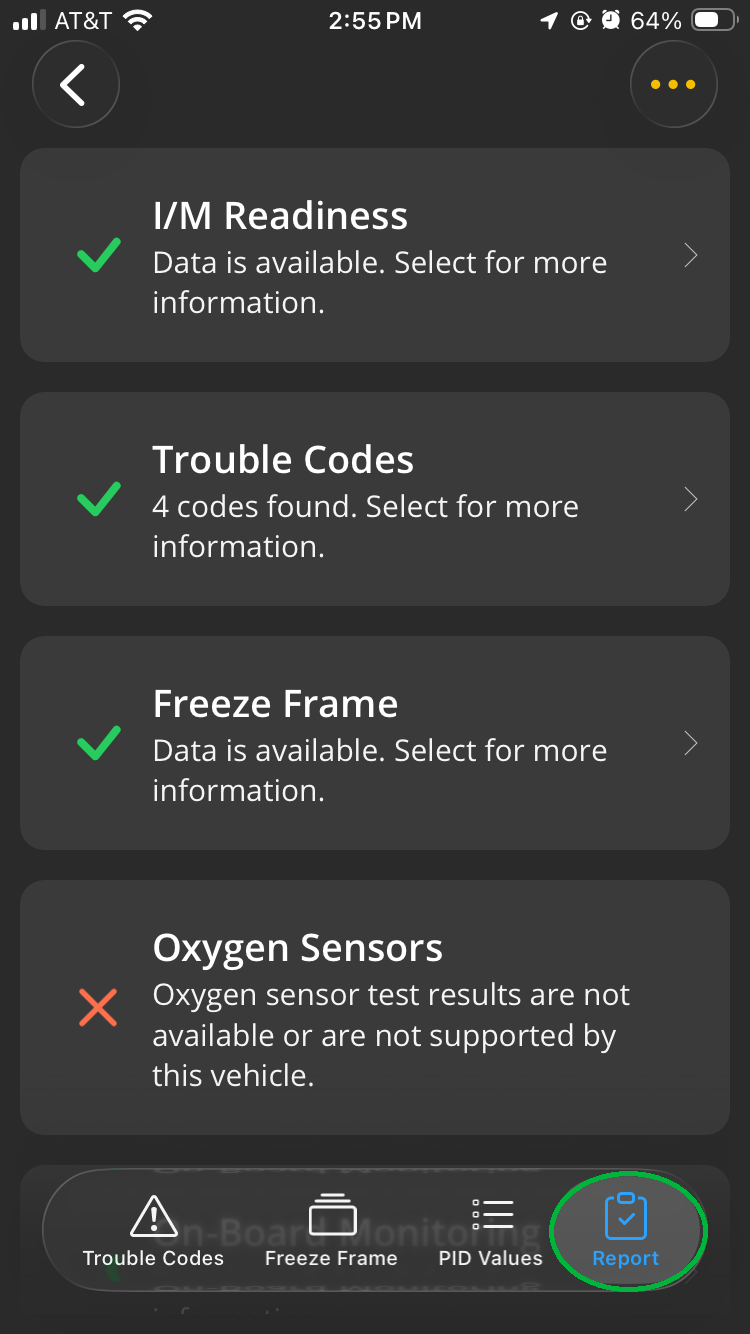
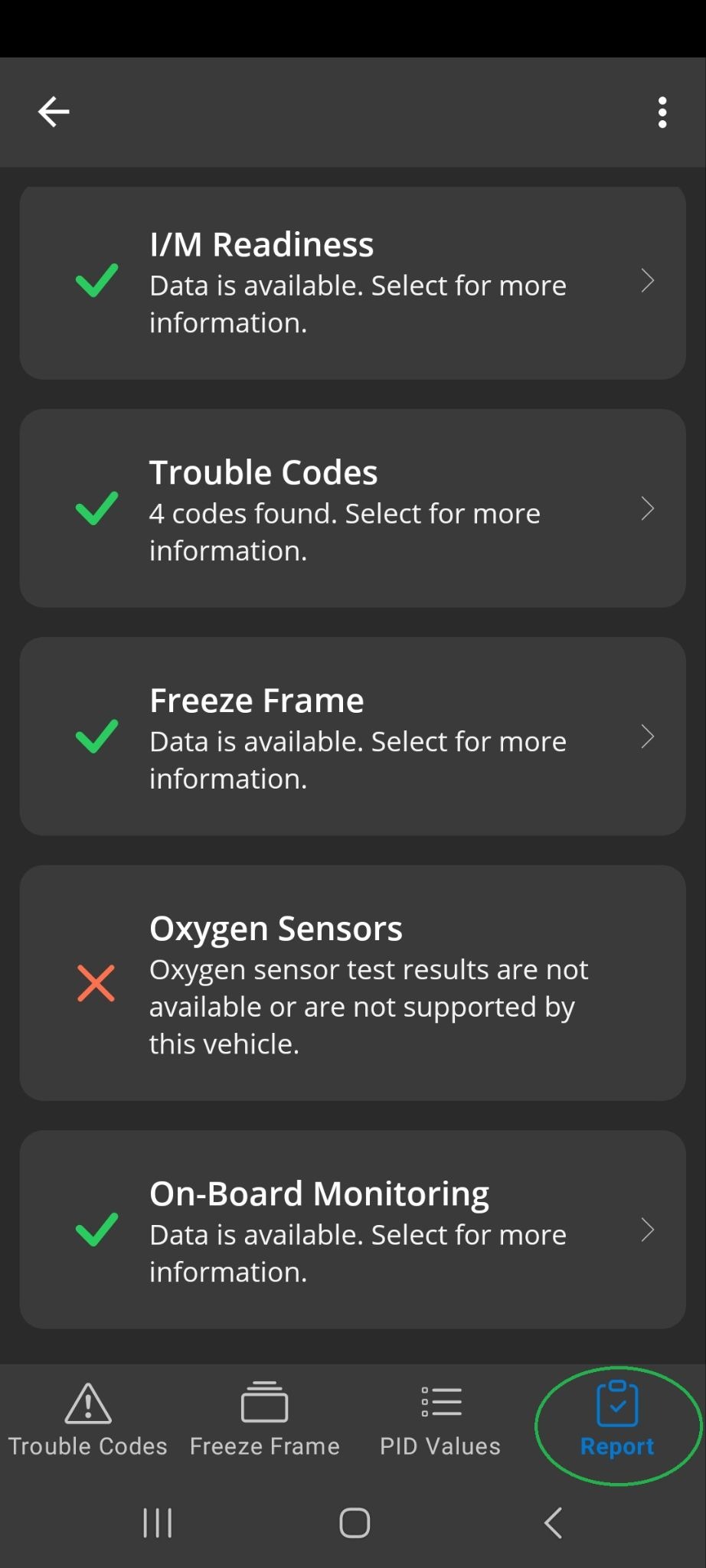
Tap the Report tab to view a report of the simulated diagnostics information. Tap a category to learn more.
Tap the back arrow (<) in the upper left corner to return to the home screen.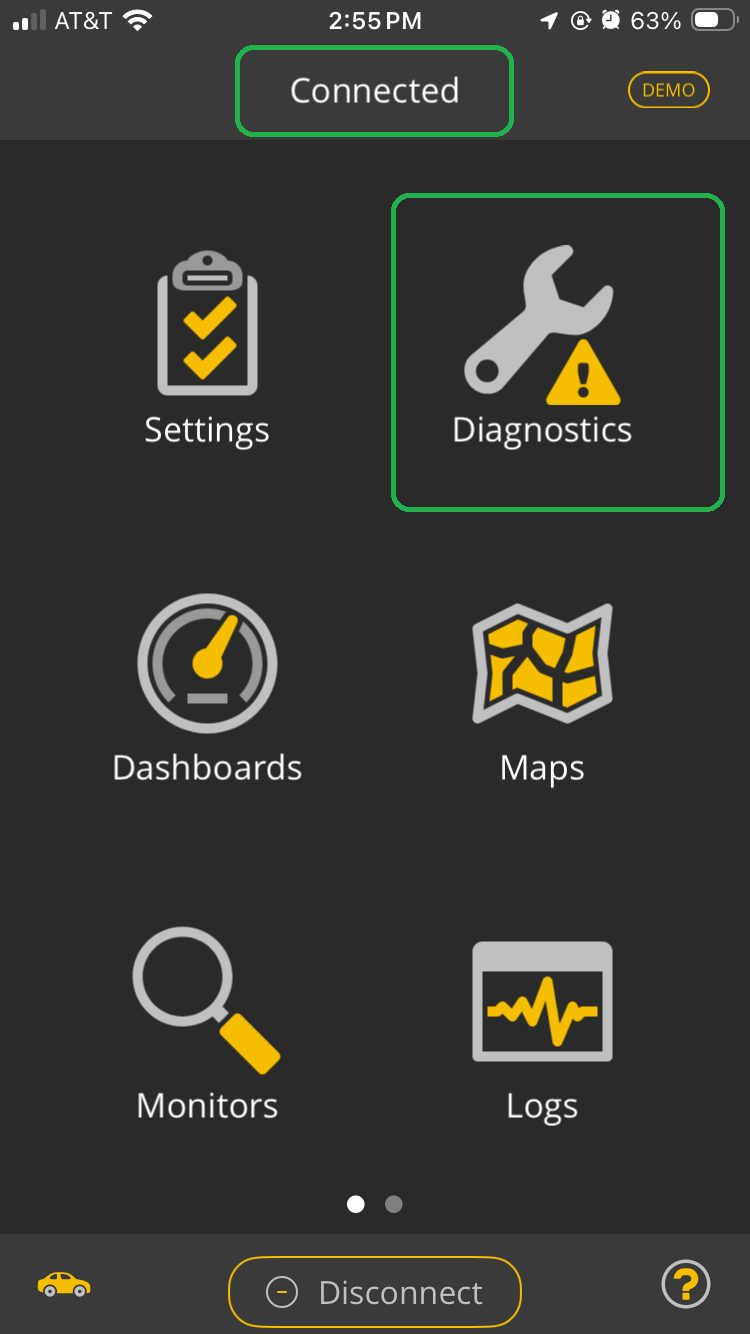
You can try other options in the OBDLink app, including Monitors, Logs (Graphs only), and Trips.
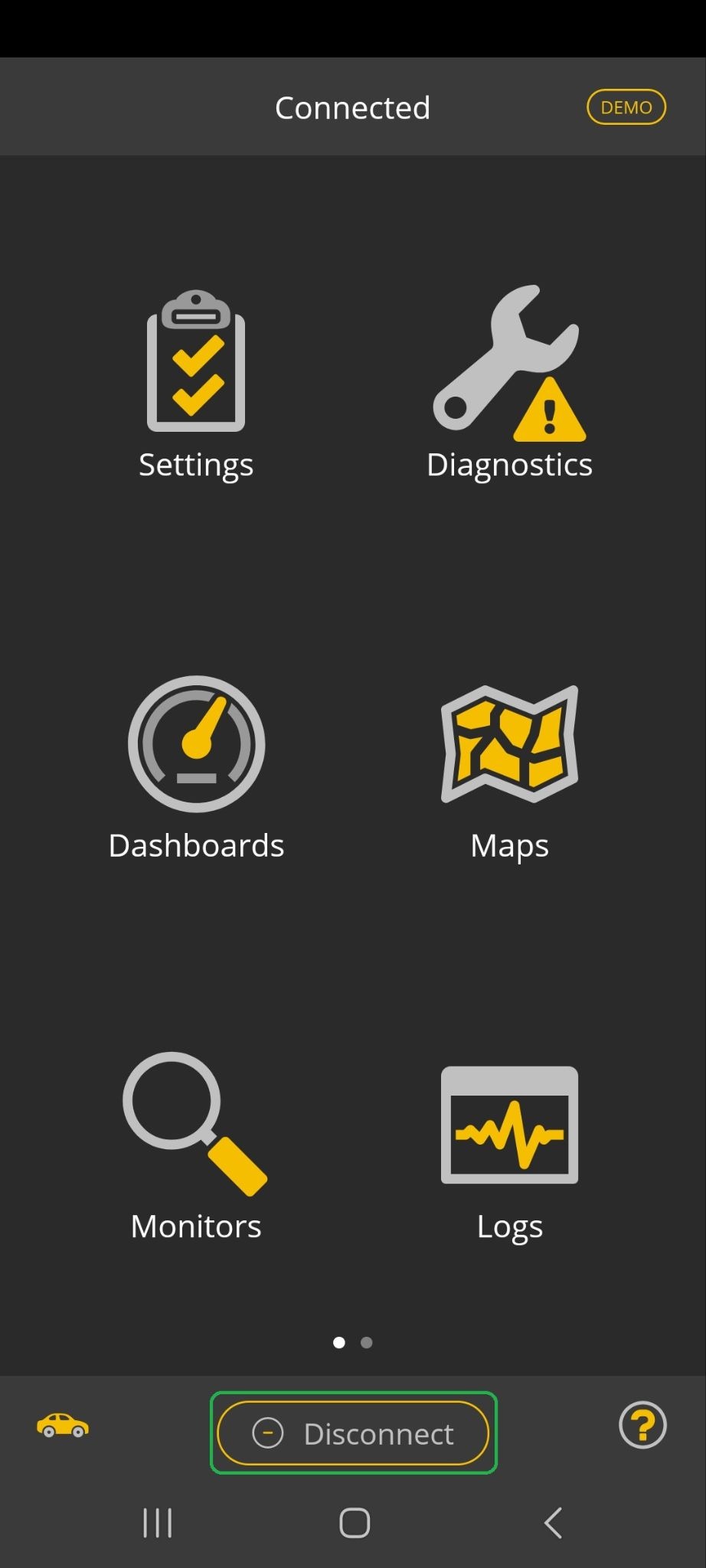
When you’re done exploring, tap the Disconnect button at the bottom of the screen.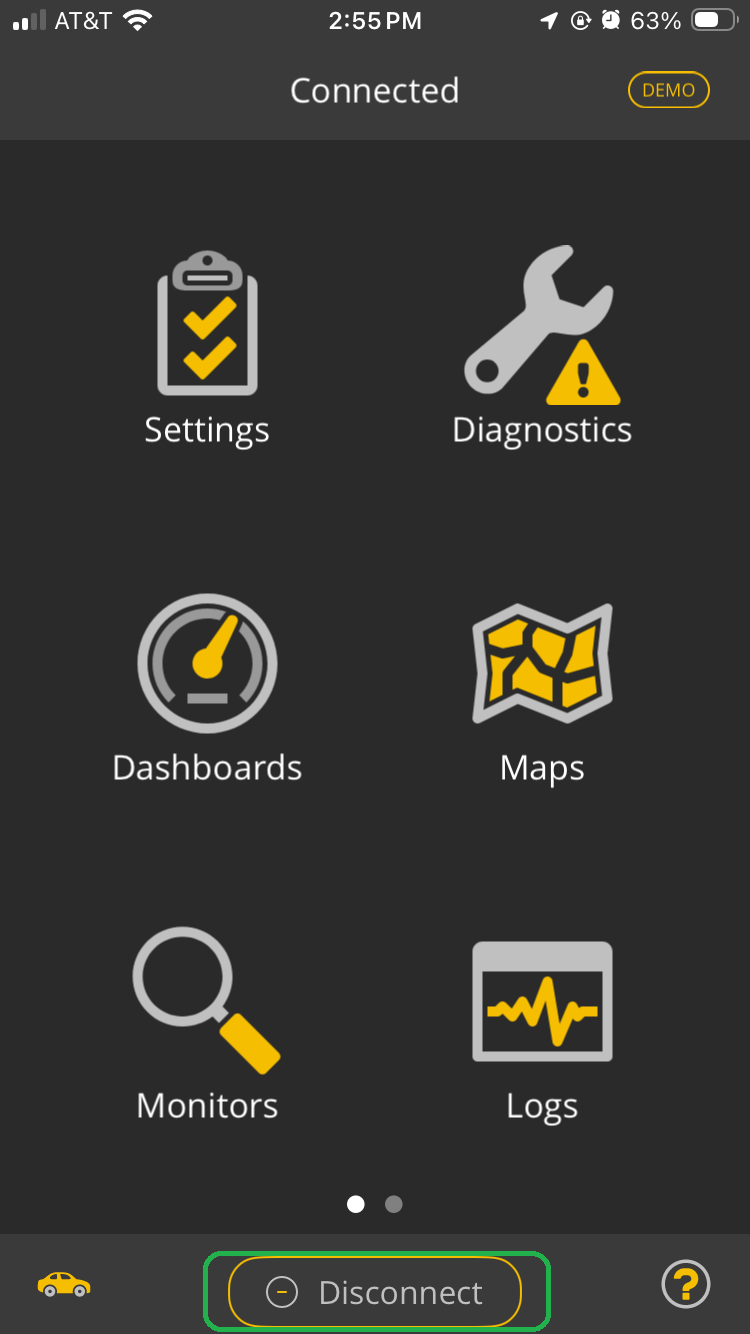
Turn off demo mode
When you’re done exploring the OBDLink app in Demo mode, we recommend you change the Connection mode to Bluetooth (or the correct mode for your adapter).
There are two methods to do this:
- In the OBDLink app, navigate to Settings > Preferences > Communications > Communication Type. Select Bluetooth, tap OK, and tap the back arrow (<) in the upper left corner several times to return to the home screen.
or - In the upper right corner of the app home screen, tap the Demo mode indicator to open the Communication Type selection screen. Select Bluetooth and tap OK to return to the home screen.
Troubleshooting
You can’t connect your phone/tablet to an OBDLink adapter when the app is in Demo mode.
If you see the message below (highlighted) when you’re trying to connect to an adapter, tap OK to clear the message, tap Disconnect, then follow the steps in the Turn off demo mode section.
 |  |
Learn more
- We recommend you read these articles before you purchase an OBDLink adapter:
- Is my vehicle supported? This article helps you determine if you can use OBDLink adapters with your vehicle.
- Which OBDLink® adapter is right for me? This article helps you evaluate the OBDLink adapter products and decide which one is best for your particular requirements.
- Are enhanced diagnostics available for my vehicle? This article helps you confirm if enhanced diagnostics are available for your vehicle.
Note: OBDLink adapters support all OBD-II compliant vehicles. You can read OBD-II diagnostic trouble codes (DTCs) using the free OBDLink app (Android and iOS) or OBDwiz (Windows). You need enhanced diagnostics to read additional manufacturer-specific DTCs and Parameter IDs (PIDs). For example, if you have a Ford vehicle, you may want to read and clear Ford-specific DTCs for the anti-lock braking system (ABS).
- You can explore other OBDLink features and functionality using our support article knowledge base.
- For descriptions of terms used in this article, see the Glossary of Acronyms and Terms.
Need more help?
OBDLink® is a registered trademark of OBD Solutions, LLC.