
You just purchased and received your Carbyte™ adapter. What do you do next?
Follow the steps in this guide to begin using your adapter with your vehicle and the optional Carbyte app.
- Is my vehicle supported?
- Install Carbyte
- View Carbyte LEDs
- Update Carbyte firmware
- Take a test drive
- Use the Carbyte app (optional)
- Use the OBDLink app (optional)
- Troubleshooting
- Learn more
- Need more help?
Note: Carbyte was developed for certain models of trucks, SUVs, and cars made by General Motors (GM). When installed in your vehicle, Carbyte:
- Disables Automatic Fuel Management (AFM) and Dynamic Fuel Management (DFM)
- Disables automatic engine start/stop
Is my vehicle supported?
Carbyte works with a wide variety of GM vehicles, including the 2022-2024 SUVs and 2022-2025 trucks, as well as 10-speed transmission vehicles. Be sure to check that the Carbyte adapter will work with your vehicle.
Download the Supported Vehicles List on the Carbyte Support page.
Note: We do not plan to update Carbyte to support newer model years of GM vehicles or any vehicles from other manufacturers.
Install Carbyte
Warning: Don't run your vehicle's engine in an enclosed garage. Park your vehicle in an open space when doing first-time setup with your adapter.
- Be sure your vehicle ignition is off.
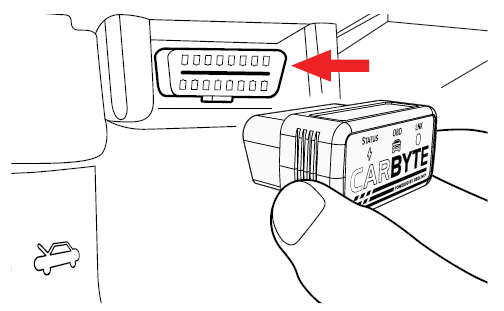
Plug your adapter into the OBD port in your vehicle.
In most cases, the OBD port is in the driver’s side footwell, below the steering wheel.
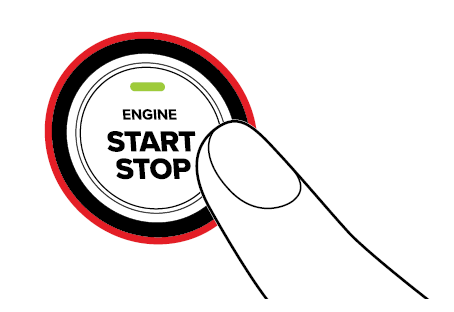
Start your vehicle’s engine by pressing the Start button or turning the key.
Don’t shift gears, leave your vehicle in park.
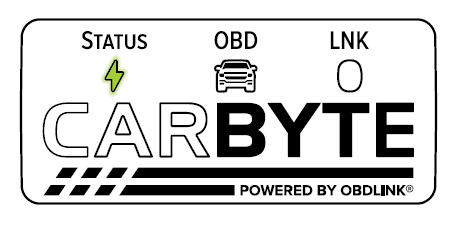
Wait for Carbyte to synchronize with your vehicle. The first time, it may take 2 minutes to complete.
You will know when the sync is finished, because the green STATUS LED will blink slowly.
View Carbyte LEDs
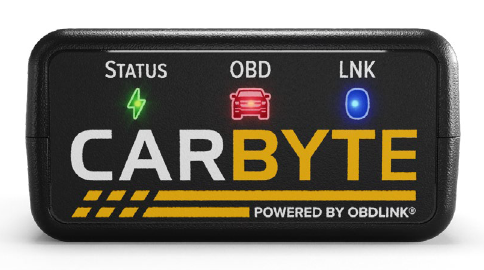
Carbyte has three LEDs: STATUS (green), OBD (red), and LNK/BLE (blue).
 |
Note: Carbyte and other OBDLink adapters use BatterySaver™ Technology low power mode, so they will not drain your vehicle battery and are safe to leave installed. If you awaken your vehicle with the key fob by walking nearby or opening, closing, locking/unlocking doors, you will reactivate Carbyte.
STATUS (green LED):
- LED is on when Carbyte is idle/off.
- LED blinks slowly when Carbyte is syncing with the vehicle.
- LED blinks quickly when Carbyte detects an error related to AFM/DFM.
- LED blinks off intermittently when Carbyte is synced with the vehicle.
OBD (red LED)
- LED is on when Carbyte is connected to the vehicle.
- LED blinks off intermittently when a valid transmission/reception message is sent/received.
- LED is off when Carbyte is not connected to the vehicle.
LNK/BLE (blue LED)
- LED is on when Carbyte has established a Bluetooth connection with a phone/tablet.
- LED blinks slowly when Carbyte does not have an active Bluetooth connection with a phone/tablet.
- LED blinks quickly when Carbyte is in pairing mode. This remains active for 5 minutes on initial power-up or until after pairing has established. After 5 minutes, if pairing is needed with your phone/tablet, you must unplug Carbyte and plug it back in.
Typical LED behavior
When the Carbyte adapter is installed and synced to your vehicle, the engine is running, and Carbyte is Connected to your phone/tablet using the Carbyte app, you will see this typical LED behavior:
- Green STATUS LED will be mostly on and blink off intermittently.
- Red OBD LED will blink on and off when data is transmitted.
- Blue LNK LED will be mostly on and blink off intermittently.
Update Carbyte firmware
Our development team periodically releases new updates to the Carbyte adapter firmware. We recommend that you update to the newest version to make use of the latest performance improvements and bug fixes.
Update the Carbyte adapter firmware by following these steps:
- Download the latest version of the Carbyte app from the App Store (iOS) or Google Play (Android), depending on the type of phone or tablet you have.
- Open the Carbyte app and tap Launch Connection Wizard.
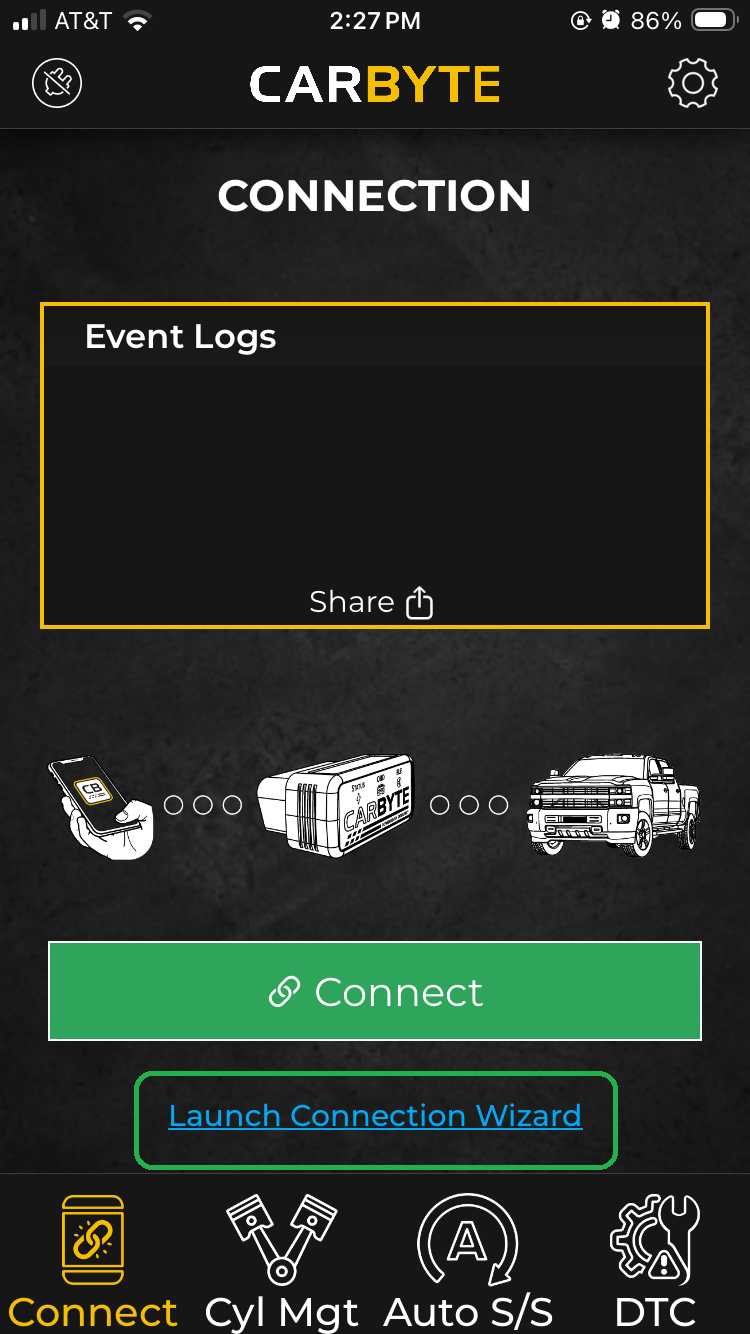
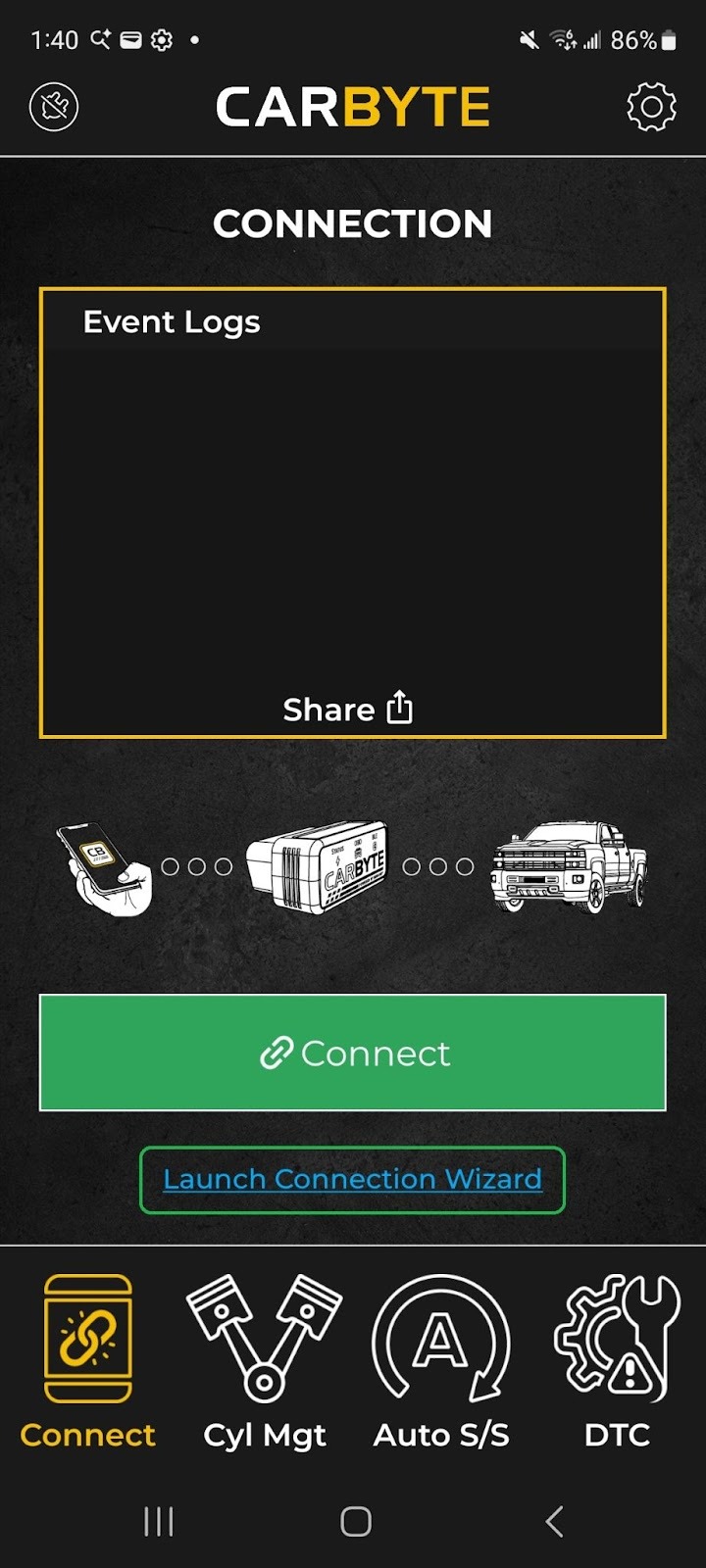
We recommend you use the Connection Wizard in the Carbyte app the first time you connect to your adapter or if you add a new vehicle. After the first time you connect, you can tap the Connect button.iOS Android - Follow the steps in the Connection Wizard.
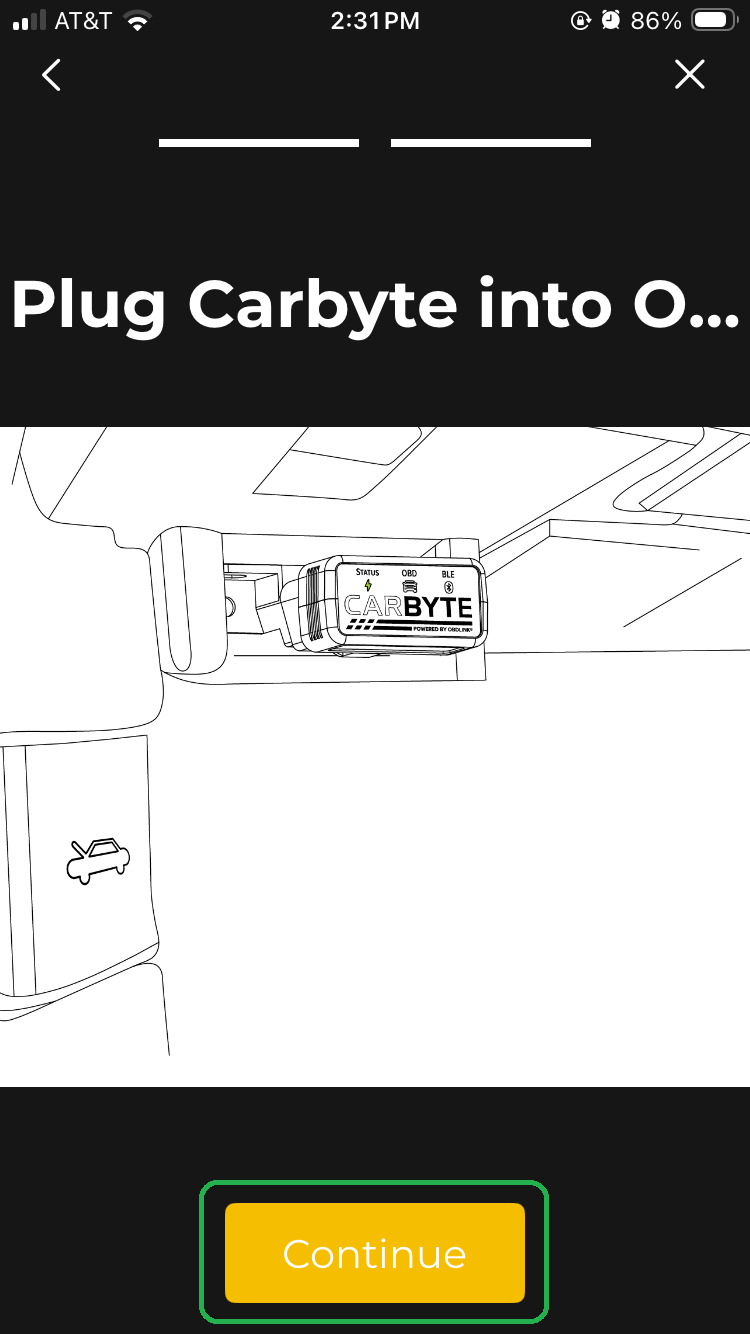
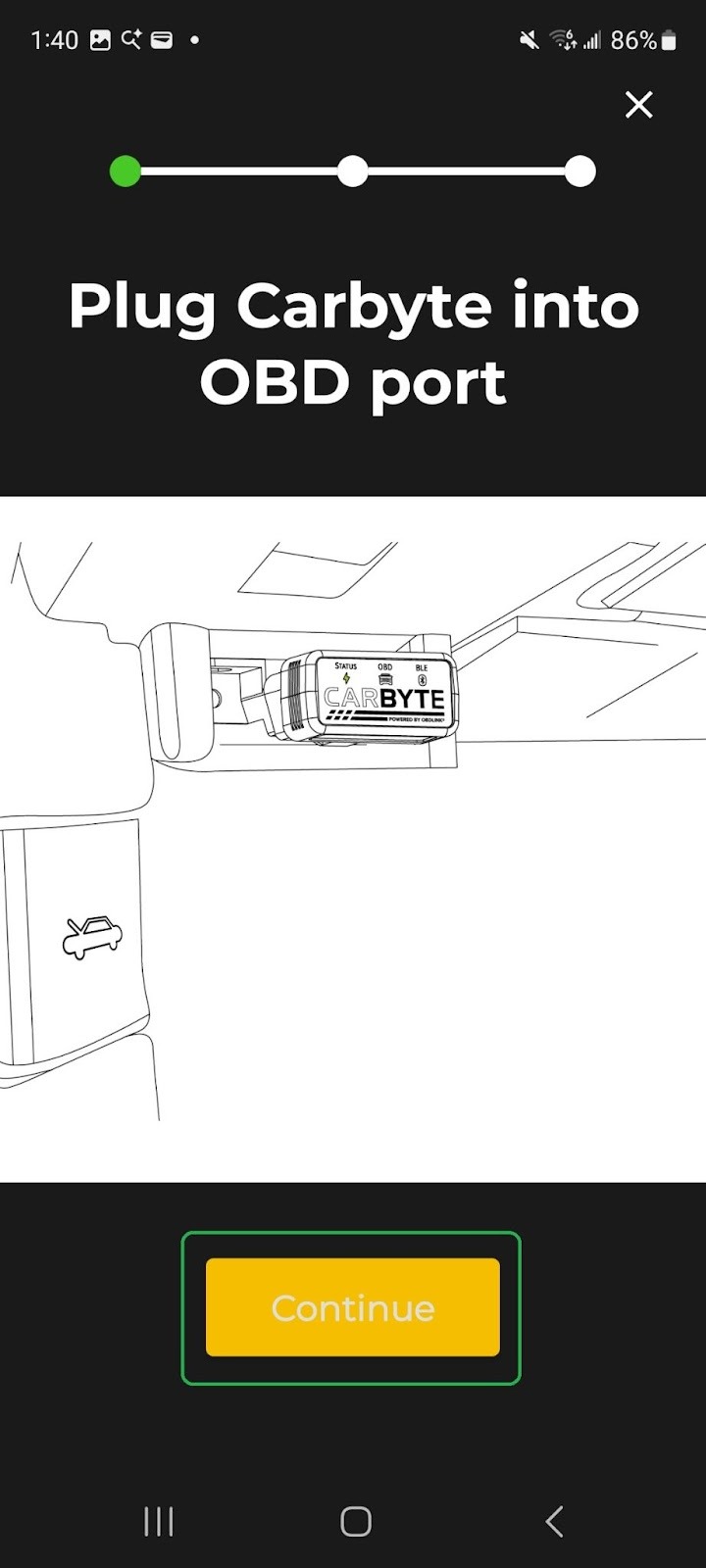
- Plug your adapter into the OBD port in your vehicle. In most cases, the OBD port is in the driver’s side footwell, below the steering wheel.
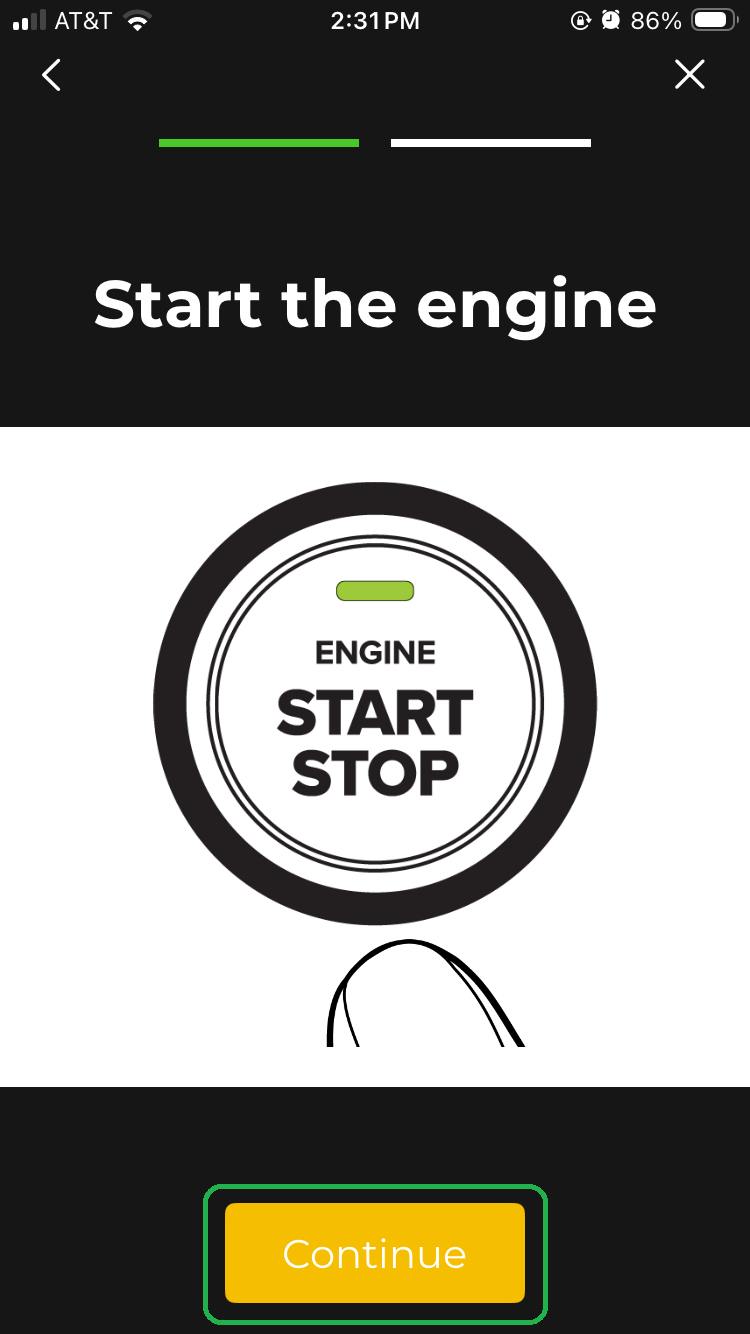
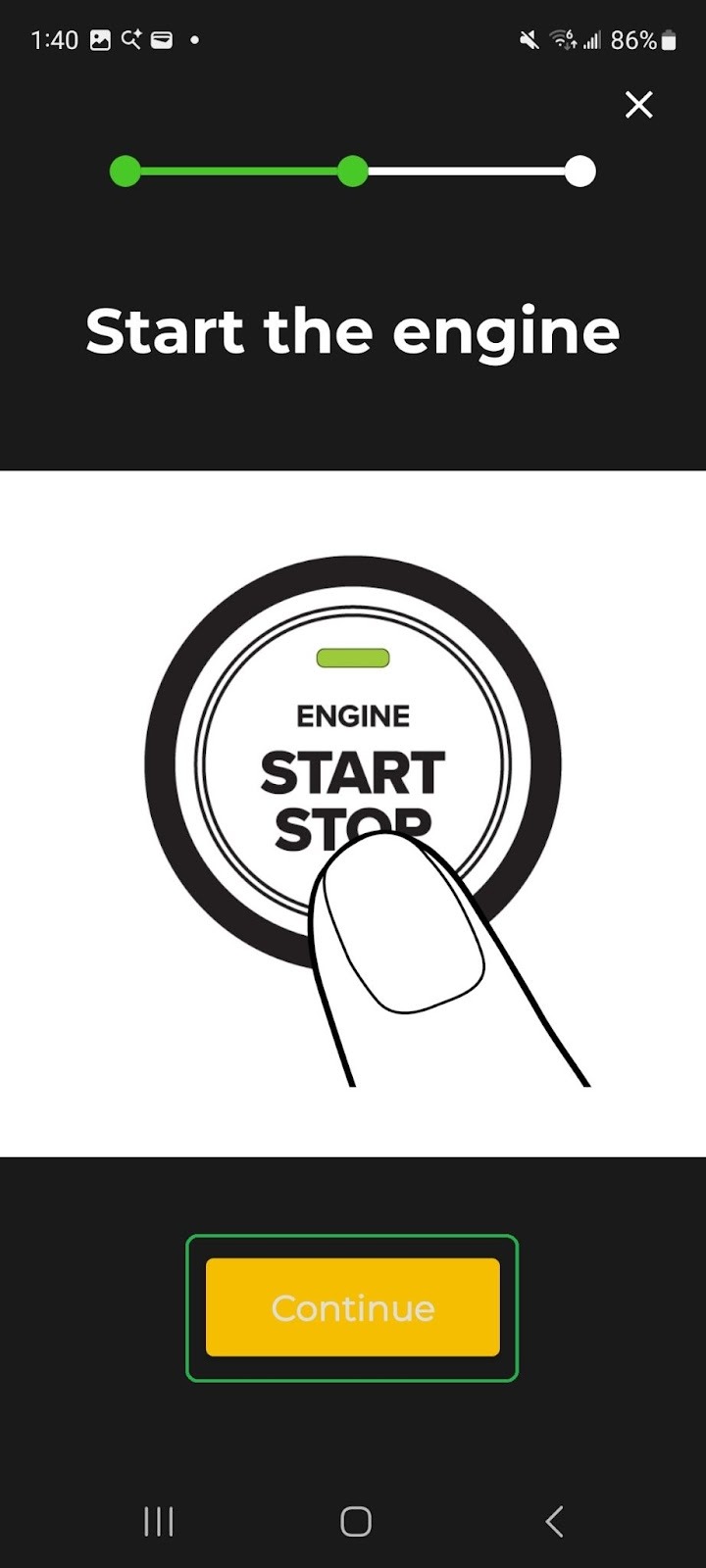
Tap Continue. - Start your vehicle’s engine by pressing the Start button or by turning the ignition key.
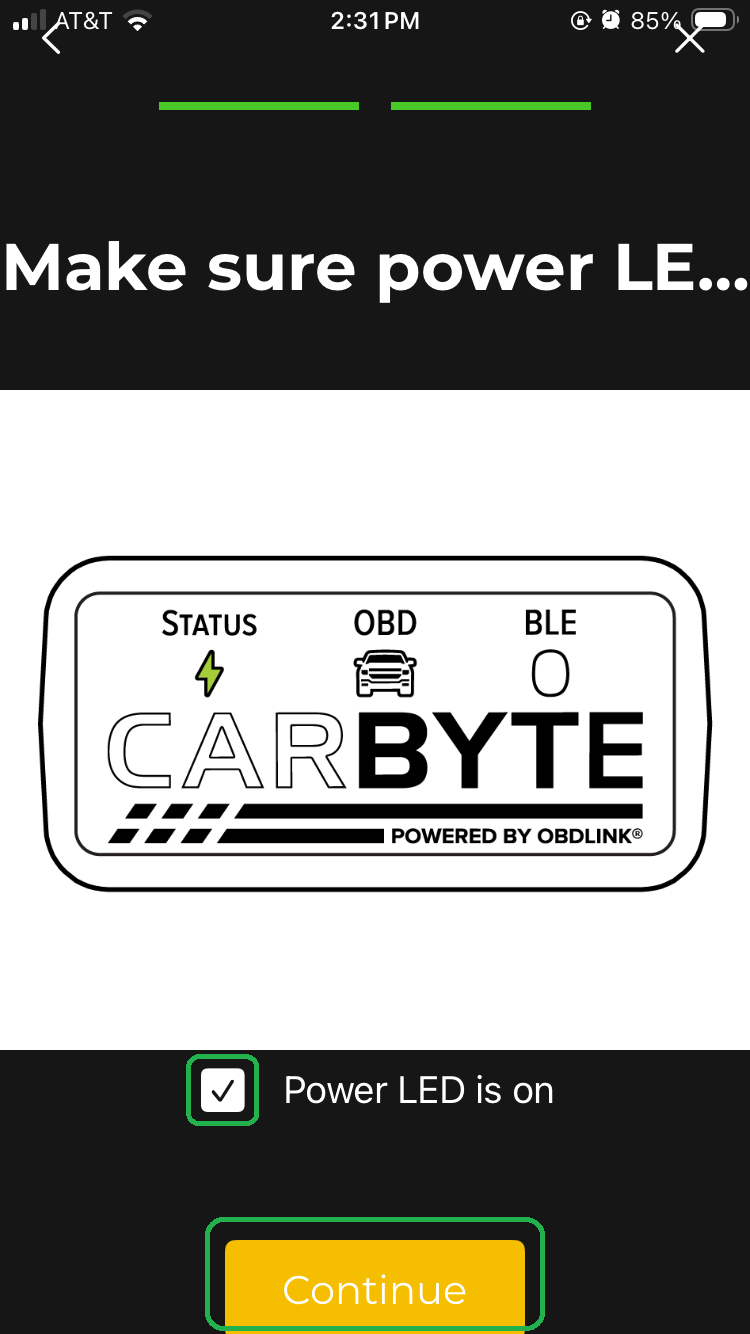
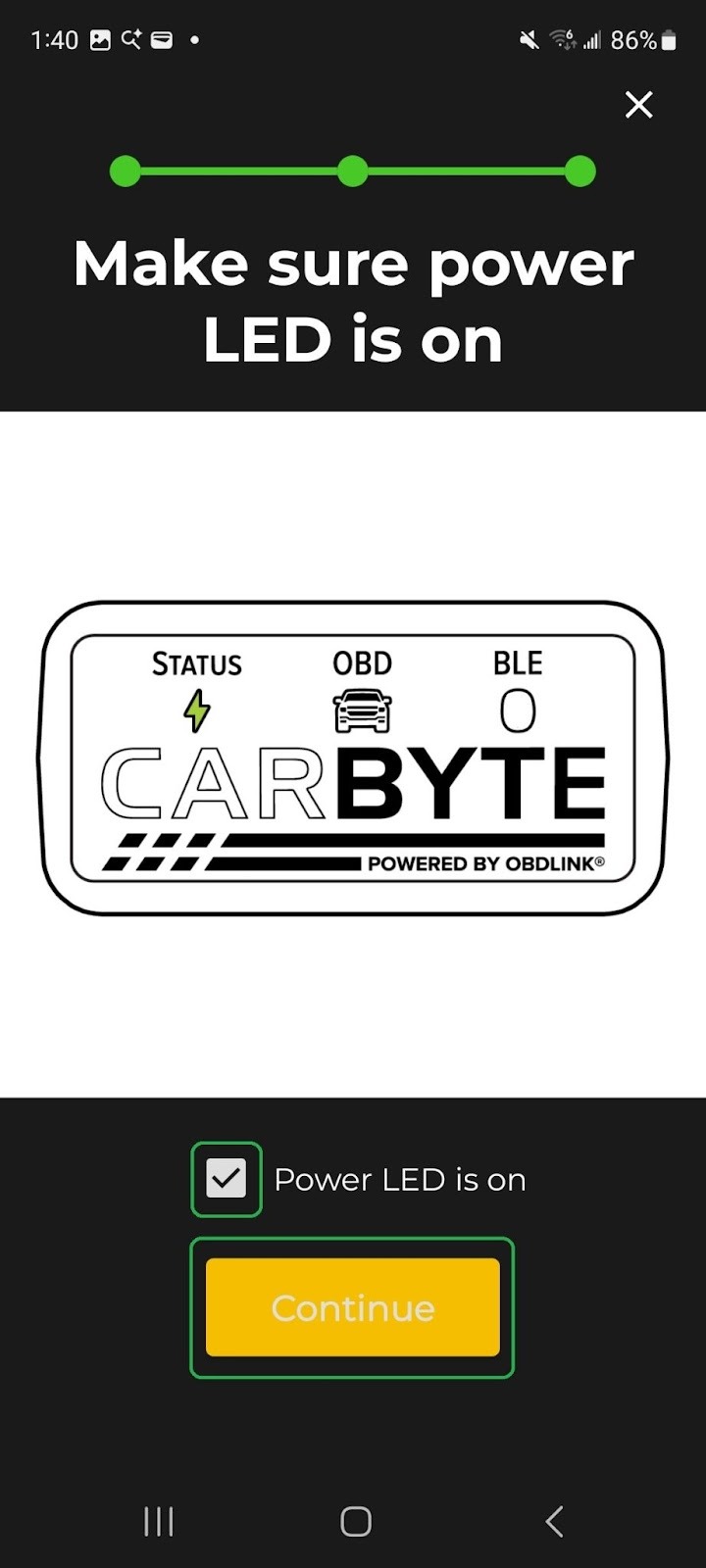
Tap Continue. - Check your adapter to confirm that the green power LED is on.
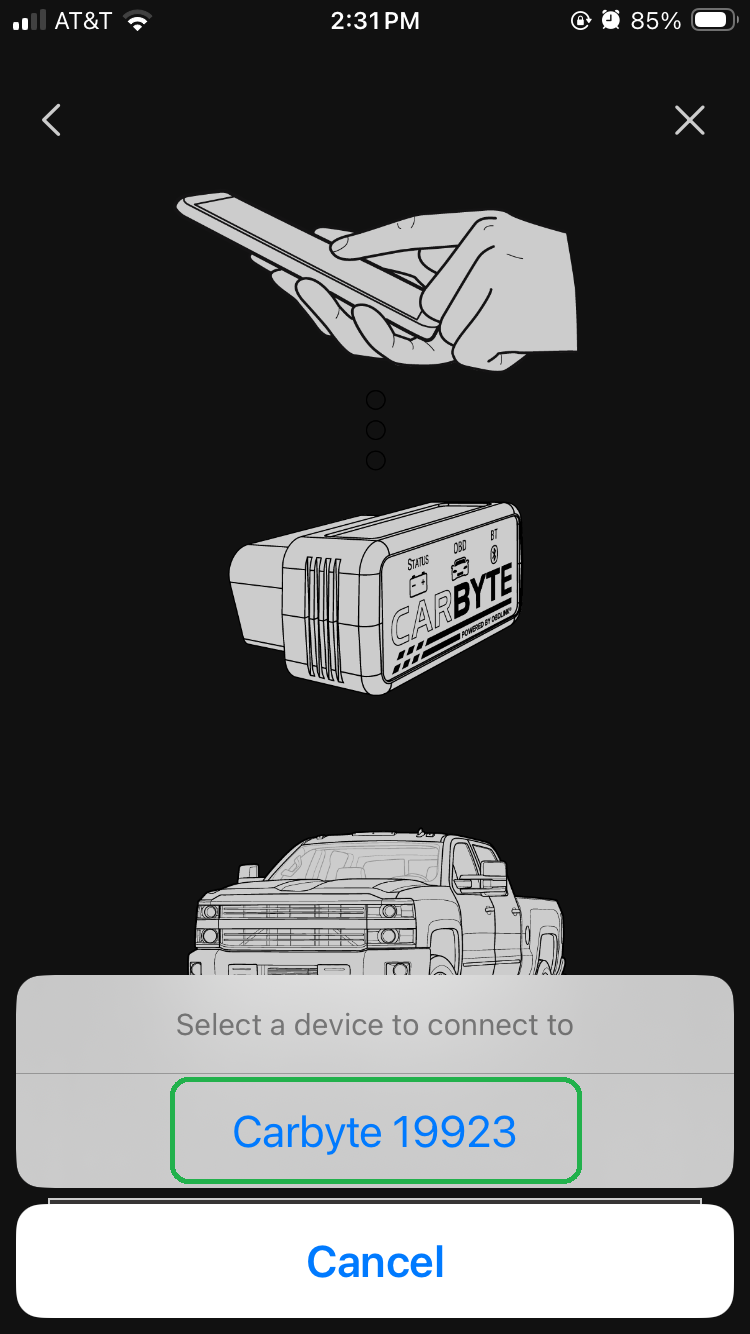
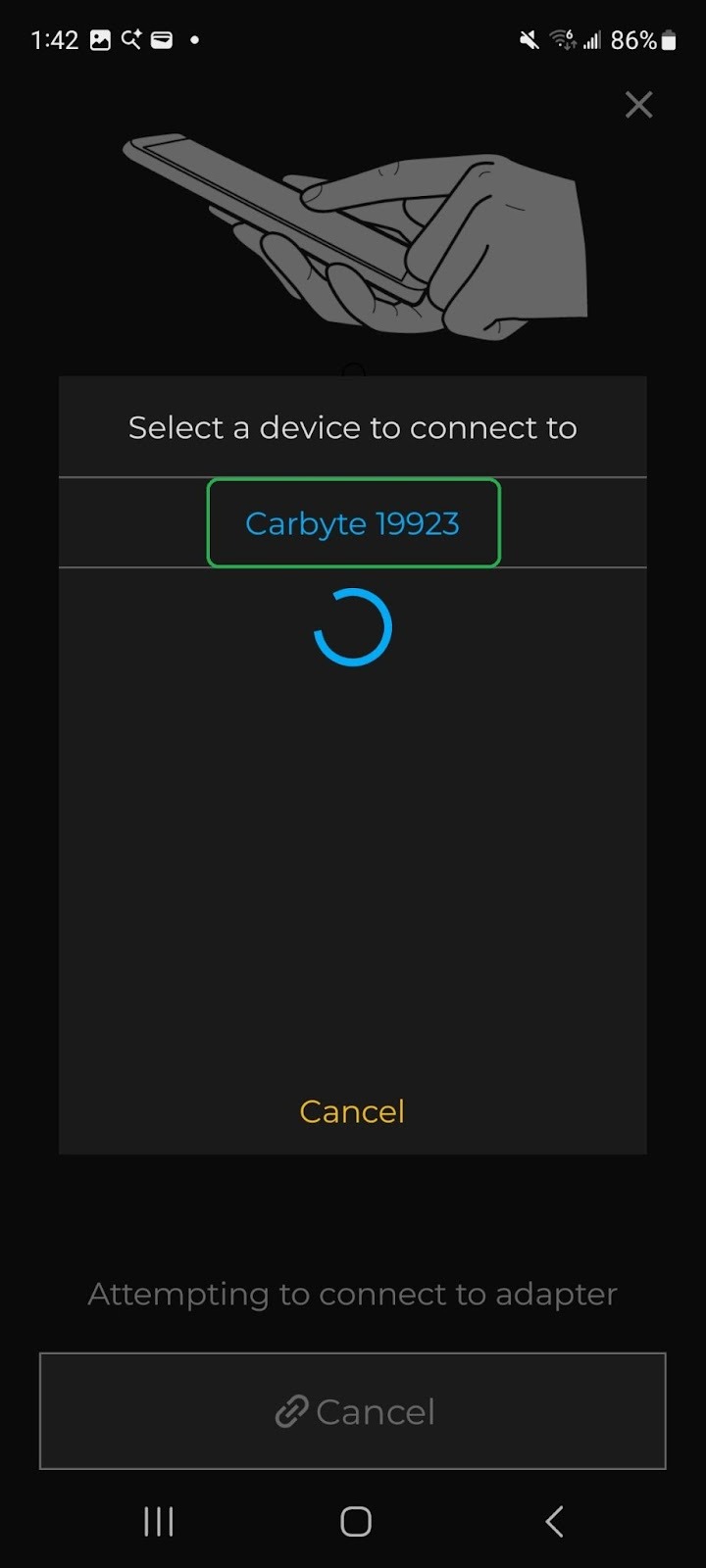
Tap the checkbox and tap Continue. - Your phone/tablet shows a list of Bluetooth devices. Tap to select your Carbyte adapter.
- If you see a prompt asking you to allow Carbyte to connect to nearby devices, tap Allow.
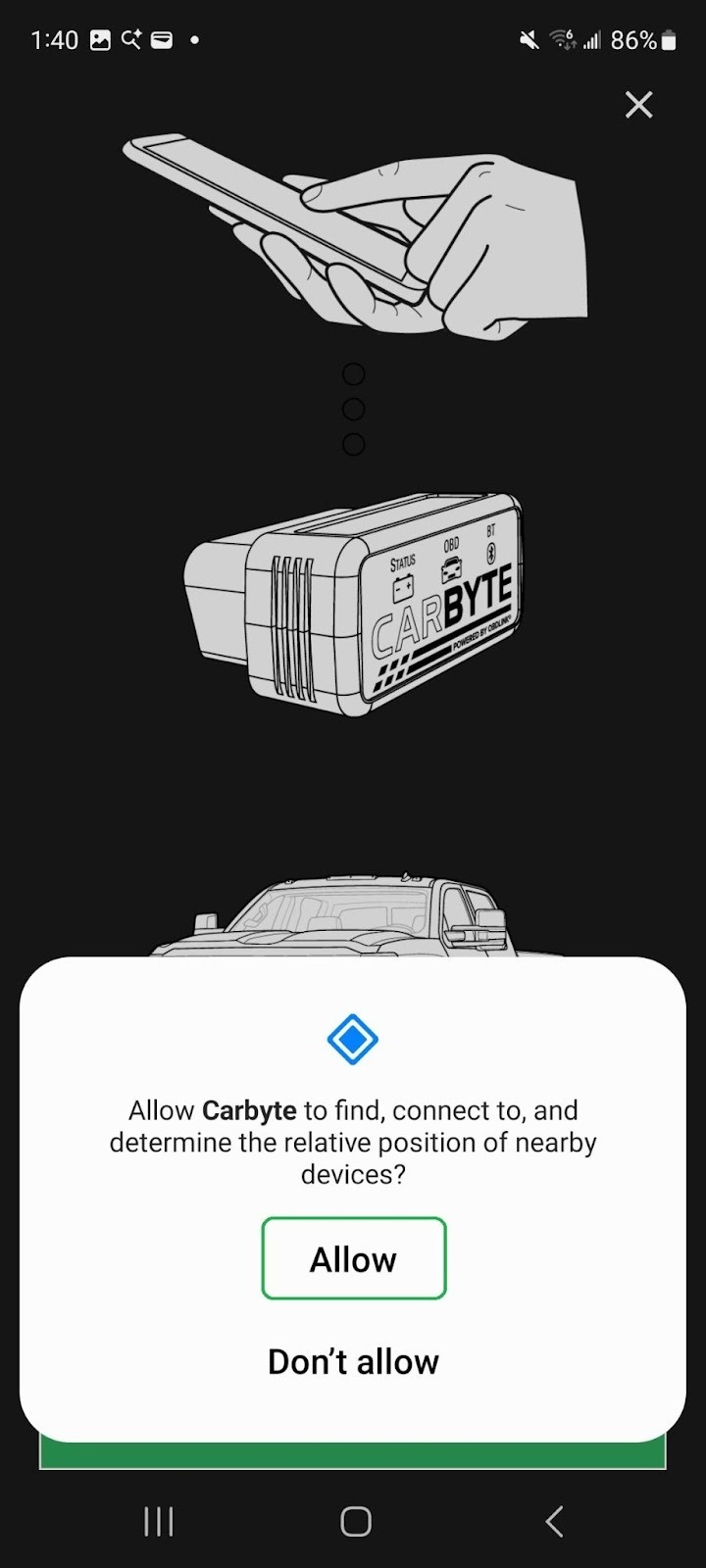
- On your first connection attempt, you may see a Bluetooth pairing request prompt similar to the screenshots below, which mentions a code or passkey. The passcode is not shown on the Carbyte adapter. Tap the Pair button to continue.
Note: If you remove your Carbyte adapter and reinstall it later, you may see a different randomized passcode or passkey number in the Bluetooth pairing request. This is typical behavior, because it is a rolling passcode.
Tap the Pair button to continue.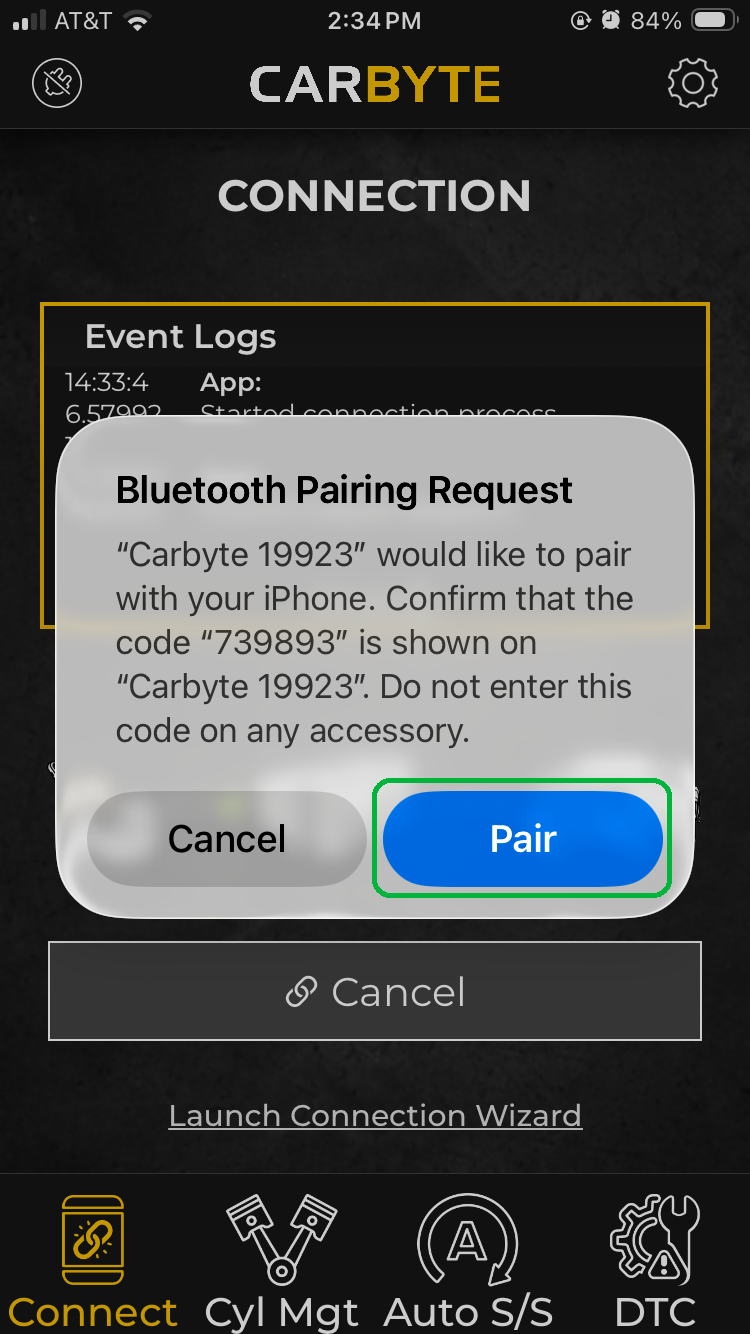
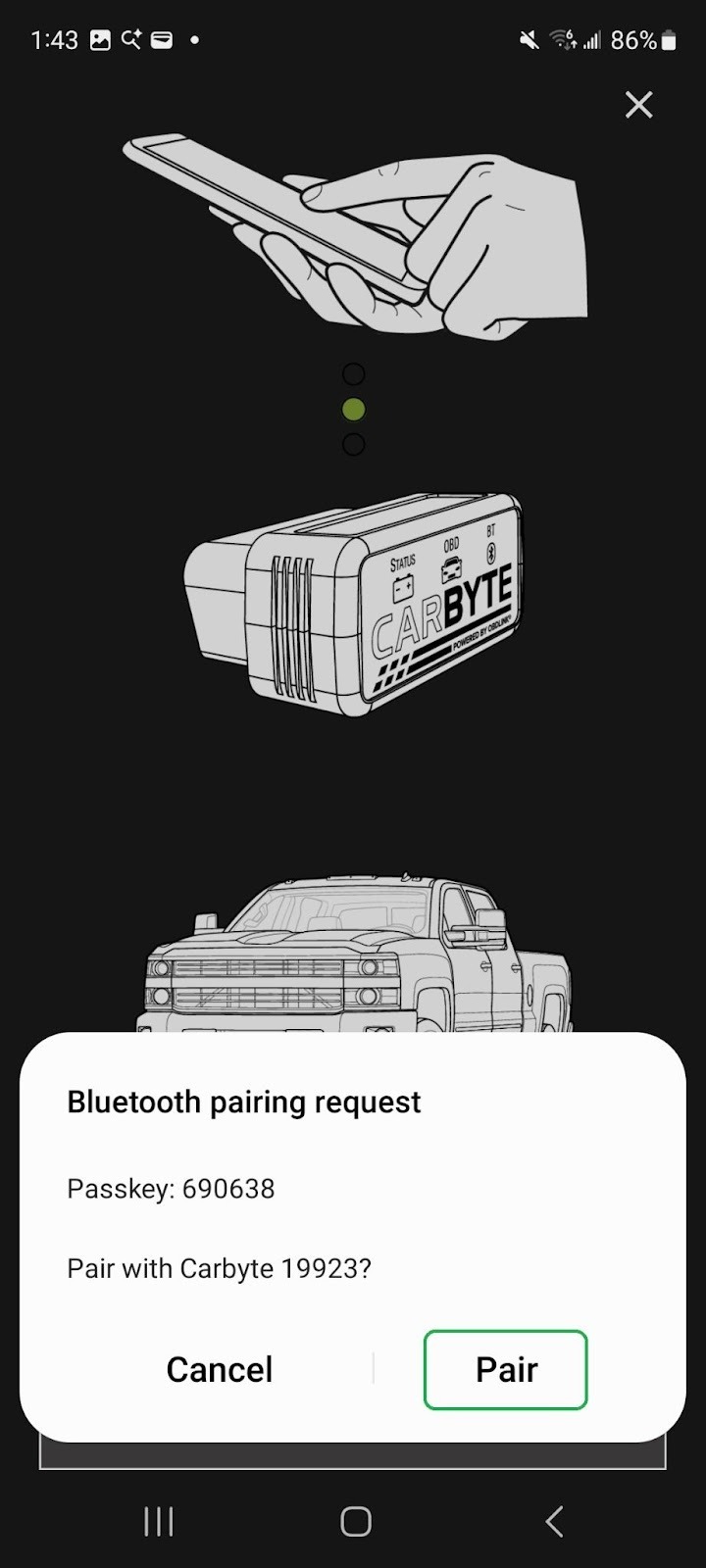
- Wait for your phone/tablet to connect with the adapter in your vehicle. It may take 45-60 seconds.
The Carbyte app shows an animation of how this process works.
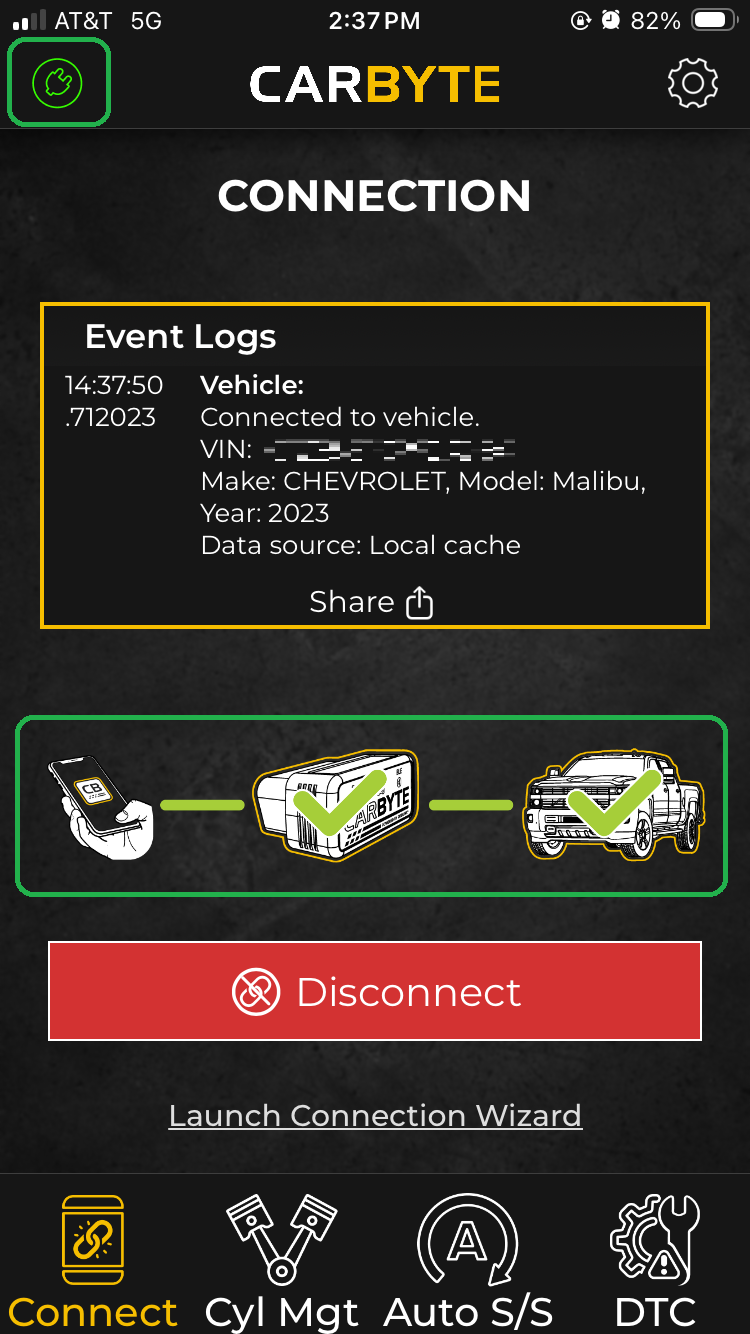
When Carbyte is connected (highlighted in the right screenshot), tap the X in the upper right corner to close the wizard.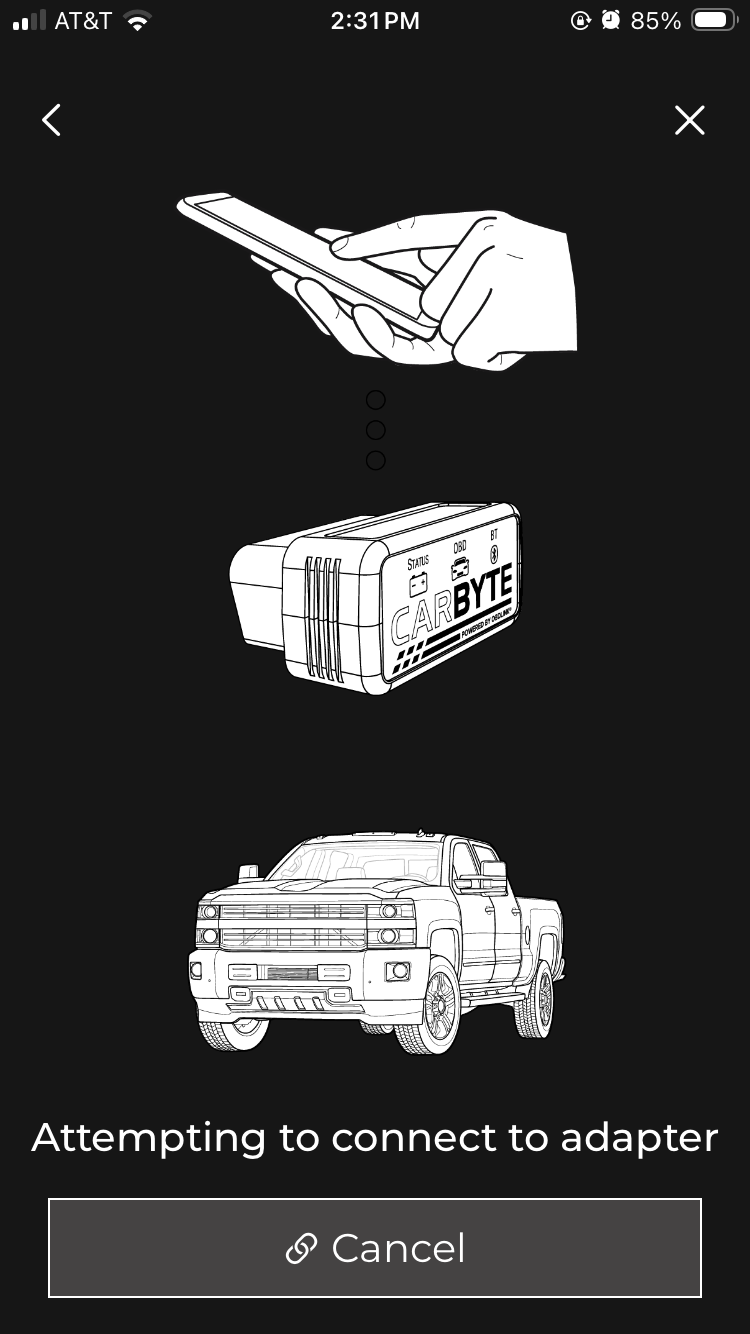
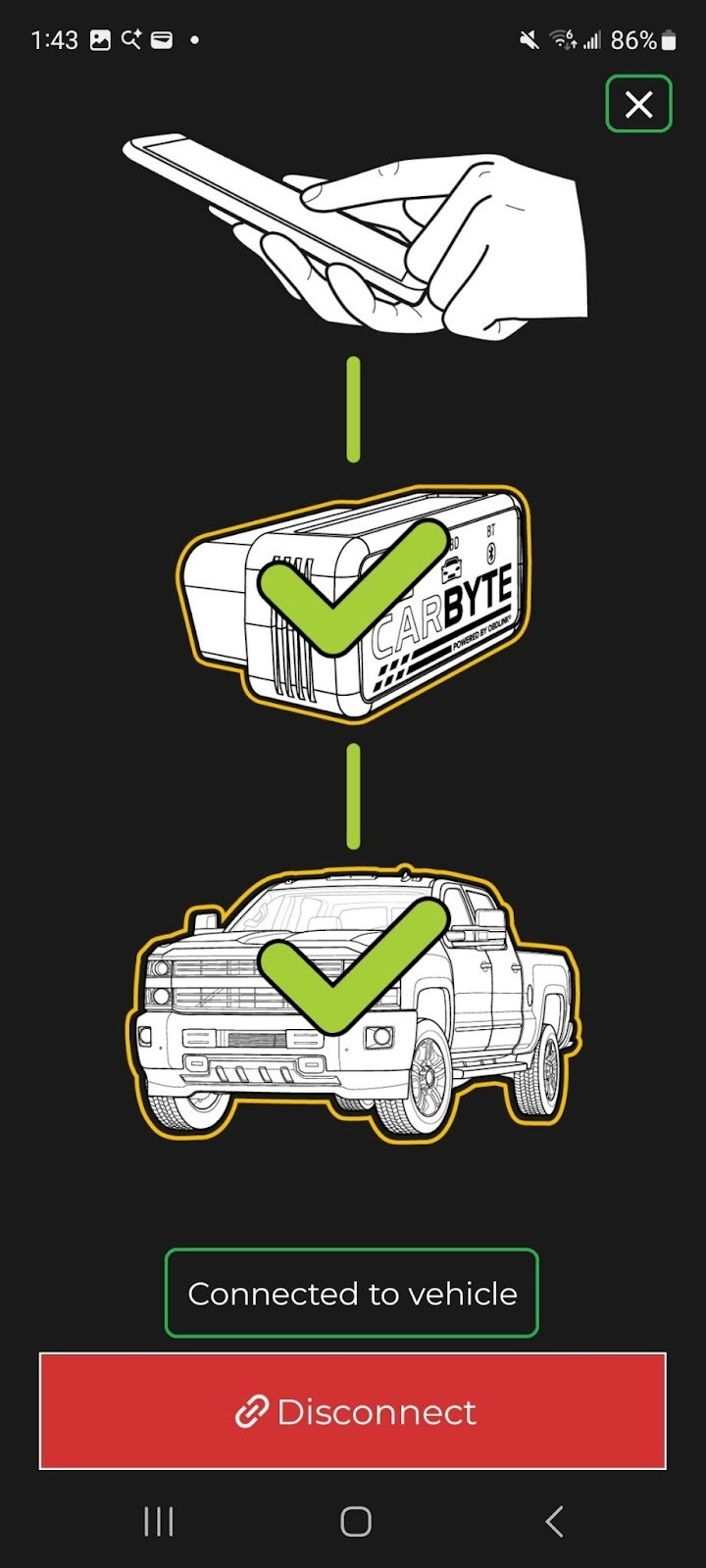
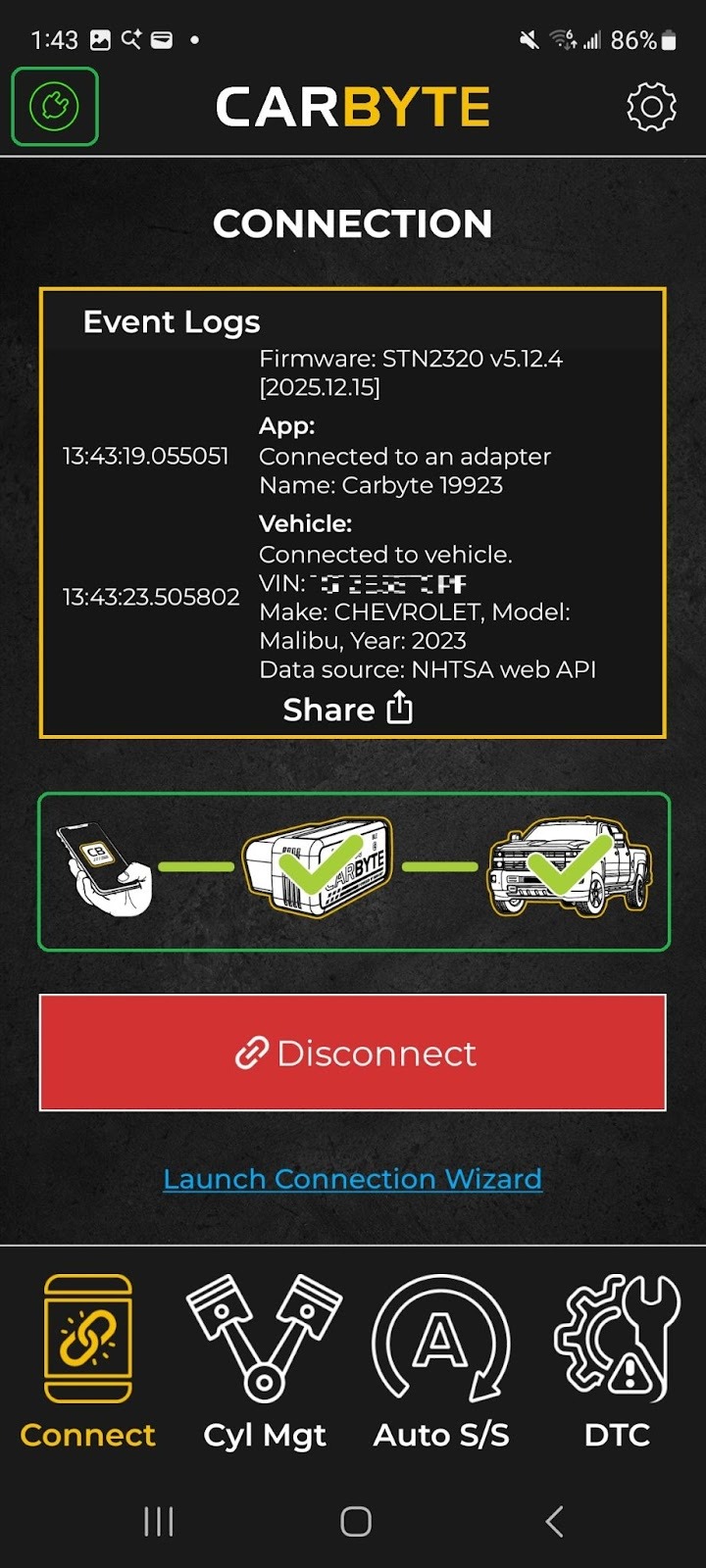
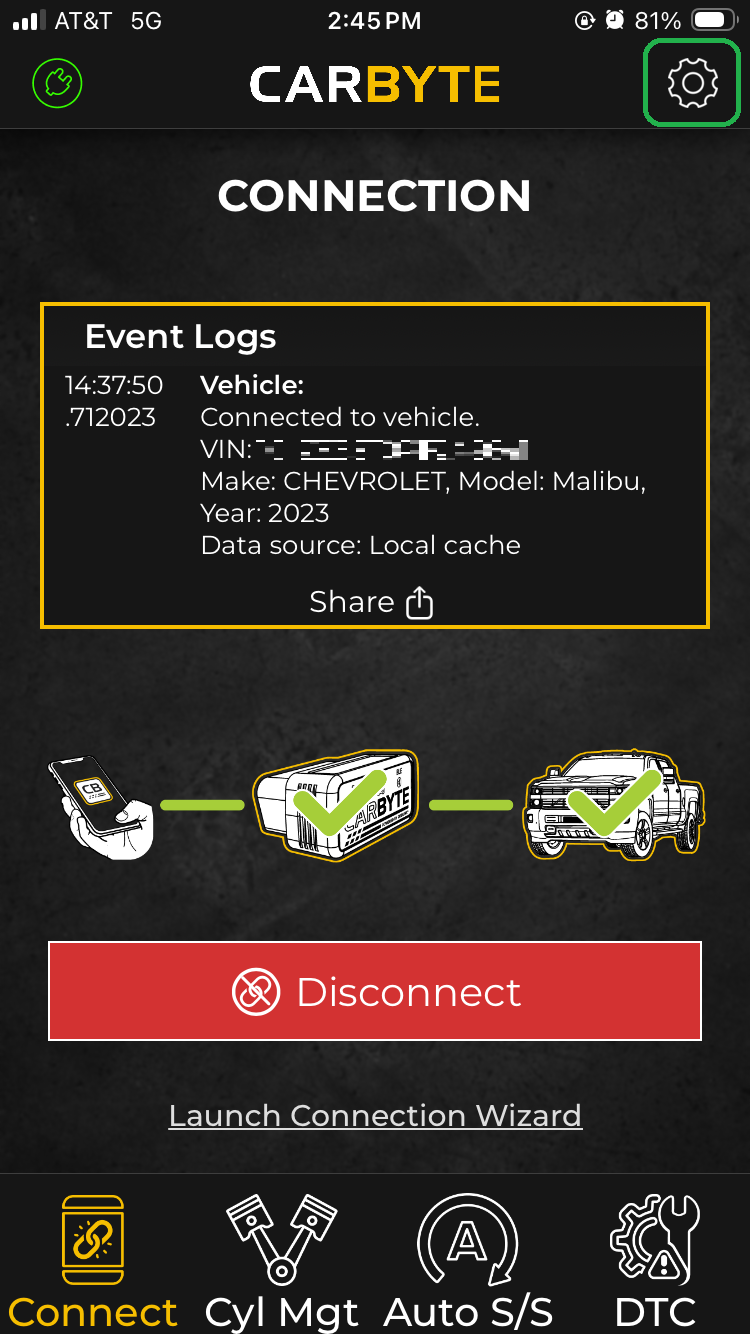
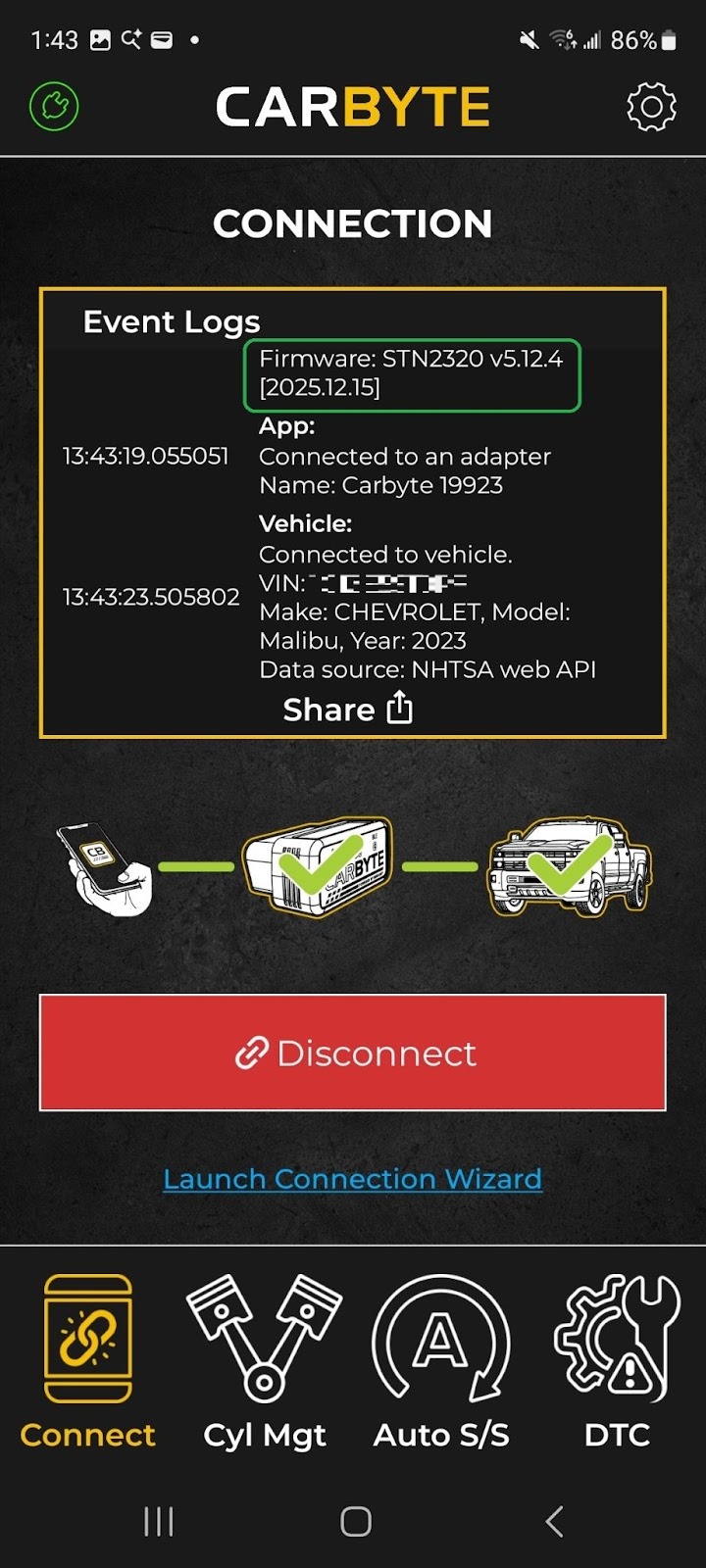
- You will see the Connect screen. When the connection is complete, the icon in the upper left is green (highlighted) and the images below the Event Logs have green checkmarks.
- Plug your adapter into the OBD port in your vehicle. In most cases, the OBD port is in the driver’s side footwell, below the steering wheel.
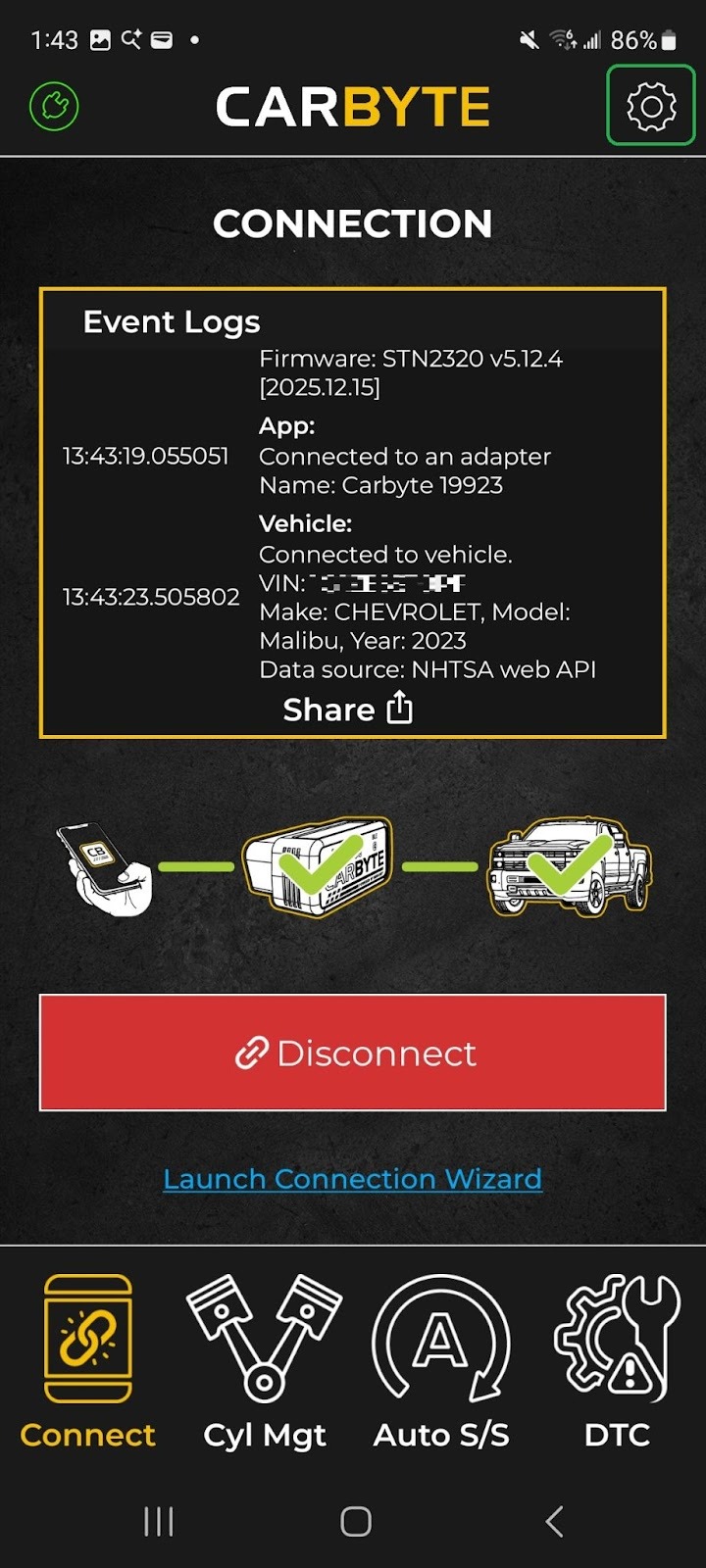
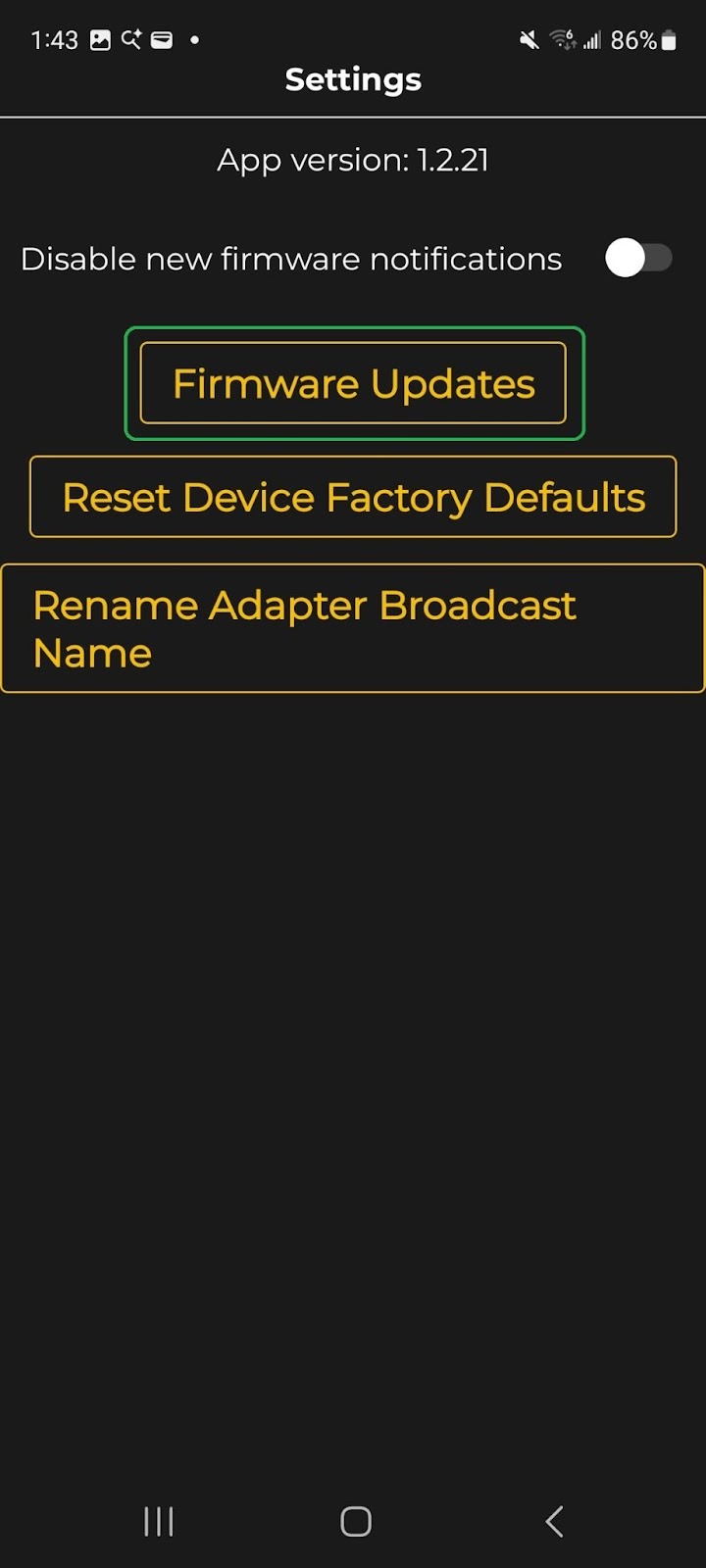
- Tap the gear icon (highlighted) in the upper right corner to open the Settings menu.
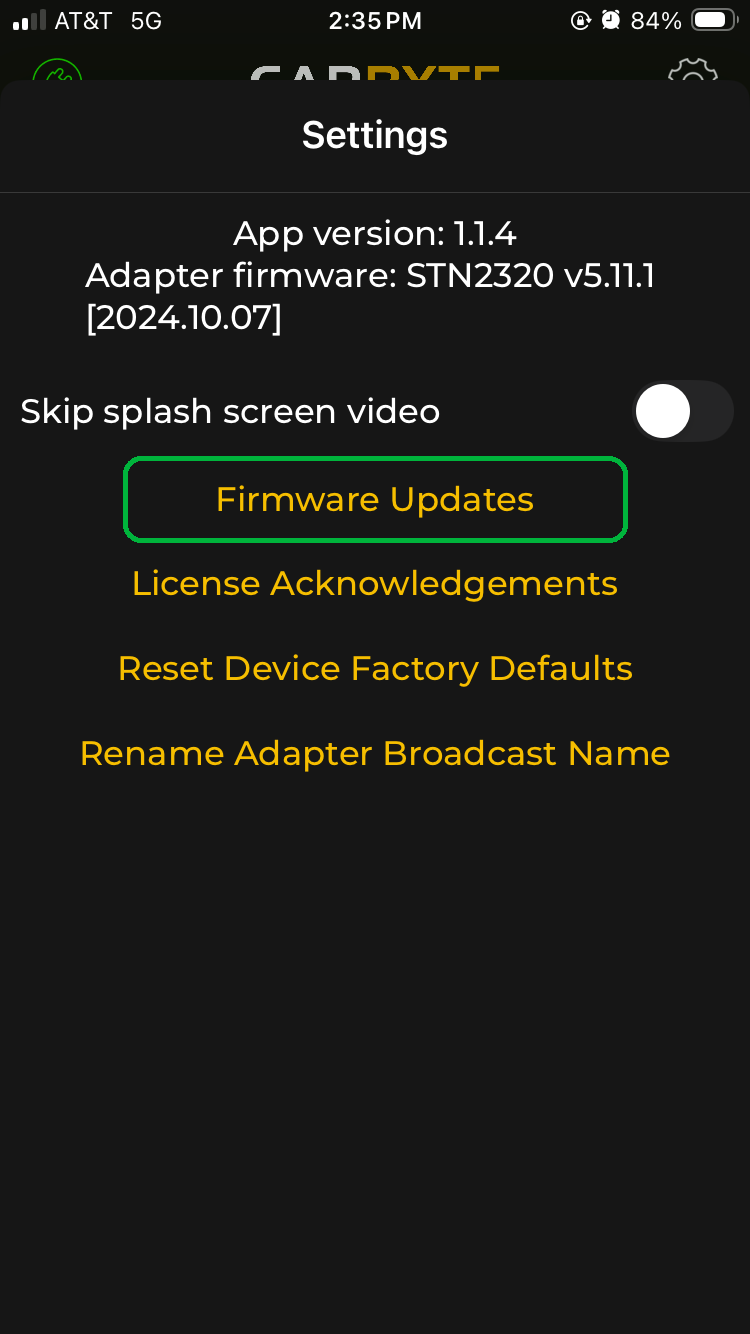
- You will see the current versions of the Carbyte app and your Carbyte adapter firmware.
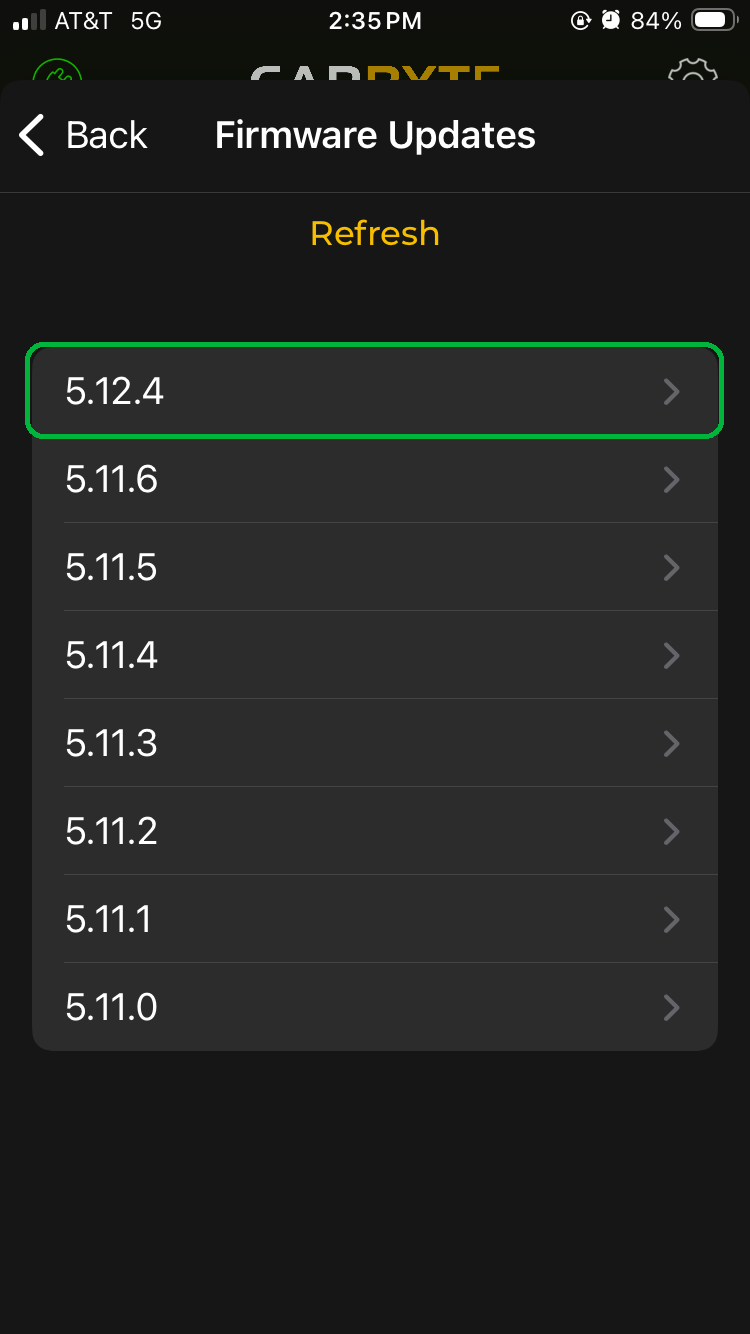
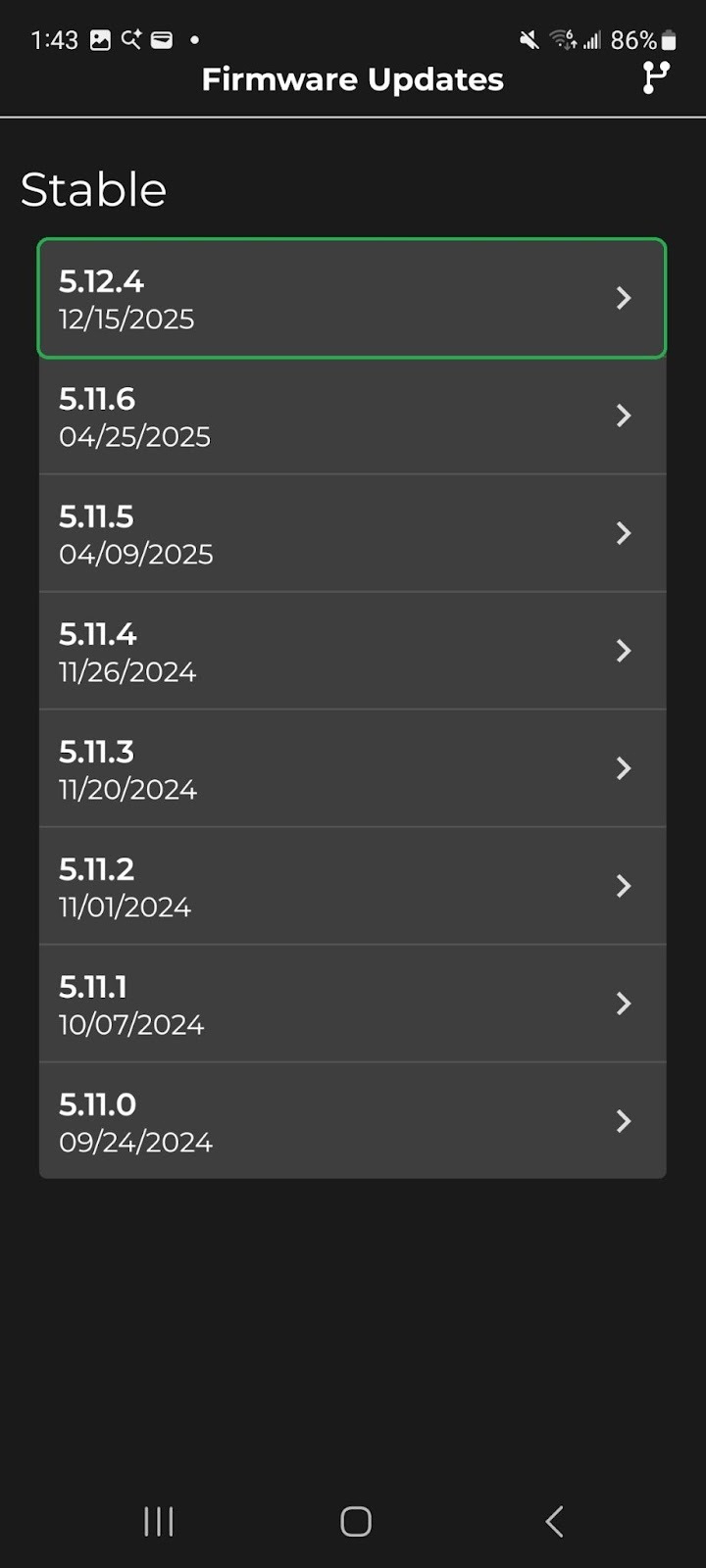
Tap Firmware Updates to see if more recent versions are available. You will see a list of firmware versions. We recommend that you update to the latest version available.
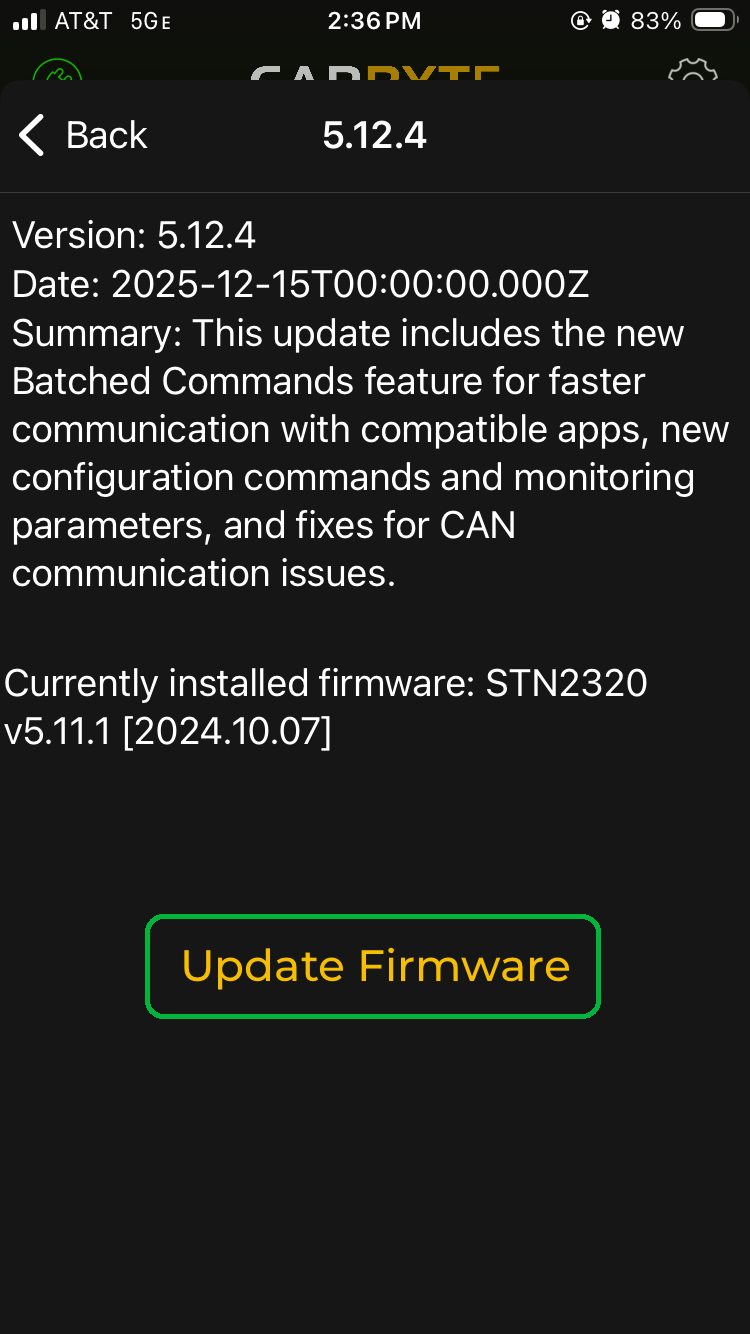
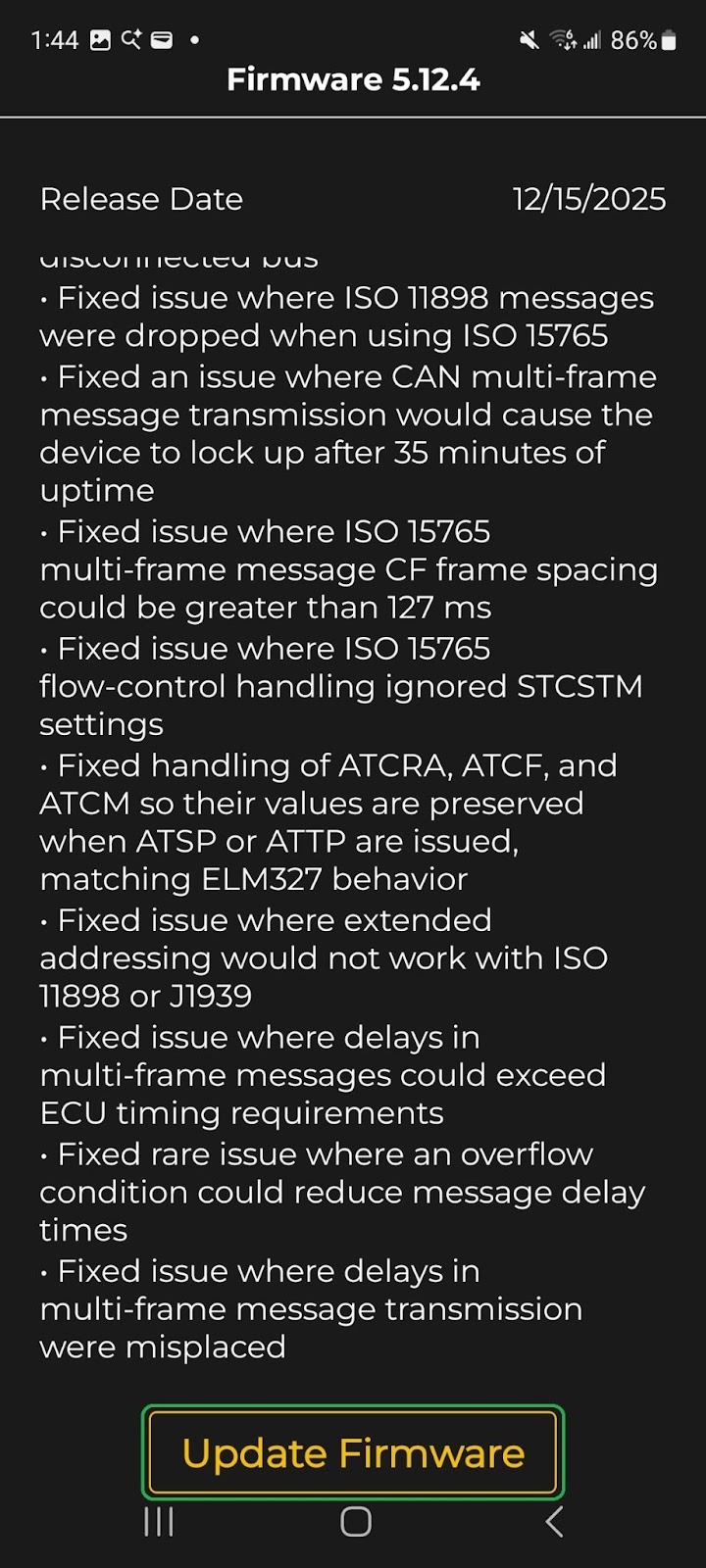
Tap the firmware version number you want to install.- You will see information about the firmware release. You may need to scroll down to read all the information.
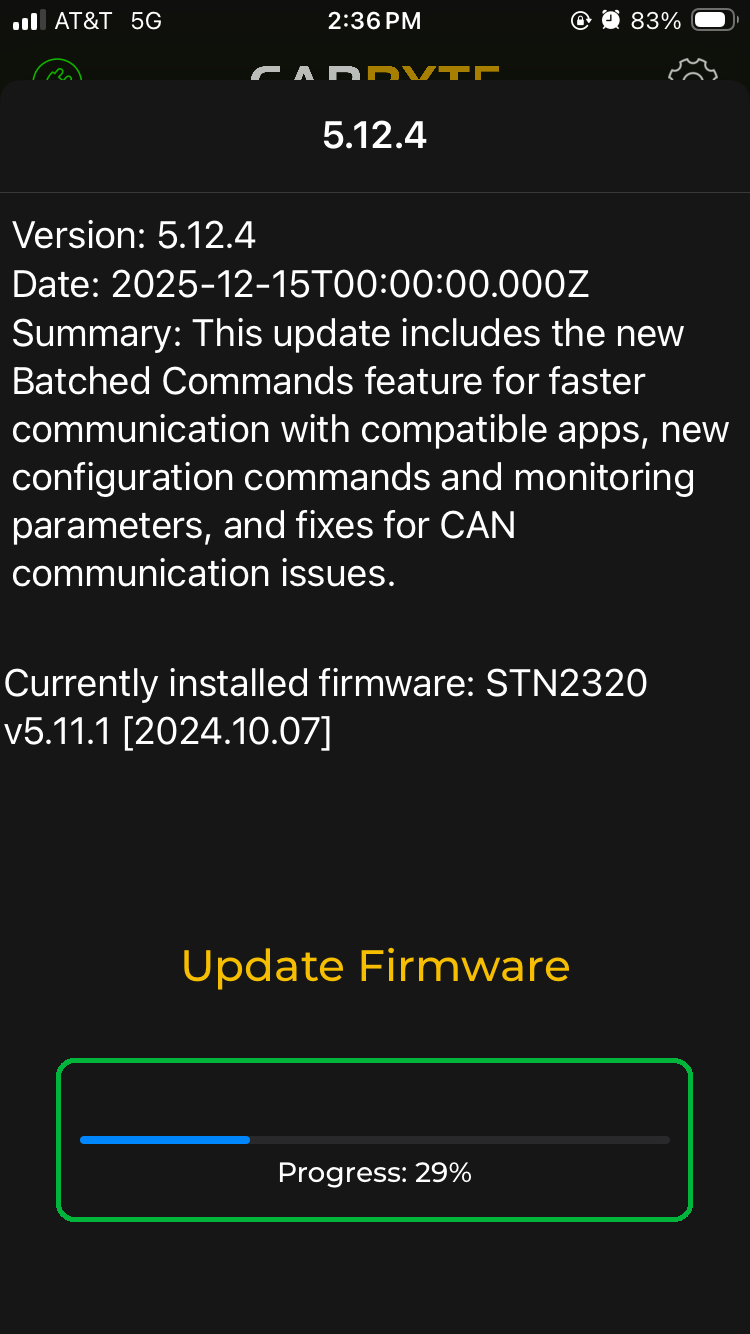
Tap Update Firmware to install the selected firmware version.
Note: Do not turn off your vehicle engine or close the Carbyte app while the firmware is updating.
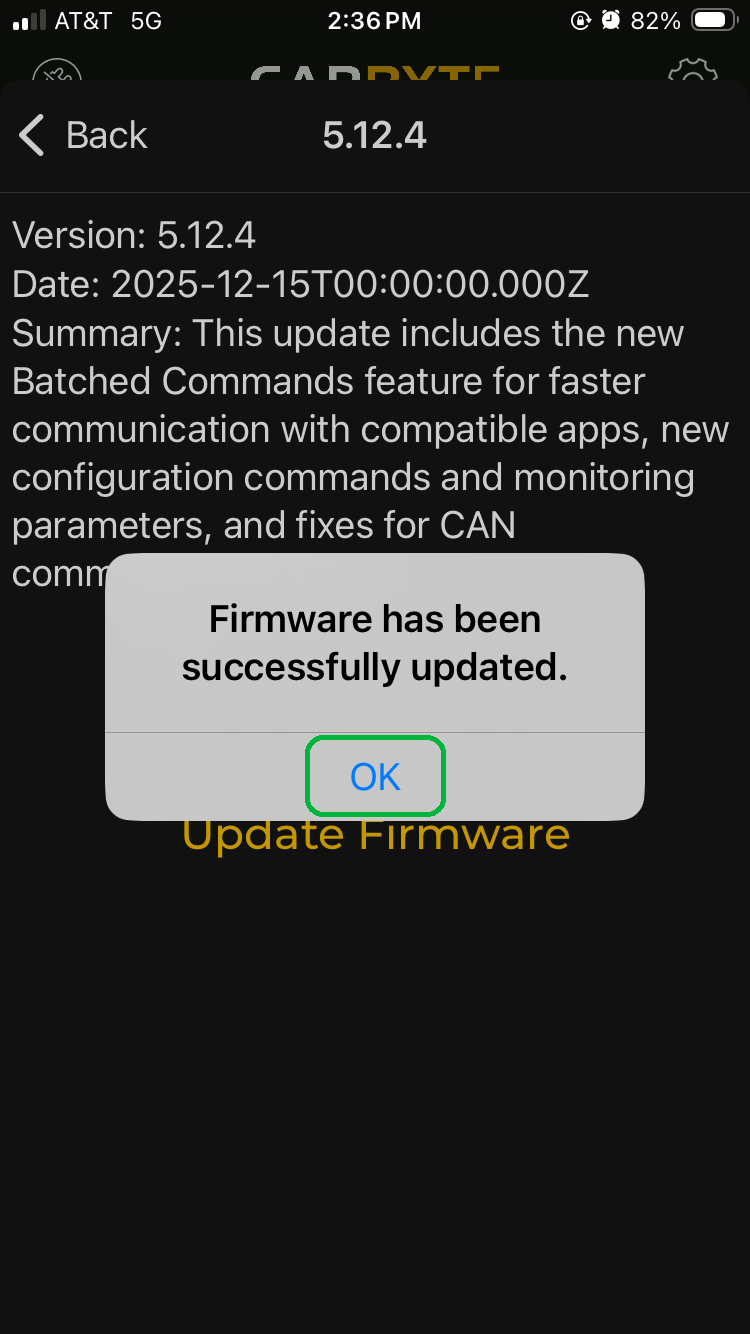
You may see a progress bar at the bottom of the screen. The update happens quickly, so you may not notice it. - You will see a completion message when the firmware installation is complete. Tap OK to close the message and go back to the Connect screen.
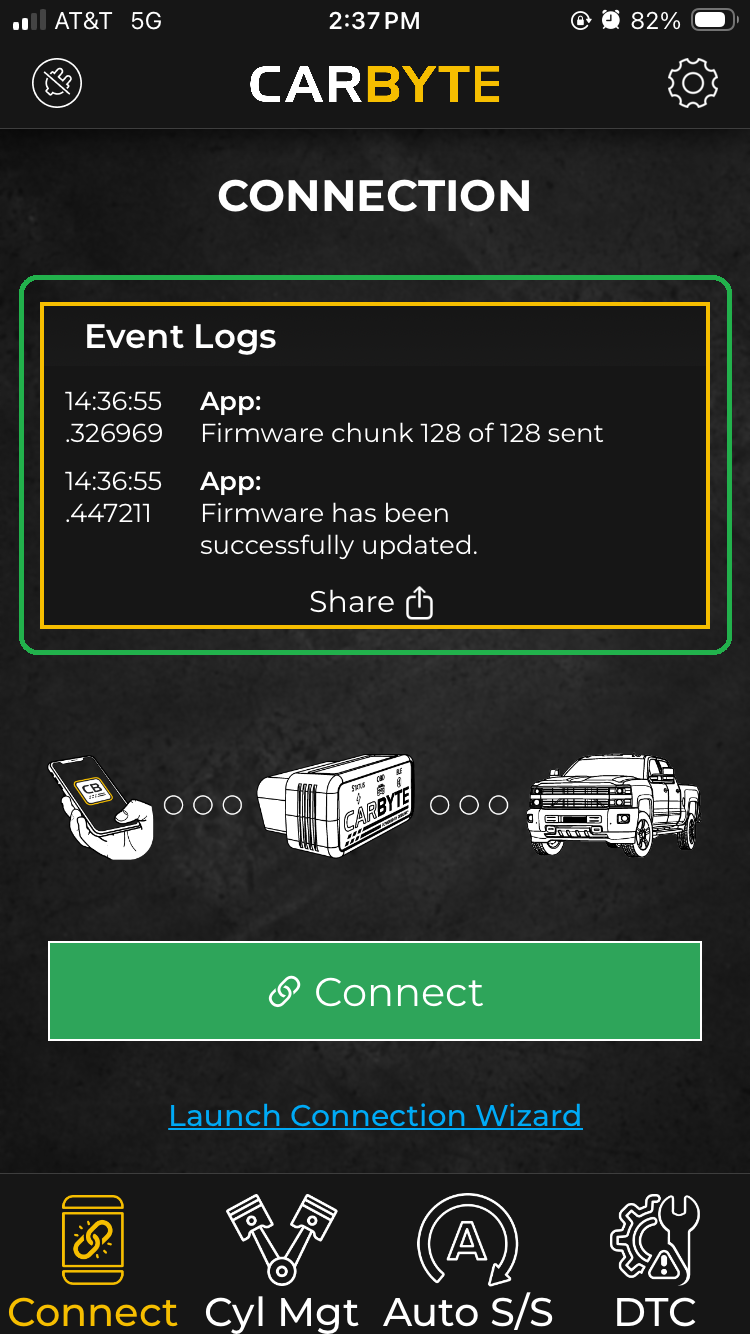
- After the firmware update process, your Carbyte adapter will be disconnected. You will see that firmware was updated successfully in the Event Logs section (highlighted in left screenshot).
The next time you connect, you will see the firmware version listed in the Event Logs section (highlighted in right screenshot).
Take a test drive
When Carbyte is installed in your vehicle, the engine and transmission need some time to learn how to operate under the new conditions. During this time, you may notice temporary changes to your driving experience. The duration of the learning process varies from vehicle to vehicle and also depends on the type of driving you do. You can speed up the learning process by doing a combination of city and highway driving, with a good mix of speeds, accelerations, and decelerations.
Be aware that when Carbyte is installed and connected to your vehicle, it disables both AFM/DFM and Auto Start/Stop functionality. You can’t manage AFM/DFM and Auto Start/Stop independently.
Carbyte has two basic functions:
- Disable automatic engine start/stop
Carbyte immediately disables automatic engine start/stop on your vehicle, for all supported GM models (except hybrids).
Note: If your vehicle is a hybrid, then automatic engine start/stop is never disabled. - Disable Automatic Fuel Management (AFM) and Dynamic Fuel Management (DFM)
Carbyte immediately disables AFM/DFM in most vehicles, with these exceptions:- 2021+ Chevrolet Suburban, Chevrolet Tahoe, GMC Yukon, and Cadillac Escalade have a speed requirement. See 40 MPH speed requirement below.
- 2022.5+ Chevrolet Silverado and GMC Sierra have the 40 MPH speed requirement below.
Note: Your vehicle is impacted if the 12th character in the VIN is a 5 or higher. - 2020-2023 C8 Corvette: the engine coolant temperature must reach 165°F before DFM is deactivated, in addition to the 40 MPH speed requirement below. For Corvettes, firmware version 5.12.4 or higher is required.
40 MPH speed requirement
For the vehicle models listed above, the GM system prevents the complete deactivation of DFM until the vehicle speed exceeds 40 MPH at least once. The vehicle speed must reach 40+ MPH for 3-5 seconds for Carbyte to fully disable the DFM system. The 40 MPH requirement only needs to be met once during each drive, then the DFM system remains disabled at any speed, 0+ MPH, until the engine is turned off.
Use the Carbyte app (optional)
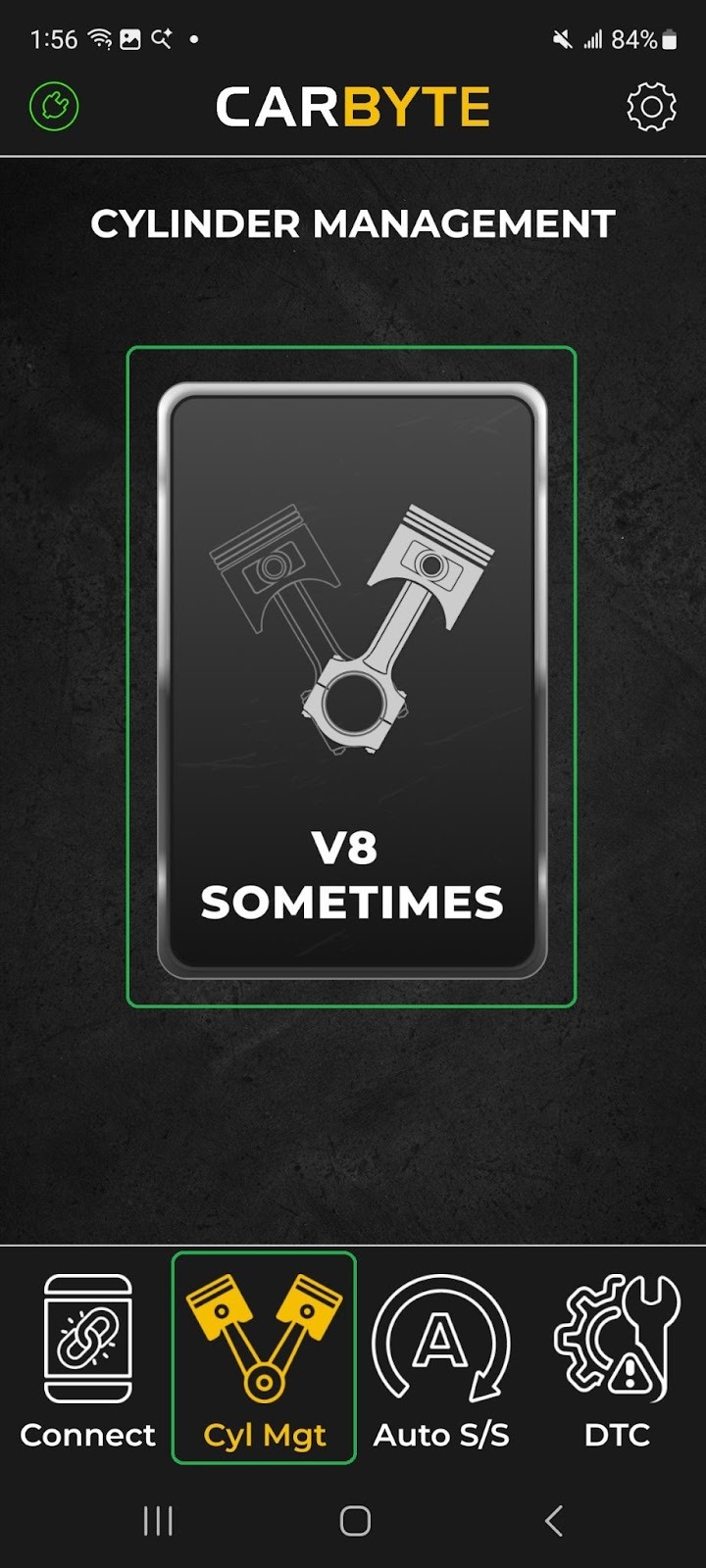
Carbyte has plug-and-play functionality – it can disable AFM/DFM and Auto Start/Stop functionality on your vehicle without needing any app. The Carbyte app is a free optional feature to add more control over your Carbyte adapter.
When you install the app and you connect Carbyte to your phone/tablet, you can:
- Update Carbyte firmware to keep your Carbyte adapter working at its best.
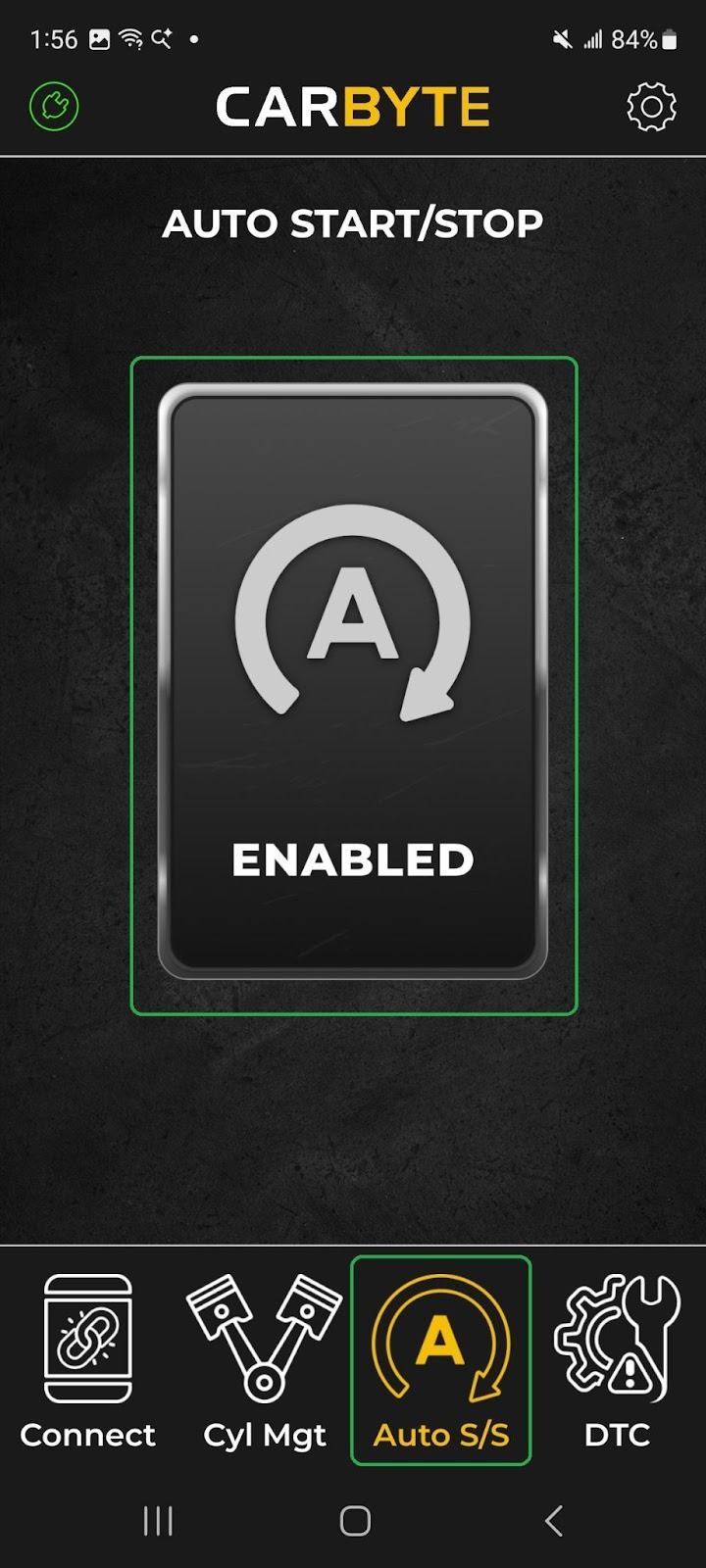
- Disable AFM/DFM and Auto Start/Stop with a single touch.
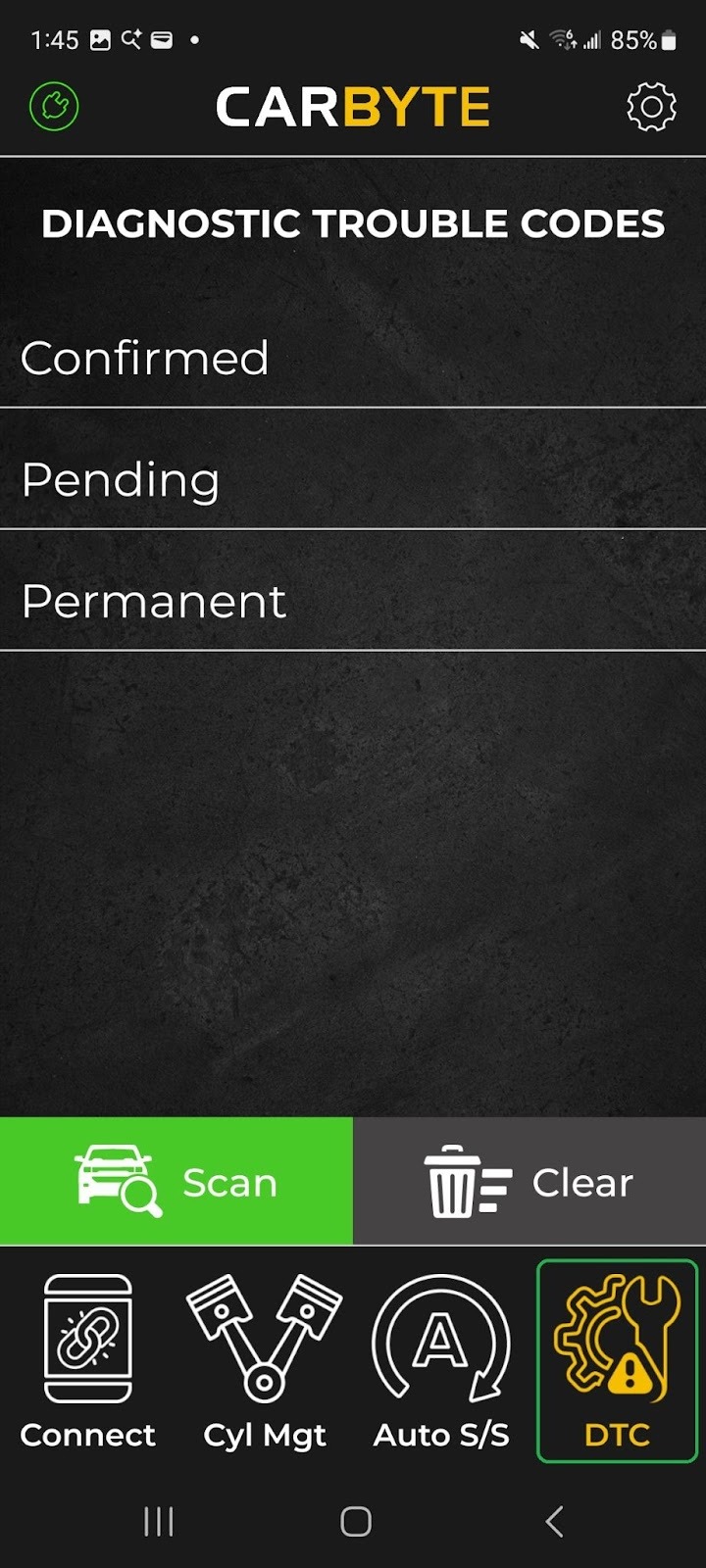
- Check and clear GM-specific diagnostic trouble codes (DTCs)
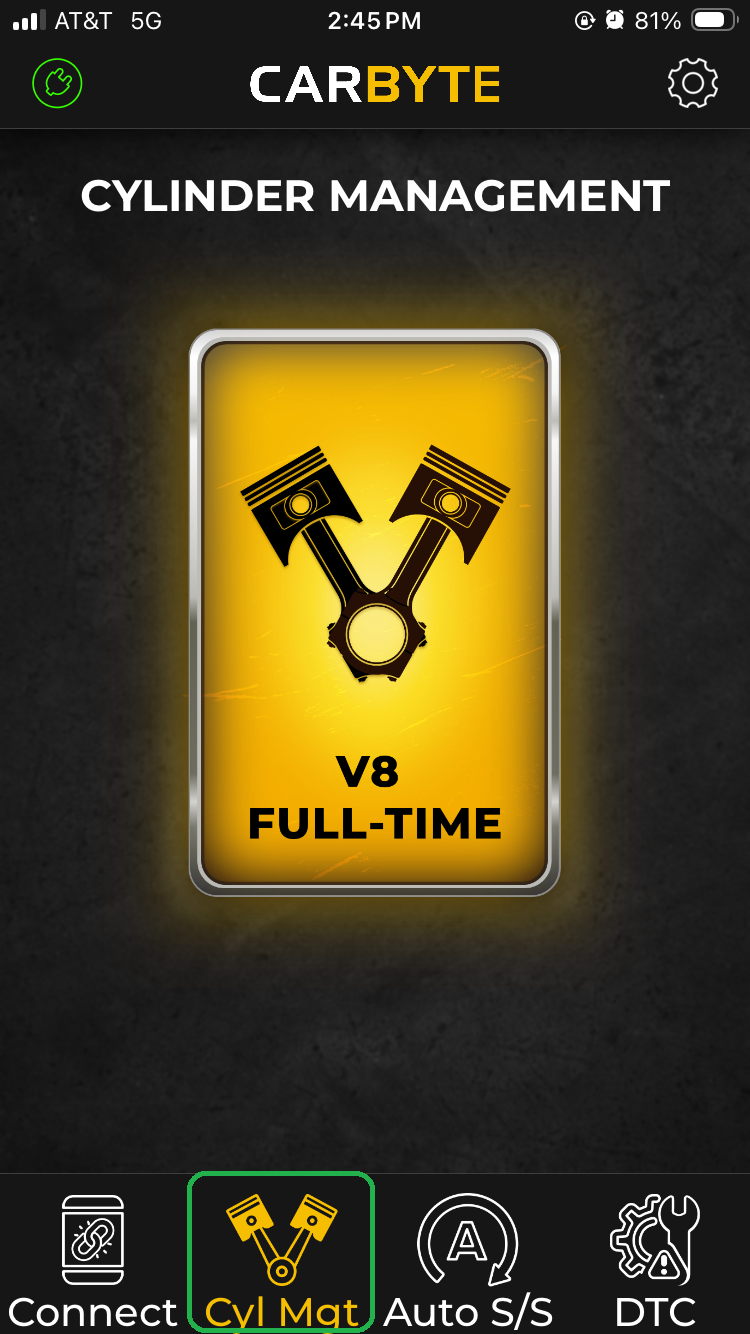
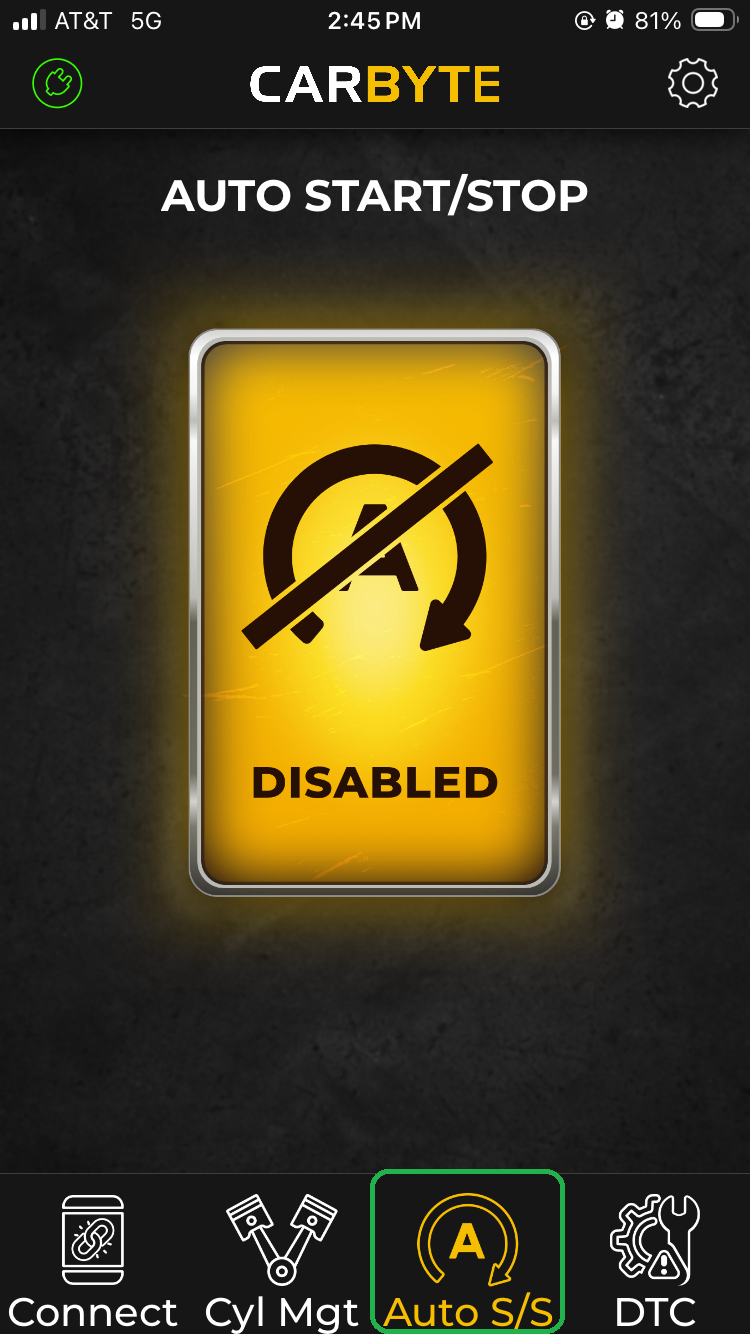
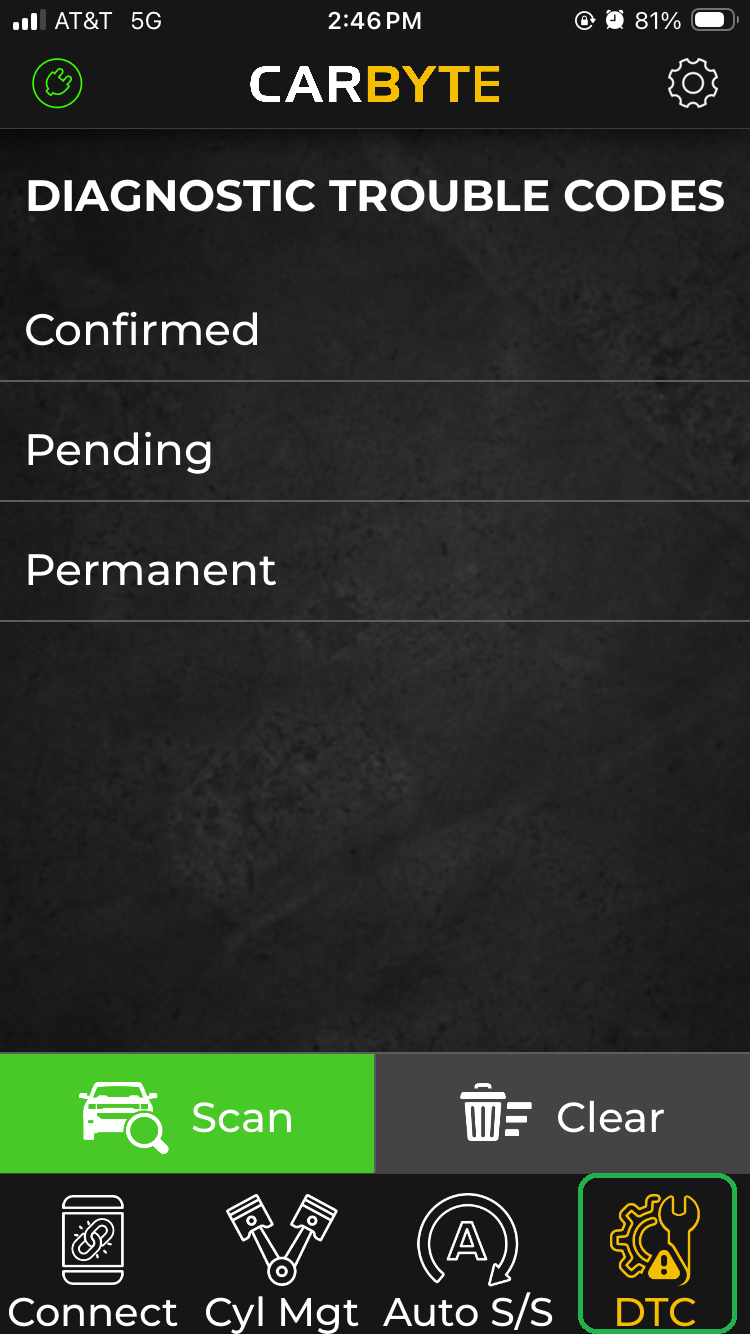
The iOS screenshots below show AFM/DFM disabled (default), Auto Start/Stop disabled (default), and DTC options.
Learn more about DTCs in the article: Get Started with Diagnostics, in the Trouble codes section.
The Android screenshots below show AFM/DFM enabled and Auto Start/Stop enabled.
Tap the center icon (highlighted) to return to default behavior.
The rightmost screen shows DTC options.
Use the OBDLink app (optional)
Carbyte functions as a multi-feature disabling adapter on its own, but when you pair it with a free optional app on your iOS or Android phone/tablet, you unlock additional features and enhanced control.
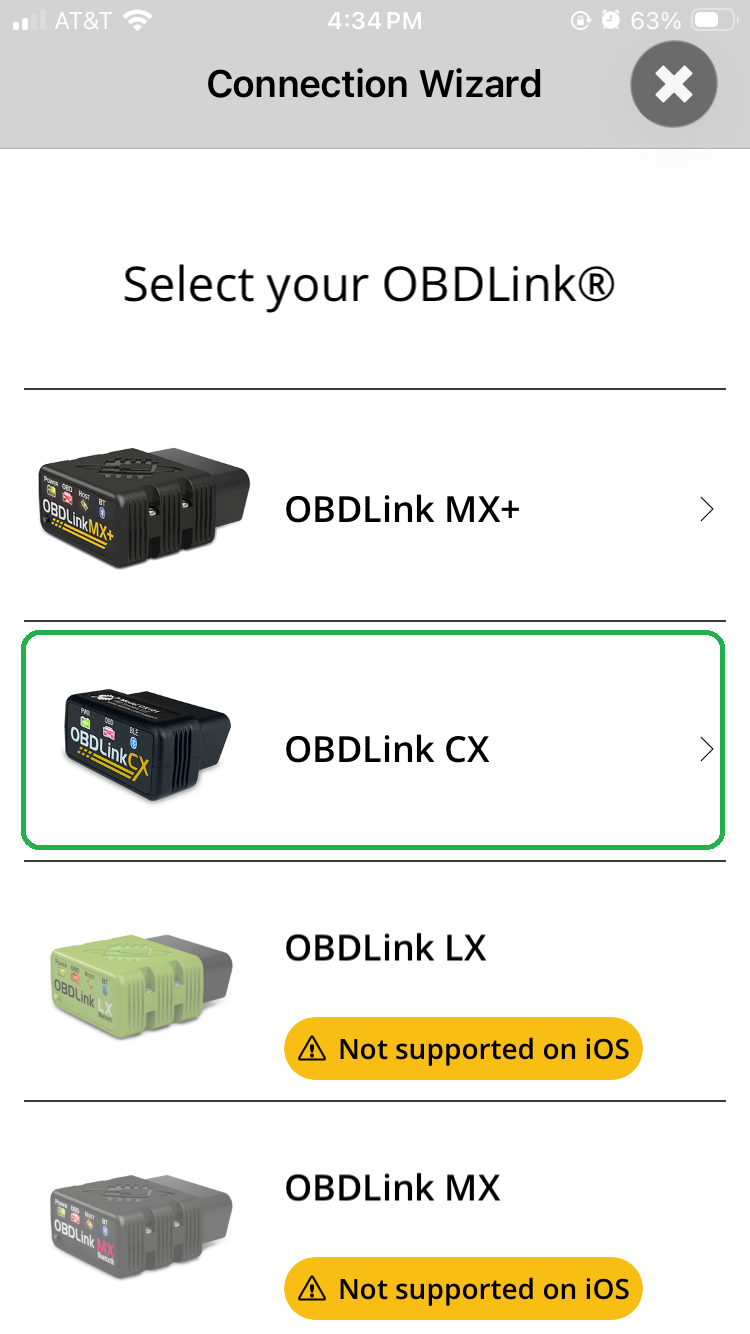
Carbyte’s design includes OBDLink CX functionality, so it is compatible with both the Carbyte app and the OBDLink app. Each app offers different features based on your needs.
Use the OBDLink app to monitor live parameters, access real-time gauges and graphs, create customizable dashboards, and check emissions readiness.
Learn more about using the OBDLink app in the article: Get Started with Your OBDLink® Adapter (iOS and Android)
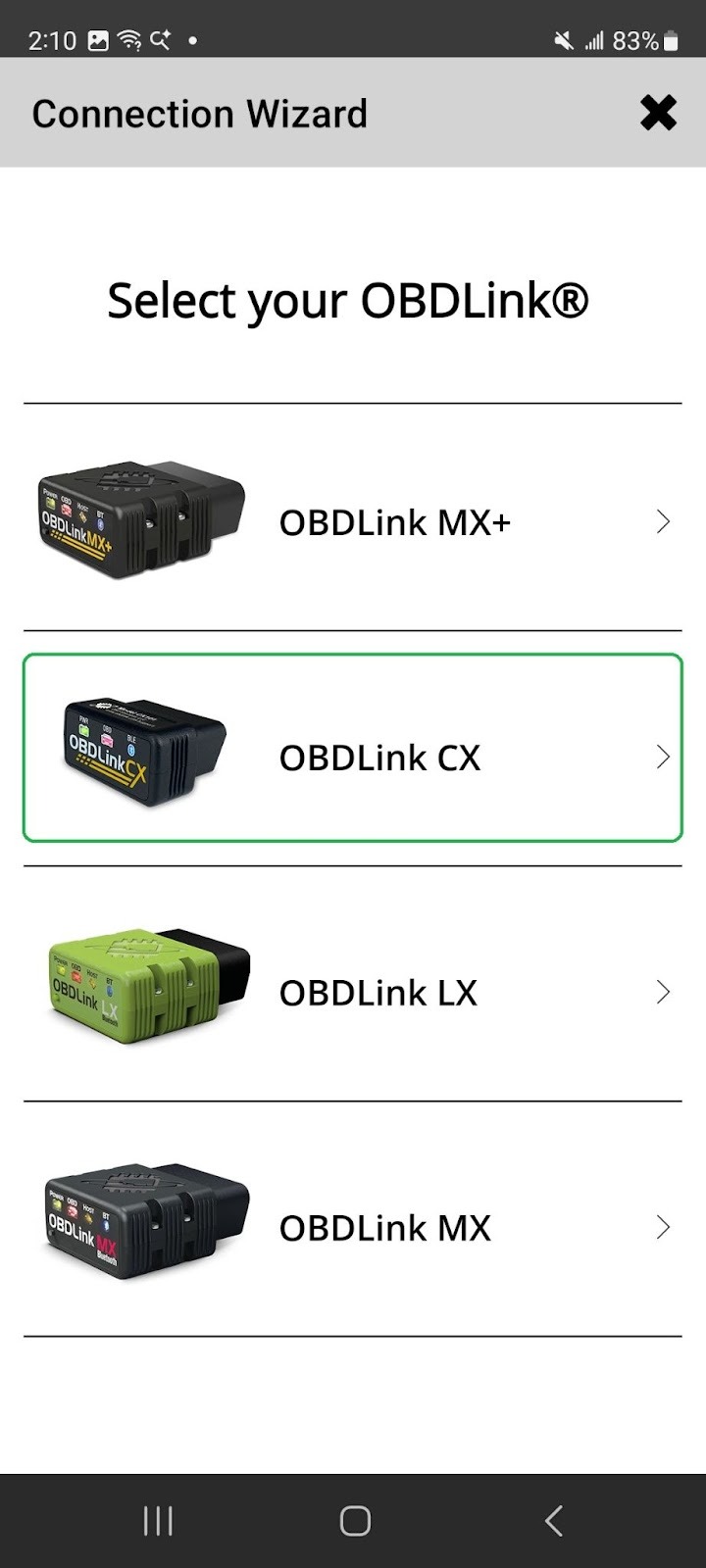
When you connect your Carbyte adapter to the OBDLink app, be sure to choose OBDLink CX in the wizard (highlighted).
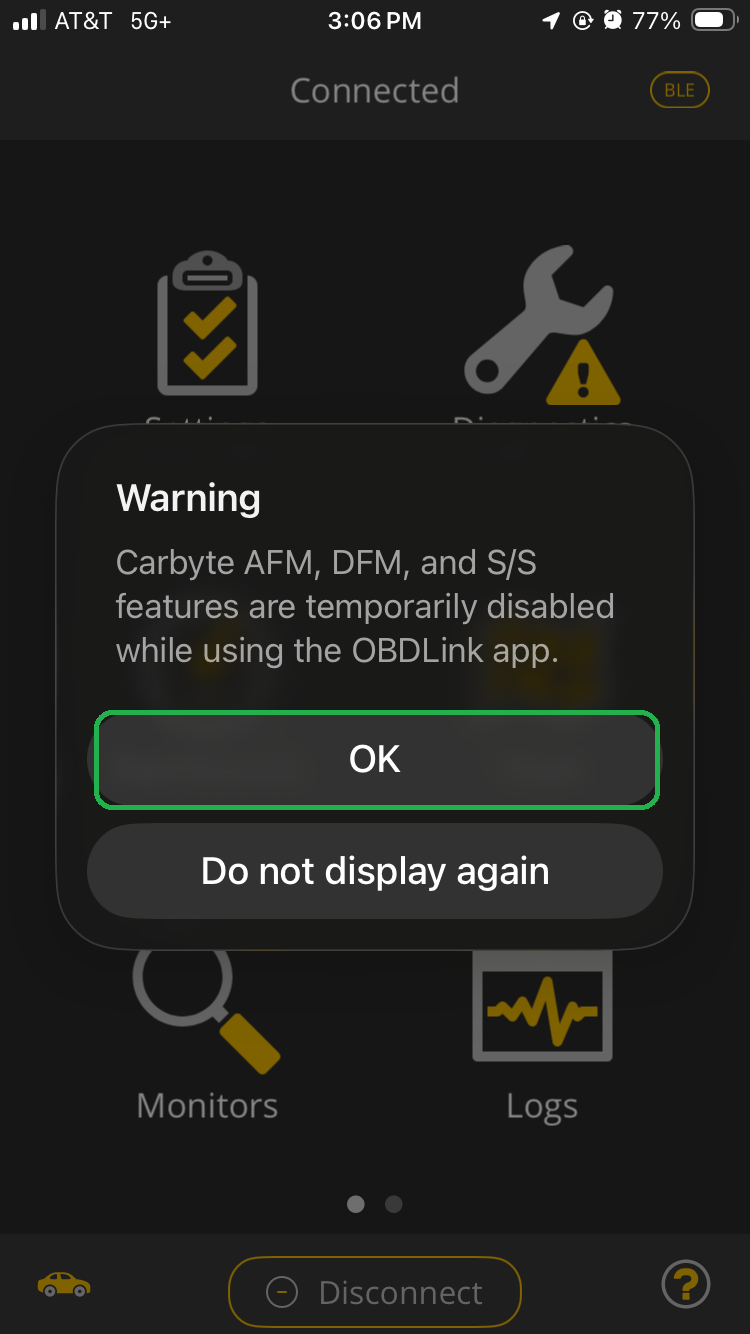
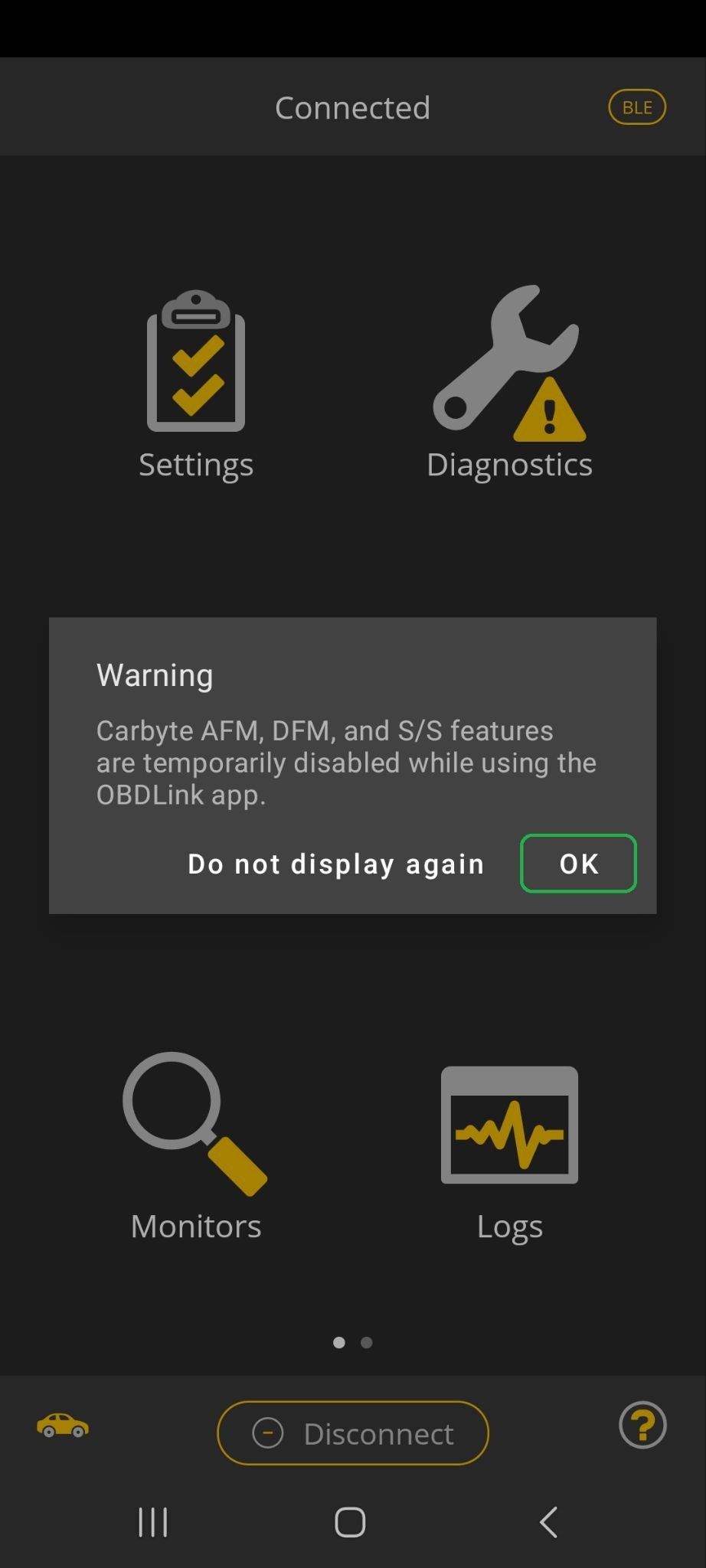
Note: Carbyte will not disable AFM/DFM or Auto Start/Stop while you are using the OBDLink app. You will see the warning message below. Tap OK to close the message.
 |  |
Troubleshooting
- What should I do if Connection is unsuccessful?
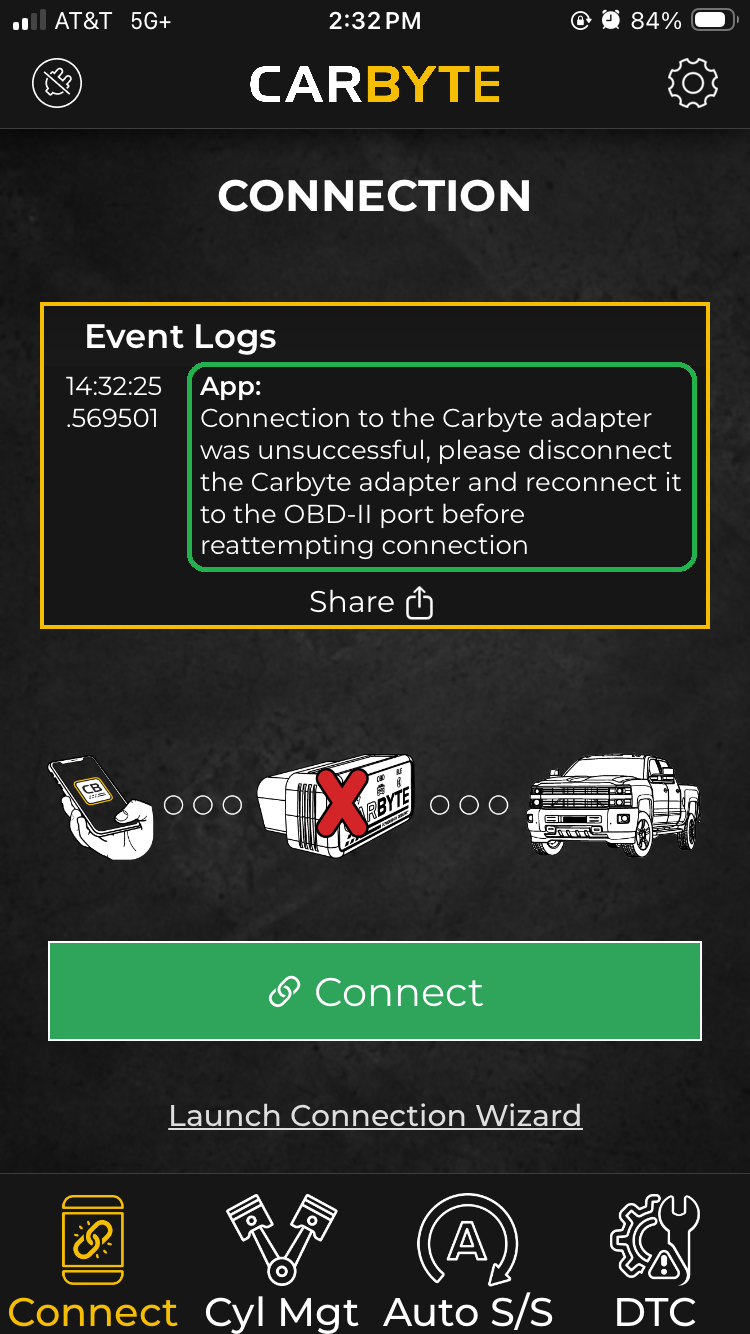
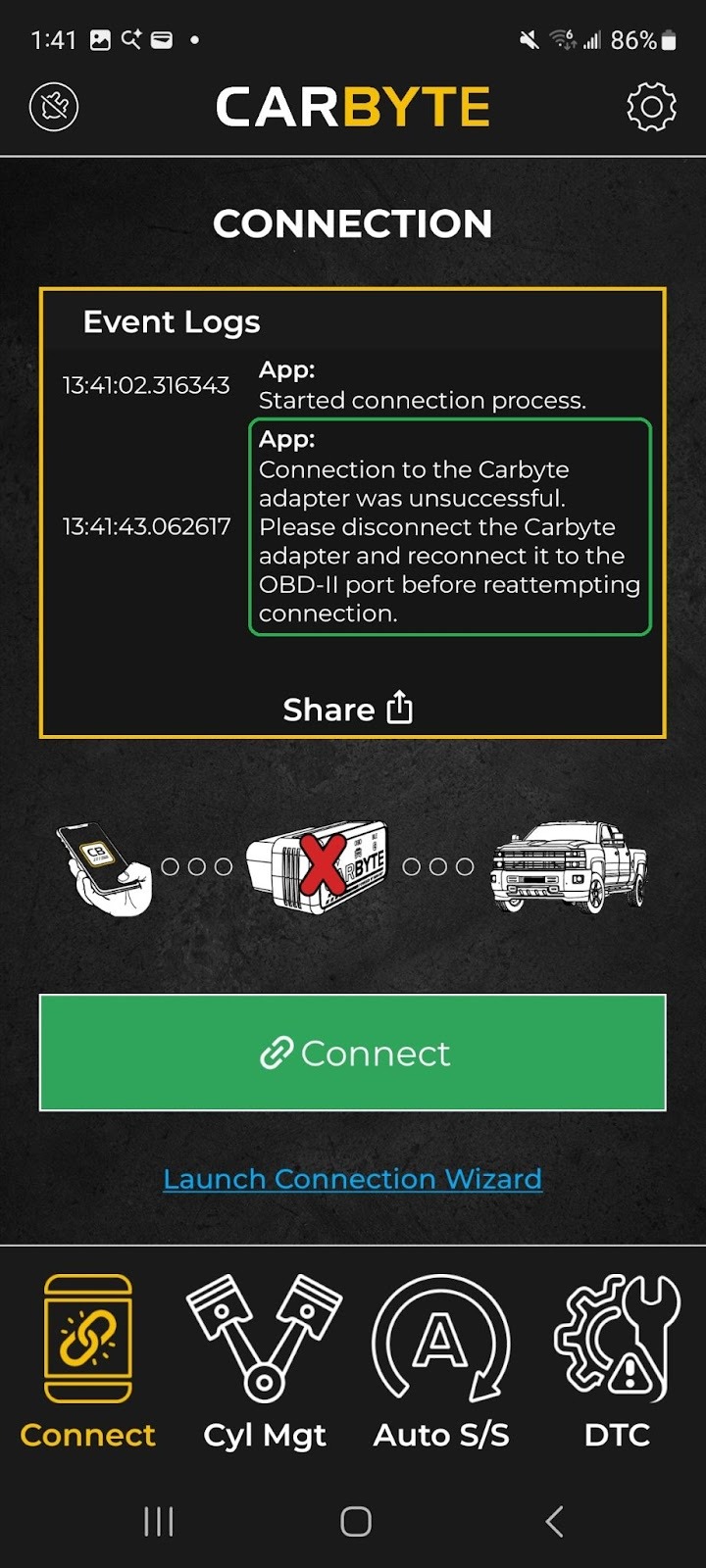
New iOS or Android devices can only pair with Carbyte within the first 5 minutes after it is plugged in to your vehicle. If you see one of the messages below, we recommend that you remove the Carbyte adapter from your vehicle and reinstall it. Next, tap Launch Connection Wizard and follow the instructions. Refer to the steps above in the Update Carbyte firmware to section for screenshots and other details. - Why does Carbyte stop working occasionally?
If Carbyte isn’t consistently disabling start/stop or AFM/DFM features, it’s likely that a hidden OBD tracker is installed in your vehicle. Occasionally, OBD trackers are installed during service or sale at the dealership. When active, the tracker can block access to vehicle systems—preventing Carbyte from disabling features like AFM/DFM and auto start/stop. Does Carbyte work when plugged into an OBD-II port splitter or an alternate OBD-II port?
Carbyte will work when plugged into an OBD-II port splitter or an alternate OBD-II port as long as the other OBD connected device is not using it to communicate with the vehicle’s systems. Many OBD products, such as dash cams and powersteps, use the port simply as a power source and will work alongside Carbyte without any issues. However OBD disablers, OBD scanners, OBD vehicle trackers, and other similar devices will interfere with Carbyte's functionality.
Our support team can help you identify OBD trackers and advise on appropriate next steps: Submit a Support Ticket
If you have questions about using Carbyte that aren’t covered in this article, see the Carbyte Frequently Asked Questions.
Learn more
- Learn more about DTCs in the article: Get Started with Diagnostics, in the Trouble codes section.
- You can explore other OBDLink features and functionality using our support article knowledge base.
- For descriptions of terms used in this article, see the Glossary of Acronyms and Terms.
Need more help?
OBDLink® is a registered trademark of OBD Solutions, LLC.
Carbyte™ is a trademark of OBD Solutions, LLC.