
The Trips function in the OBDLink® app is linked to the Logs function. Logging is enabled in the OBDLink app by default. Follow the steps in this article to view trip data for your vehicle.
Note: We recently updated the OBDLink app and made improvements to its features and how it looks. This article matches the updated app’s screens and features. Download the latest version of the OBDLink app from the App Store (iOS) or Google Play (Android) to take advantage of the updated app's features and performance.
Every time the app connects to your vehicle, it captures log data that can be viewed in several ways:
- Trip view
- Map view (accessed using the Maps function)
- File view for data files and CSV files (accessed using the Logs function)
By default, the OBDLink app enables logging for certain vehicle PIDs (vehicle speed, longitude, and latitude), so you can view log data even if you haven’t configured any settings.
You can use the Trips functionality in the OBDLink app whether your vehicle is connected or not. If the app is not connected to your vehicle, you can view data from previously stored trips.
View trip information
Before you begin, be sure to:
- Start your vehicle.
- On your phone/tablet, open the OBDLink app and connect to your OBDLink adapter.
- Make sure your phone/tablet is not streaming to any other Bluetooth/BLE devices.
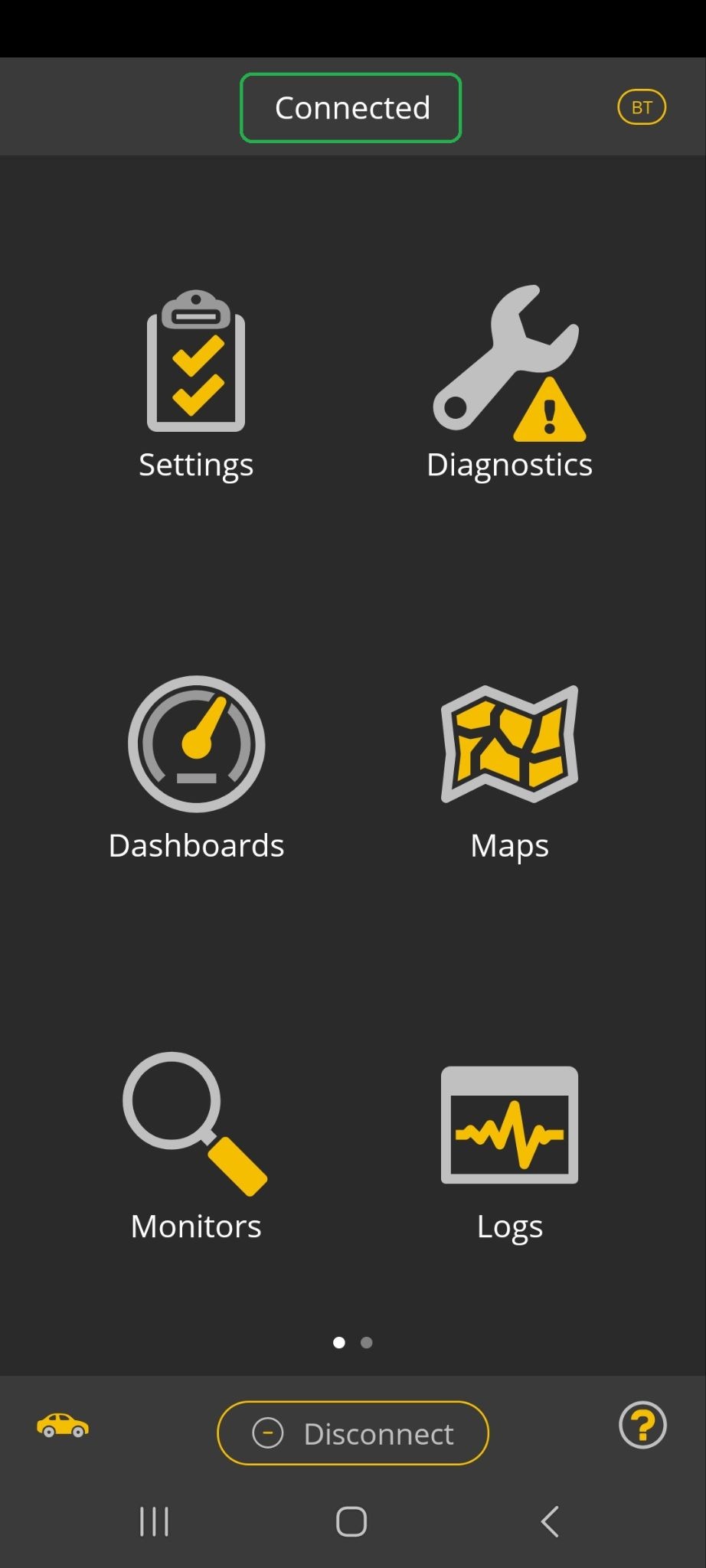
- Confirm that your phone/tablet is Connected to the OBDLink adapter. Swipe to access the second page of icons.
iOS Android 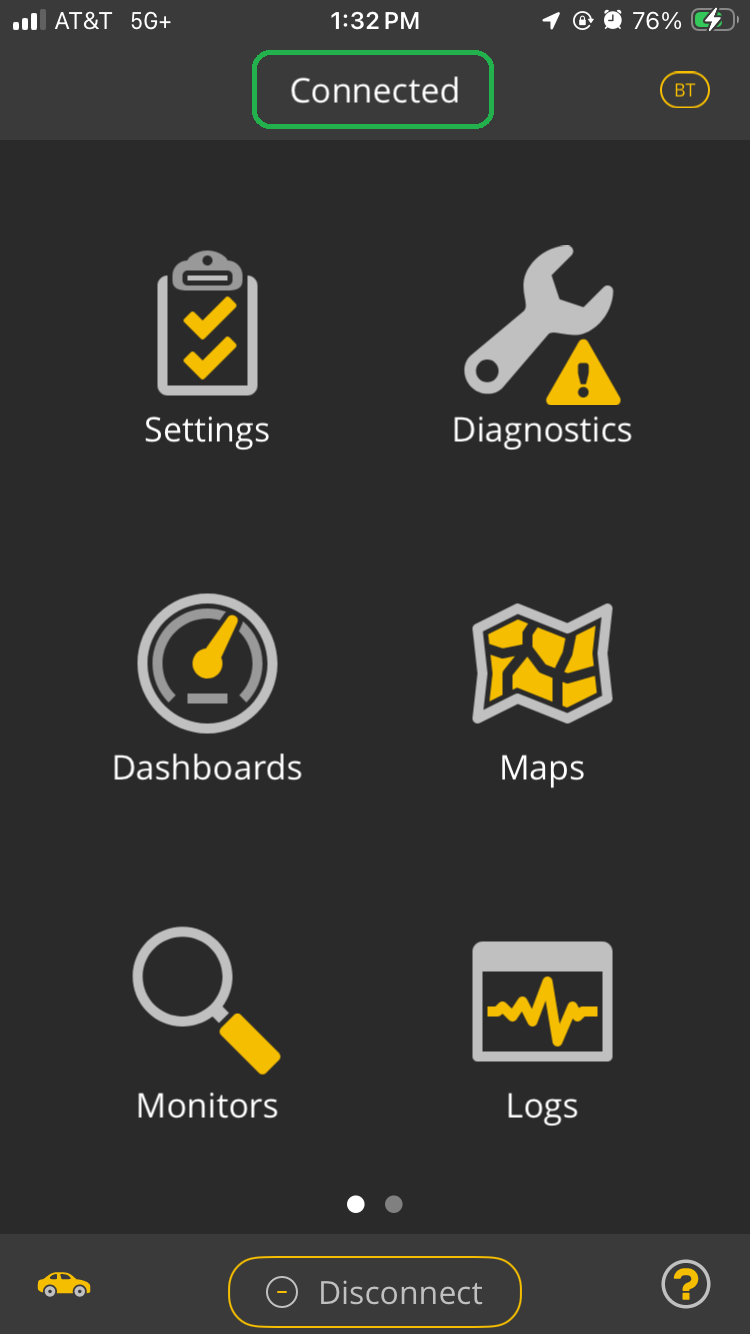
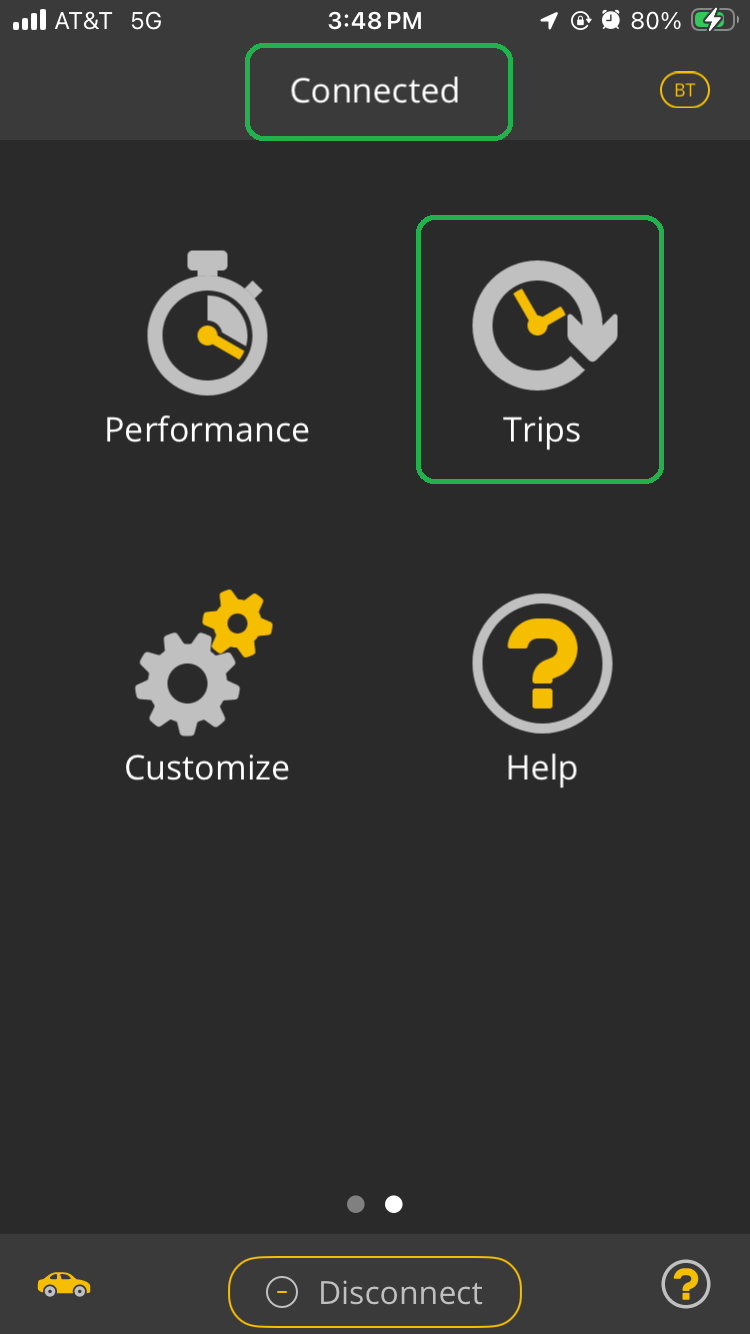
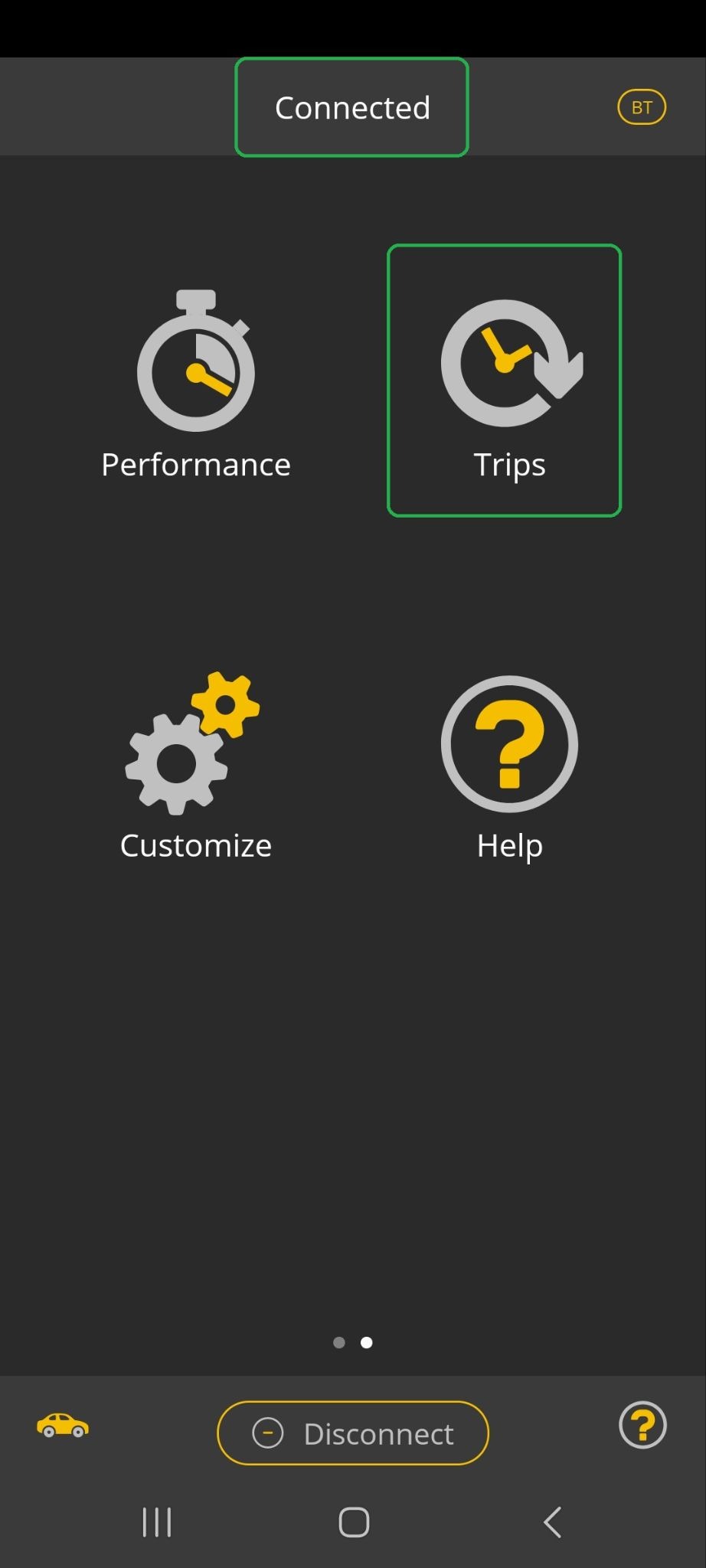
- Tap the Trips icon on the second page.
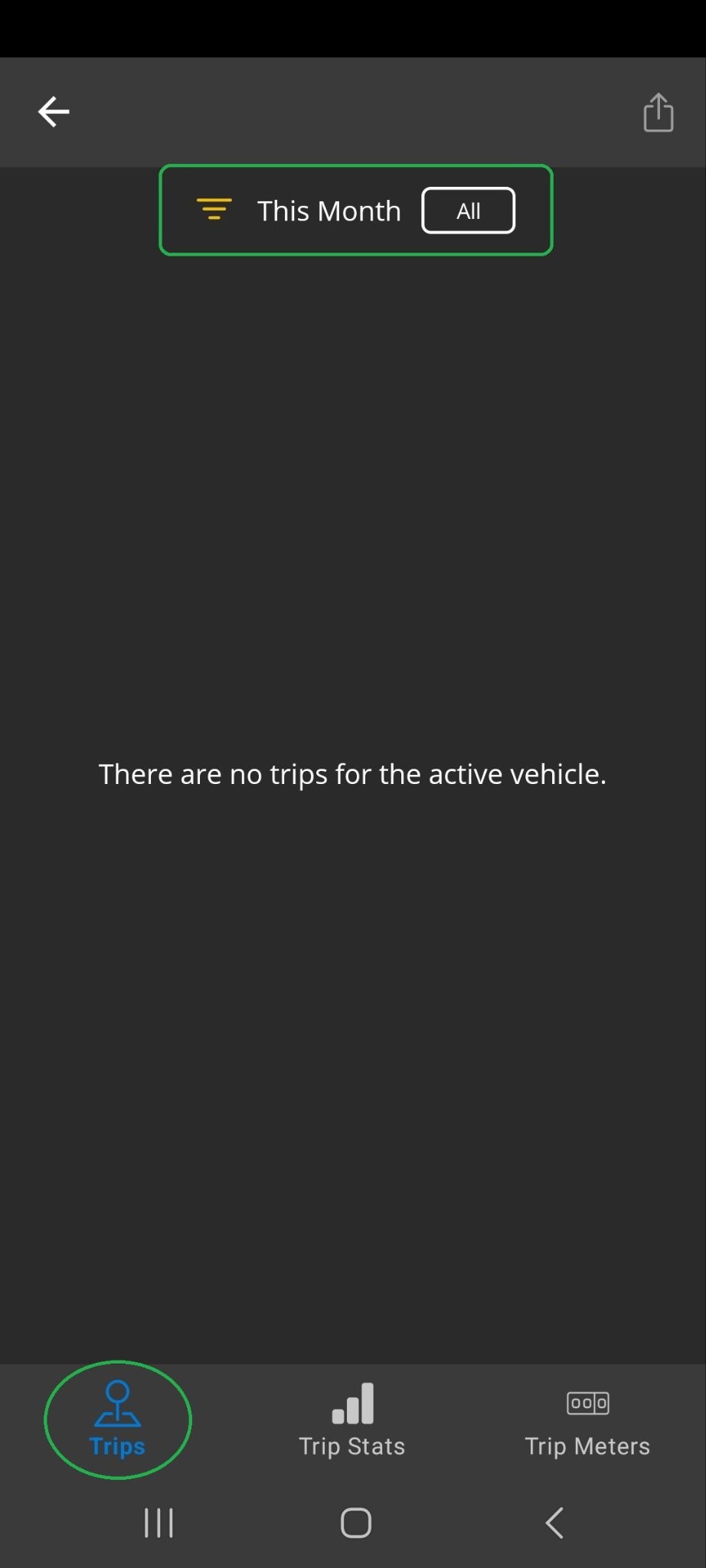
- The Trips tab is displayed. By default, trips are listed for the current month.
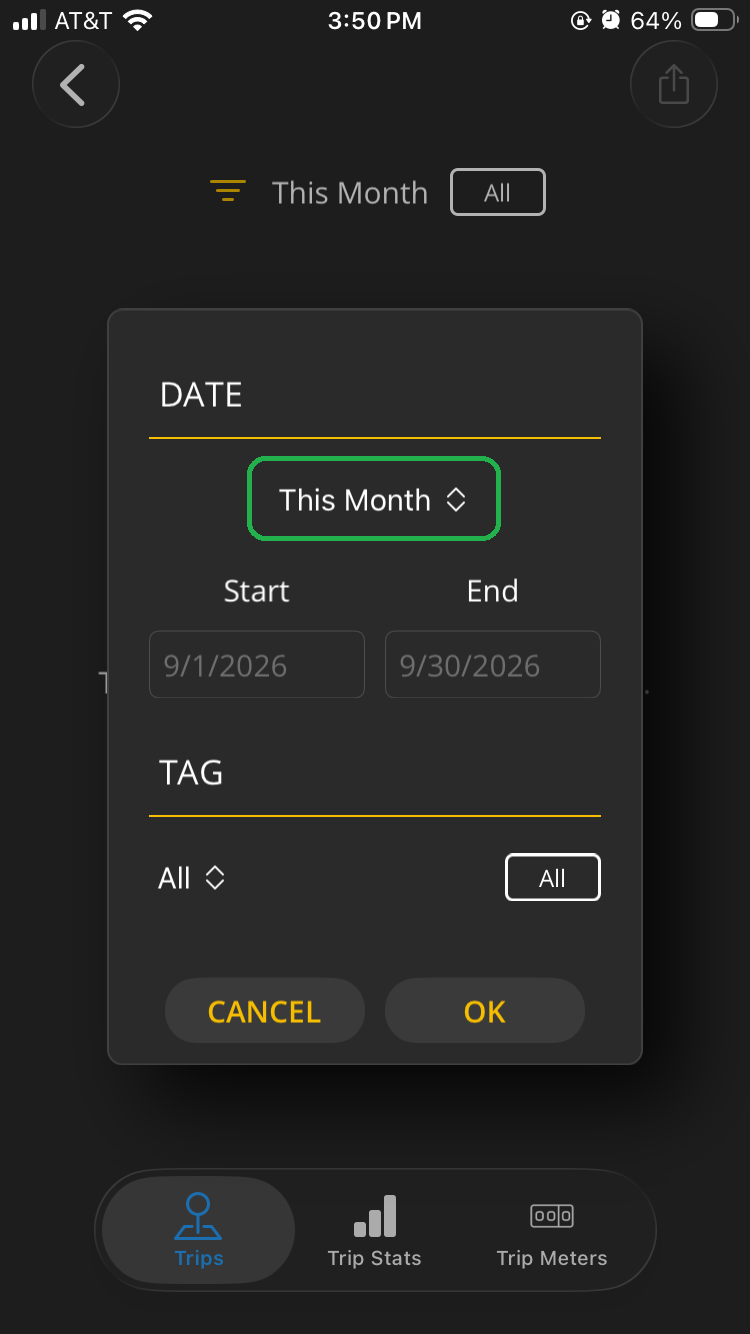
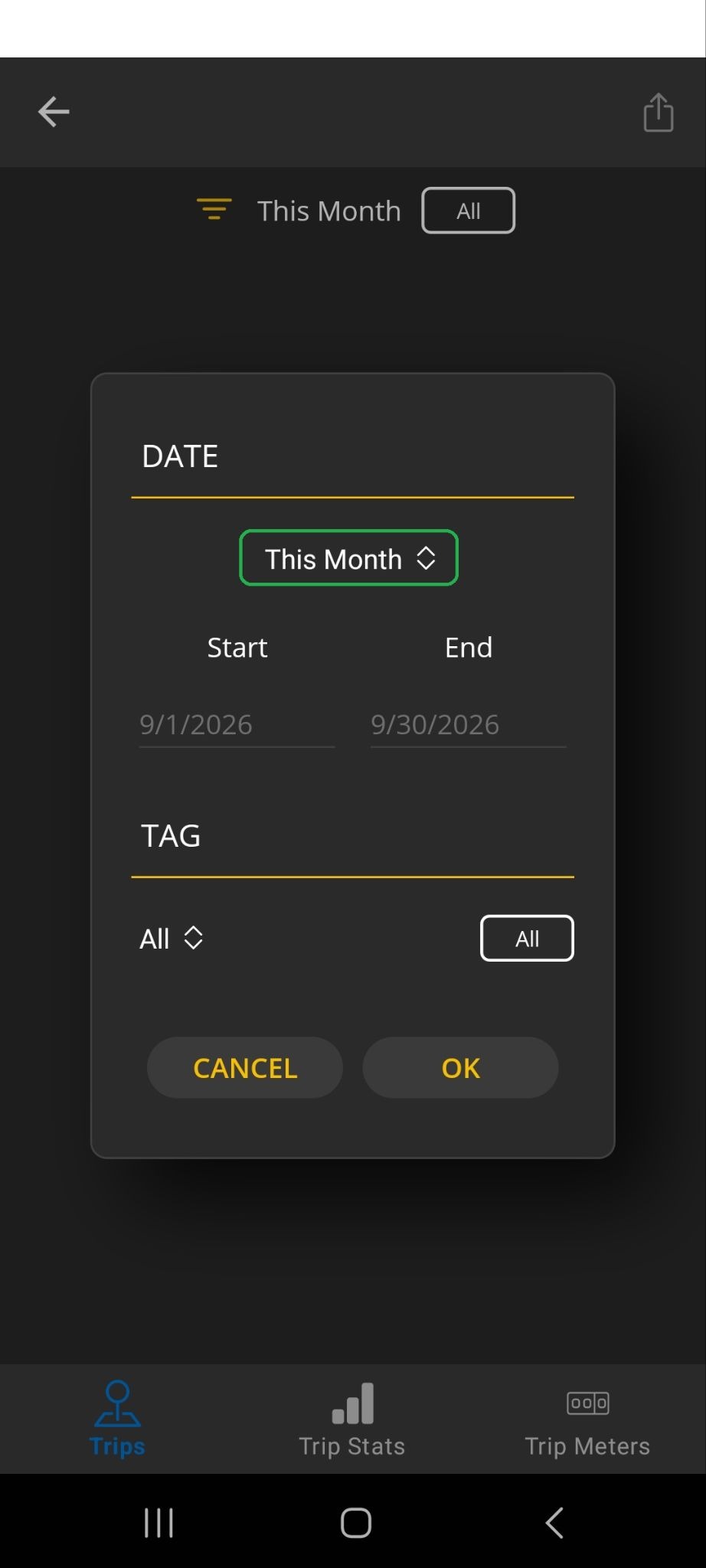
Tap any of the highlighted filter types (icon, date, tag) to open the filter options.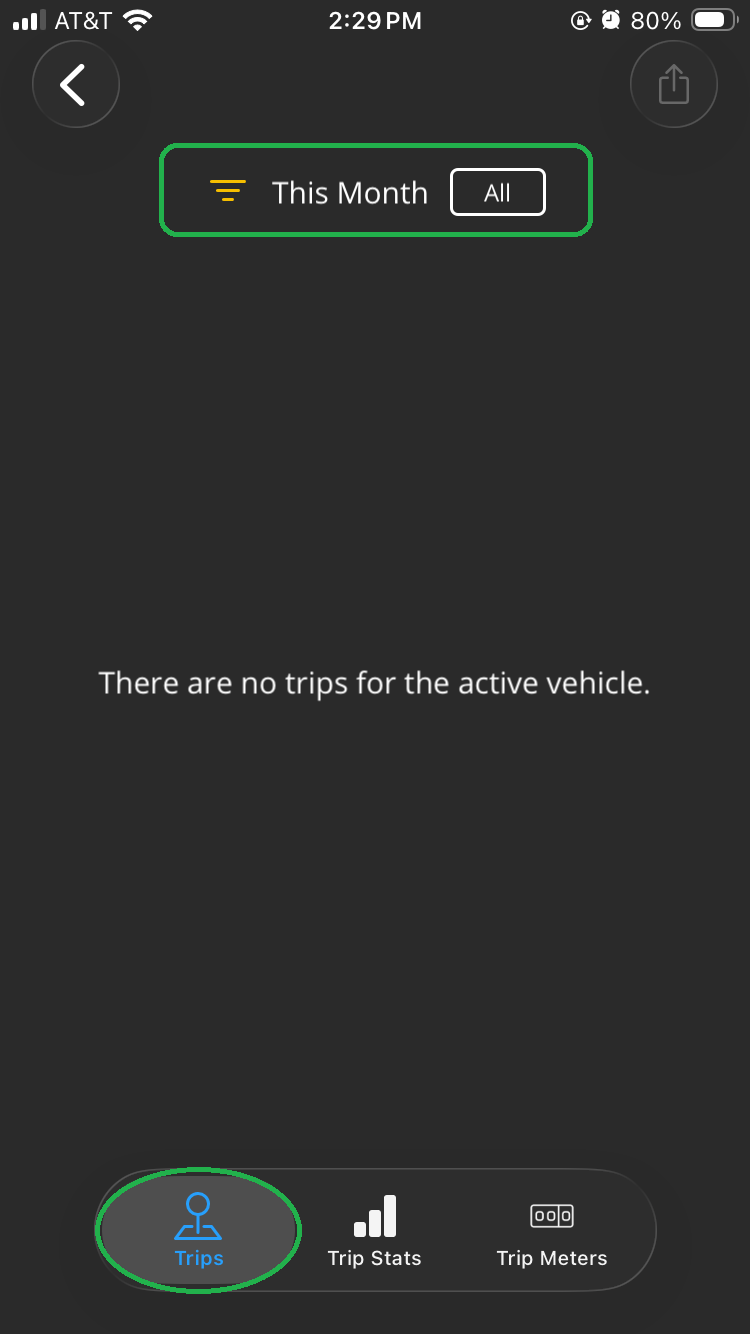
- In our example, we chose to sort by date. We tapped the This Month option and scrolled down to select This Year, then tapped OK.
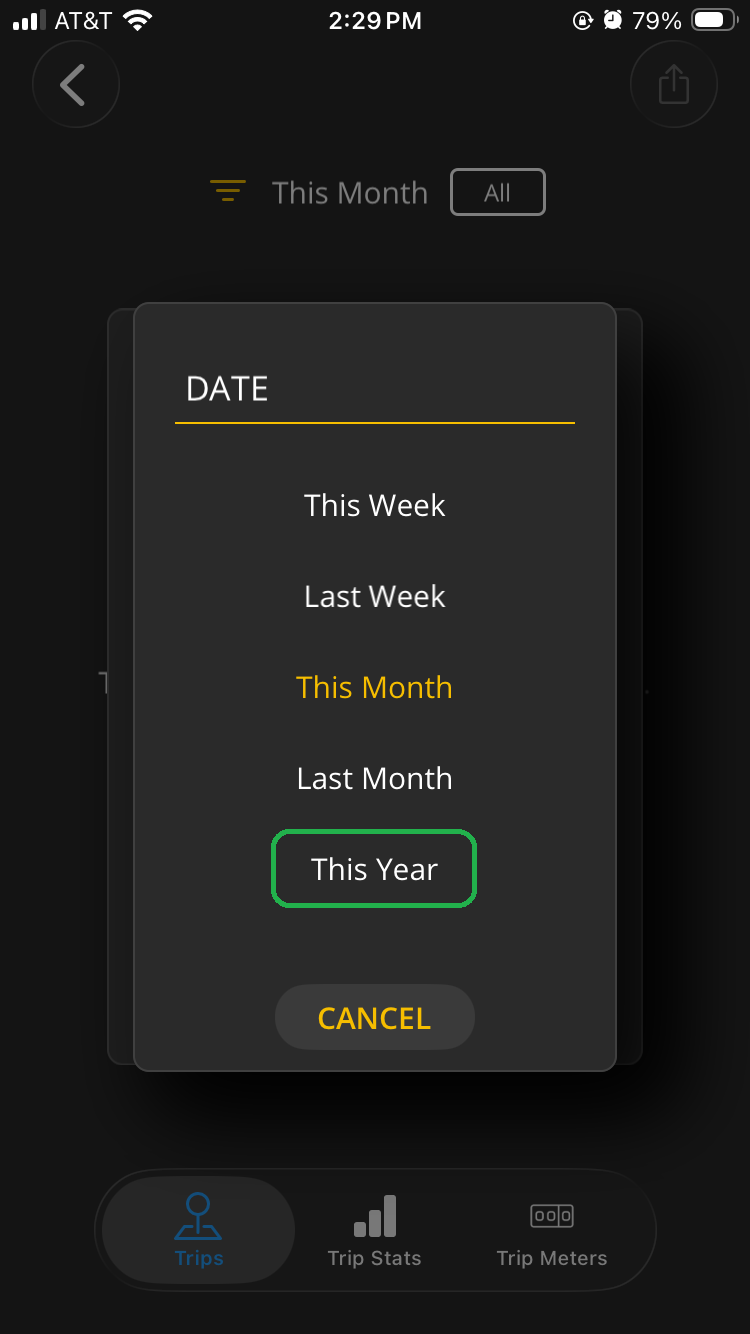
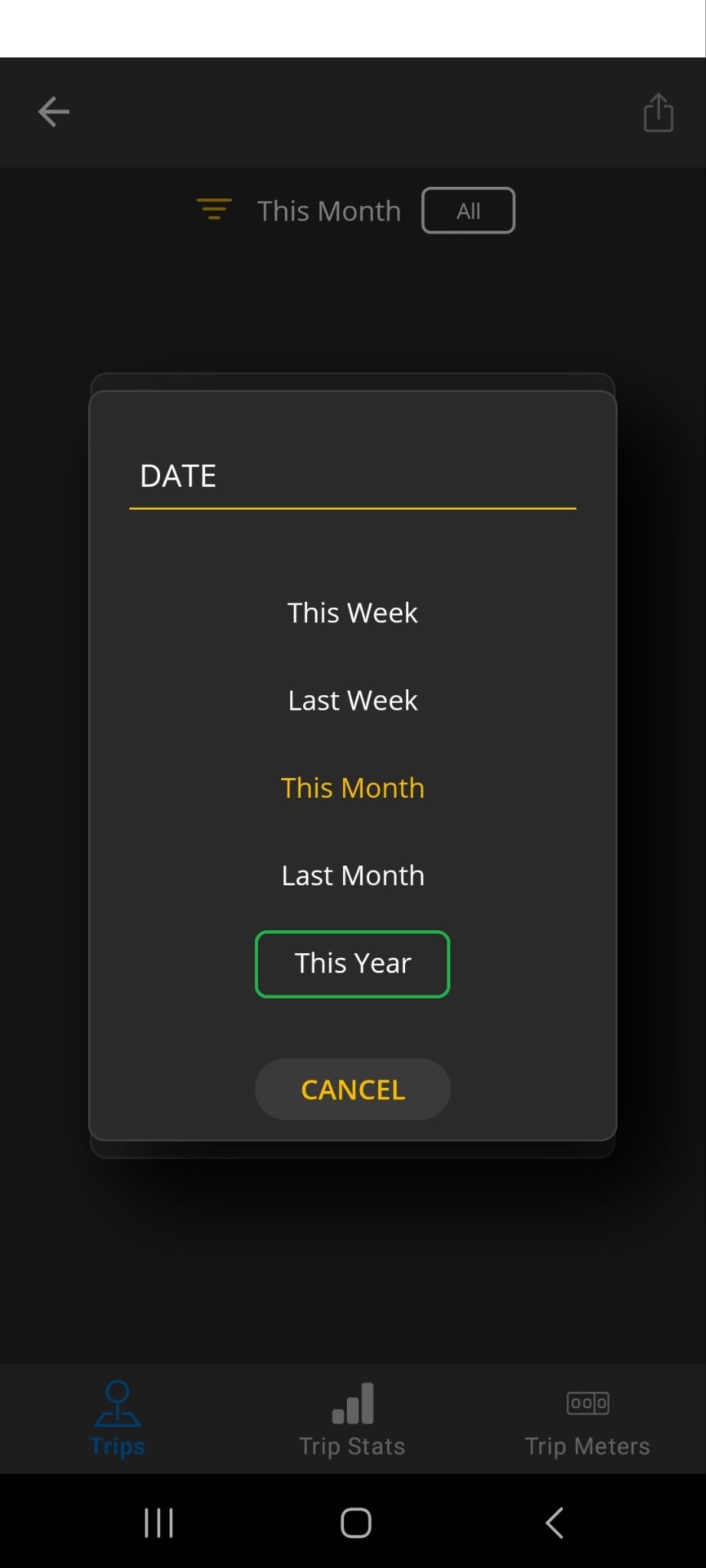
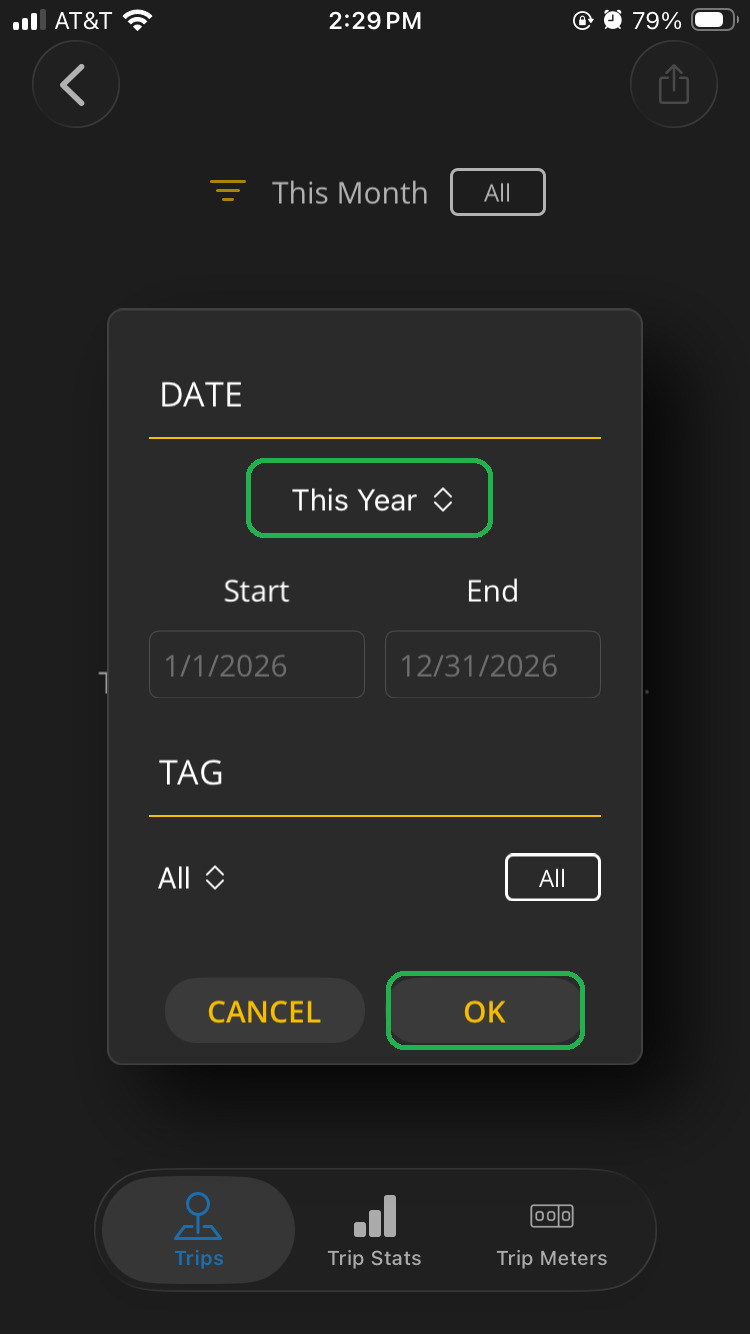
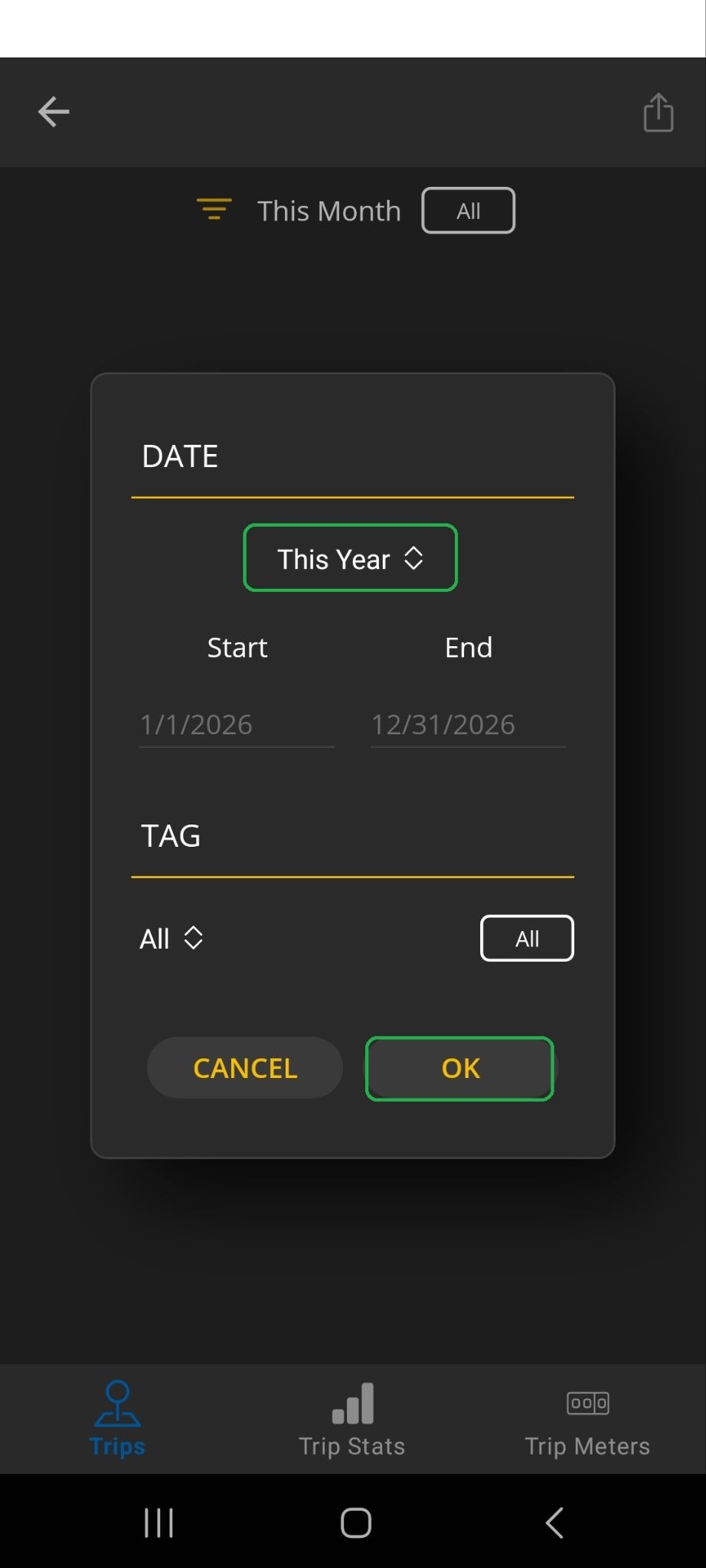
- The OBDLink app displays a list of trips based on the filter settings you selected.
In our example, the app displays a list of trips from this year (highlighted).
Tip: To remove any filter, tap the X icon in the filter section.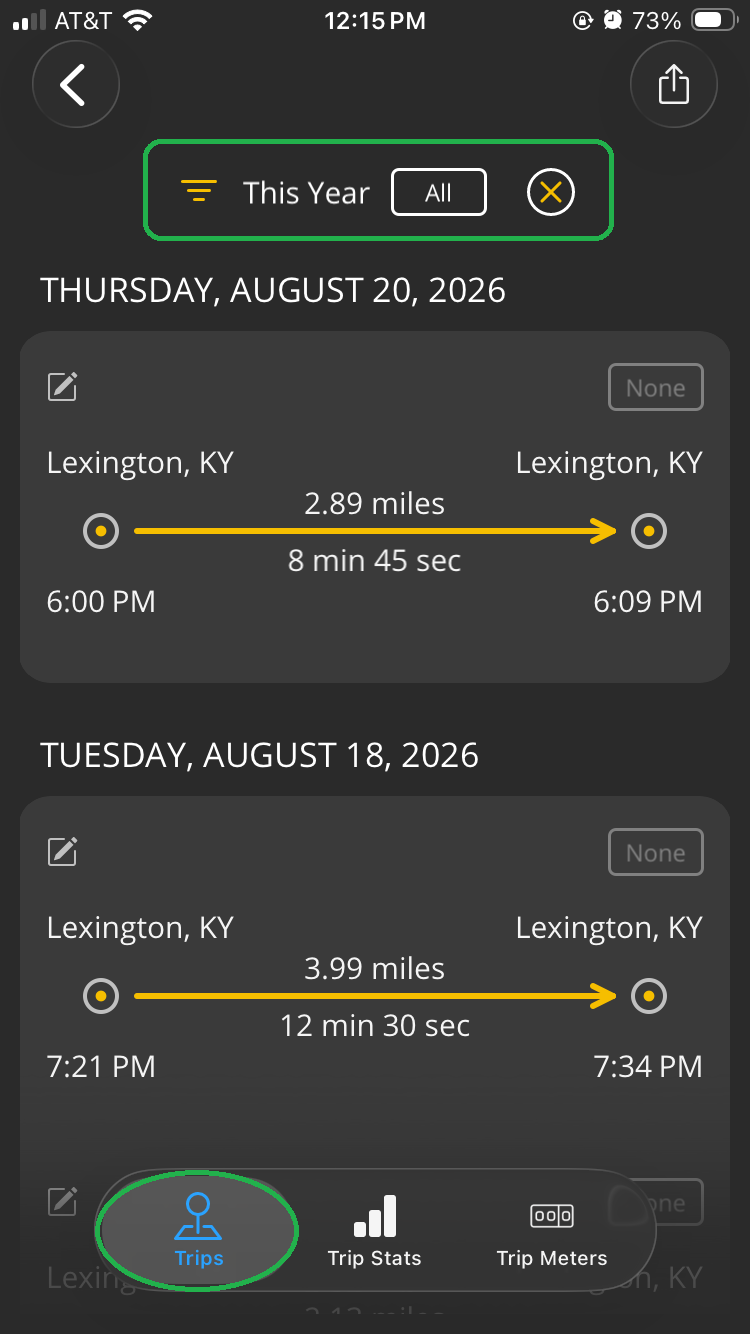
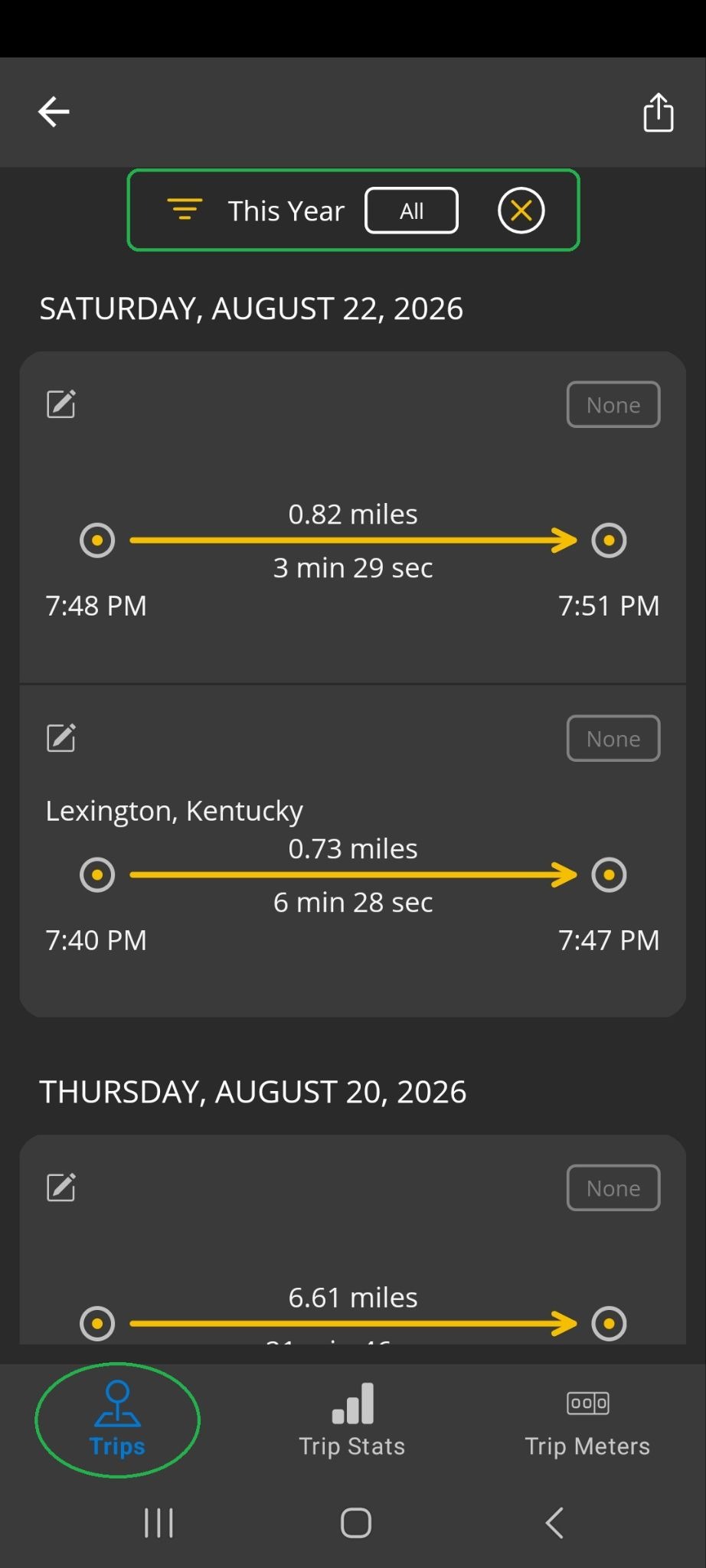
- In our example, we chose to sort by date. We tapped the This Month option and scrolled down to select This Year, then tapped OK.
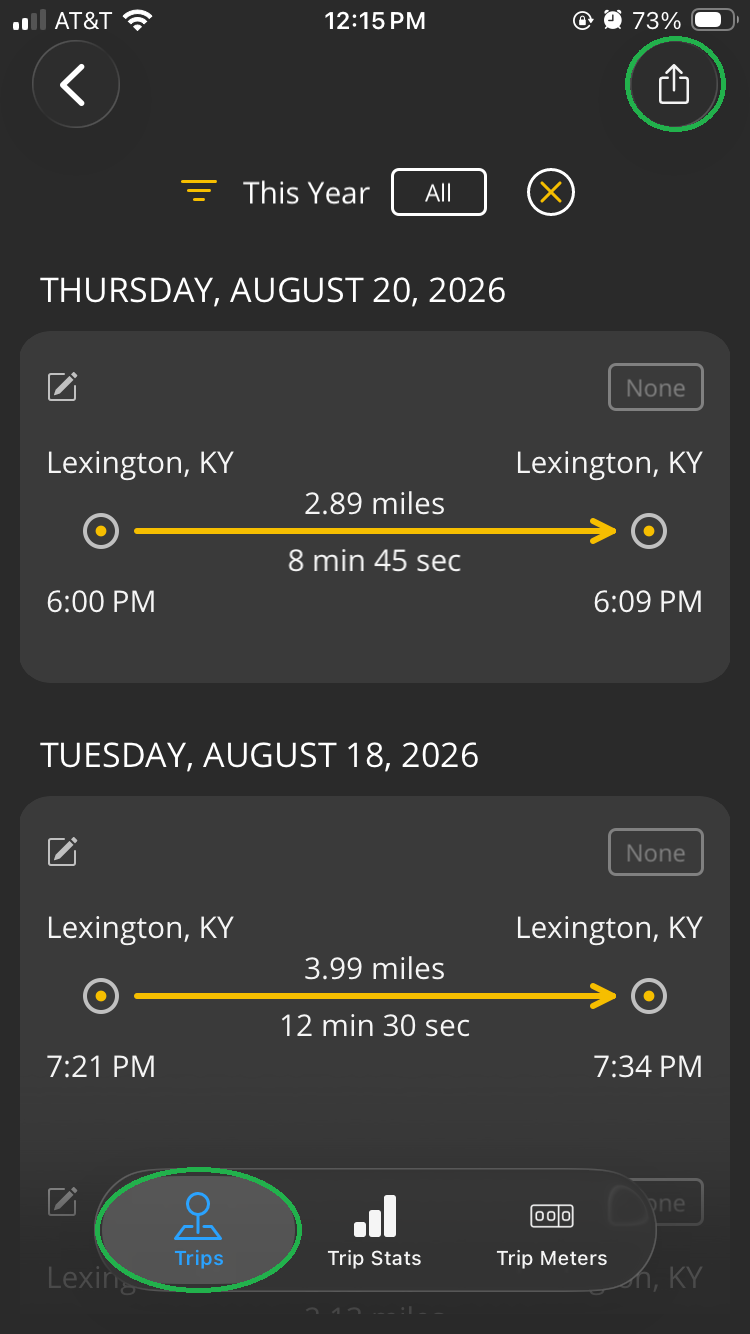
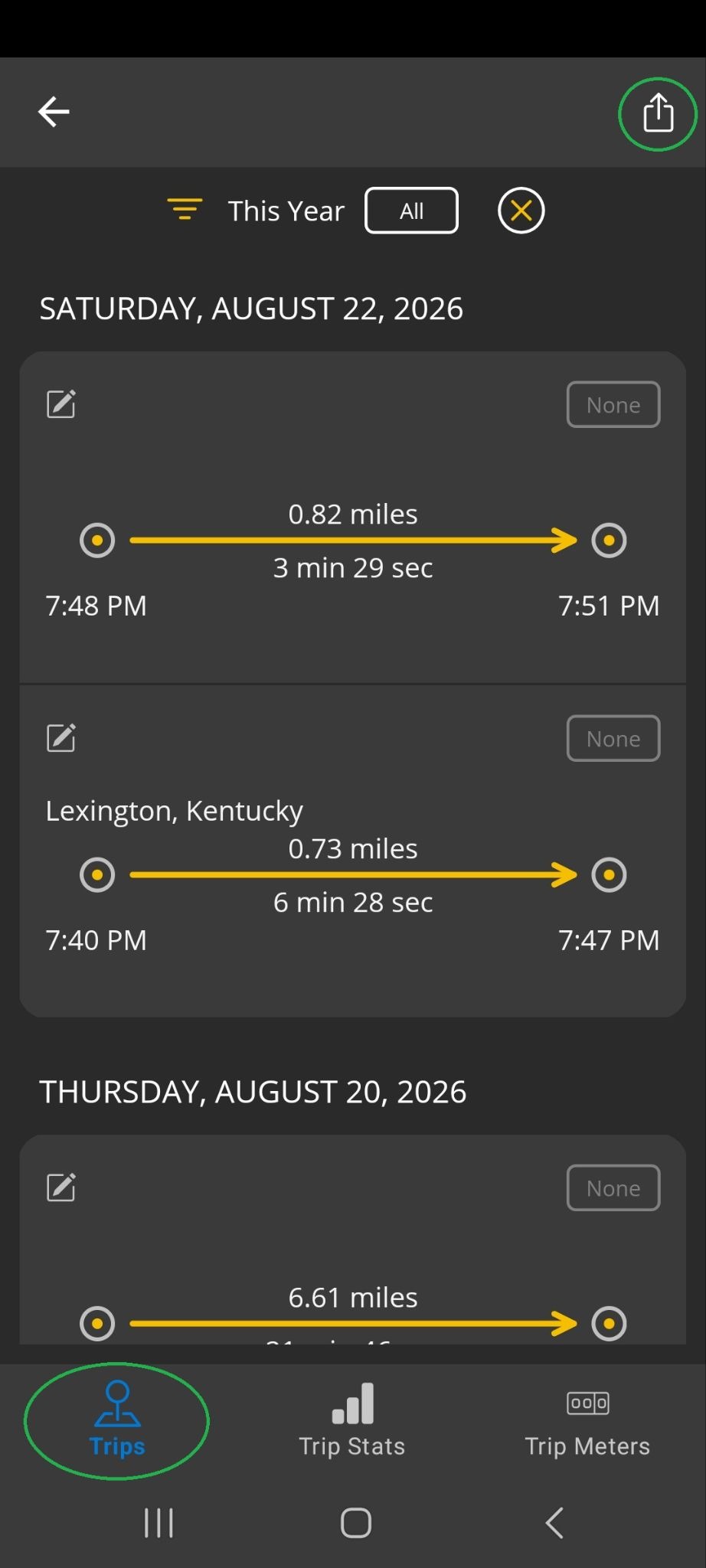
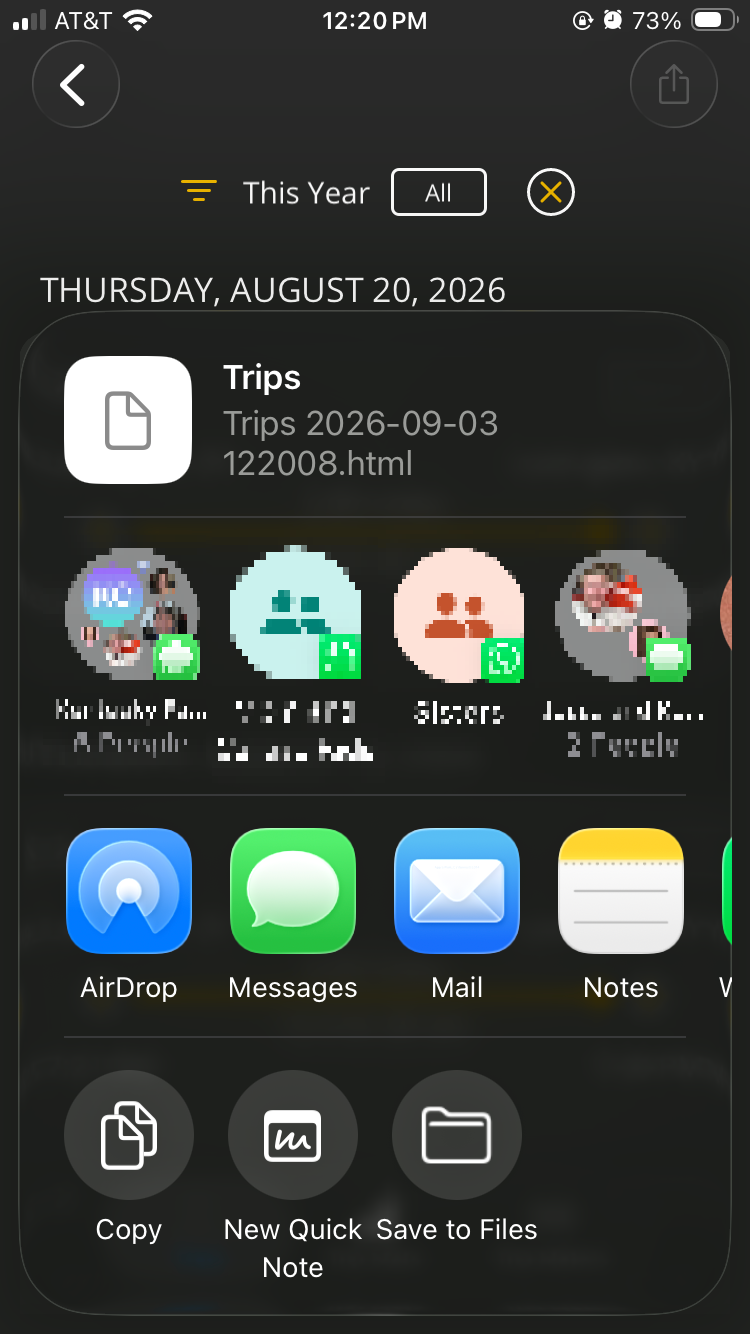
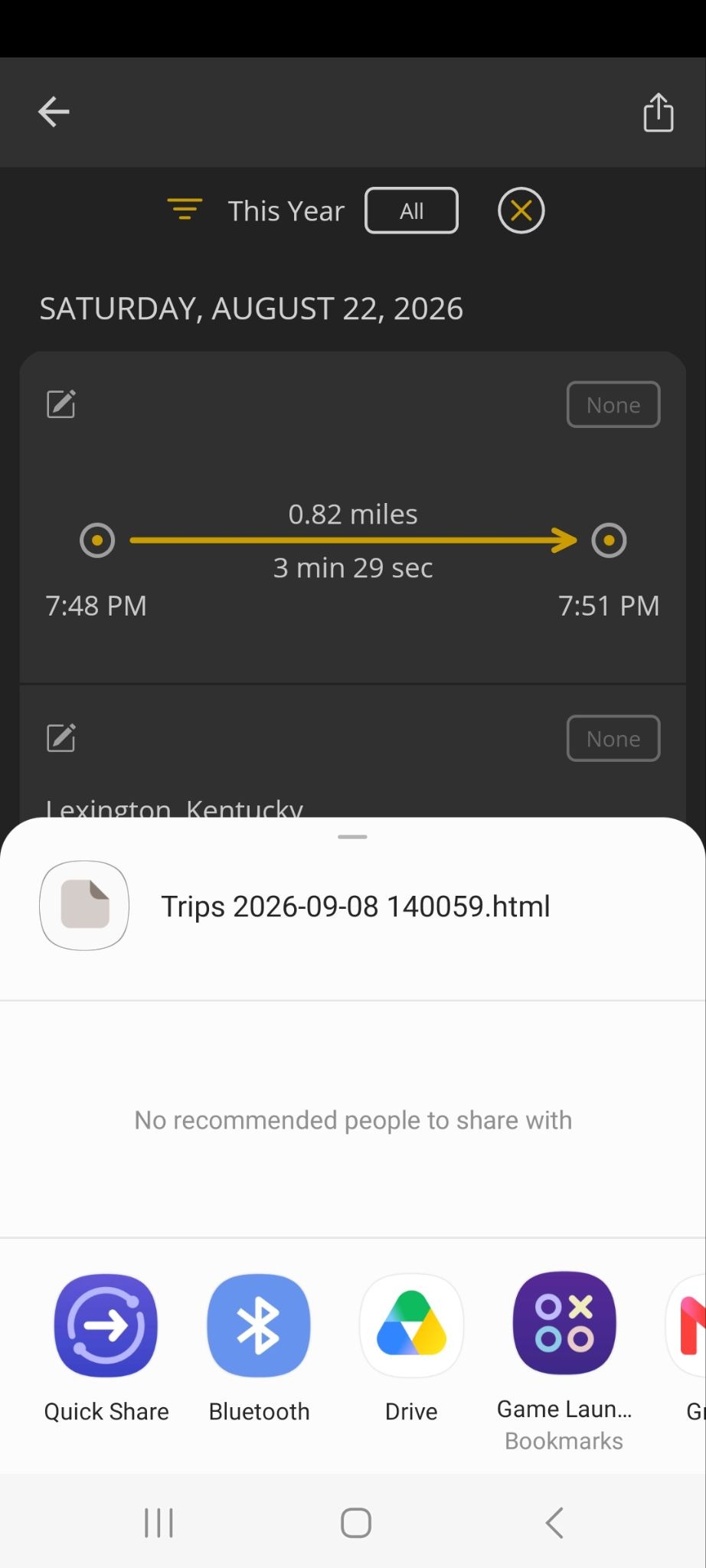
- Tap the Share icon in the upper right corner to send the trip list in HTML format to another app, such as email or a spreadsheet app.
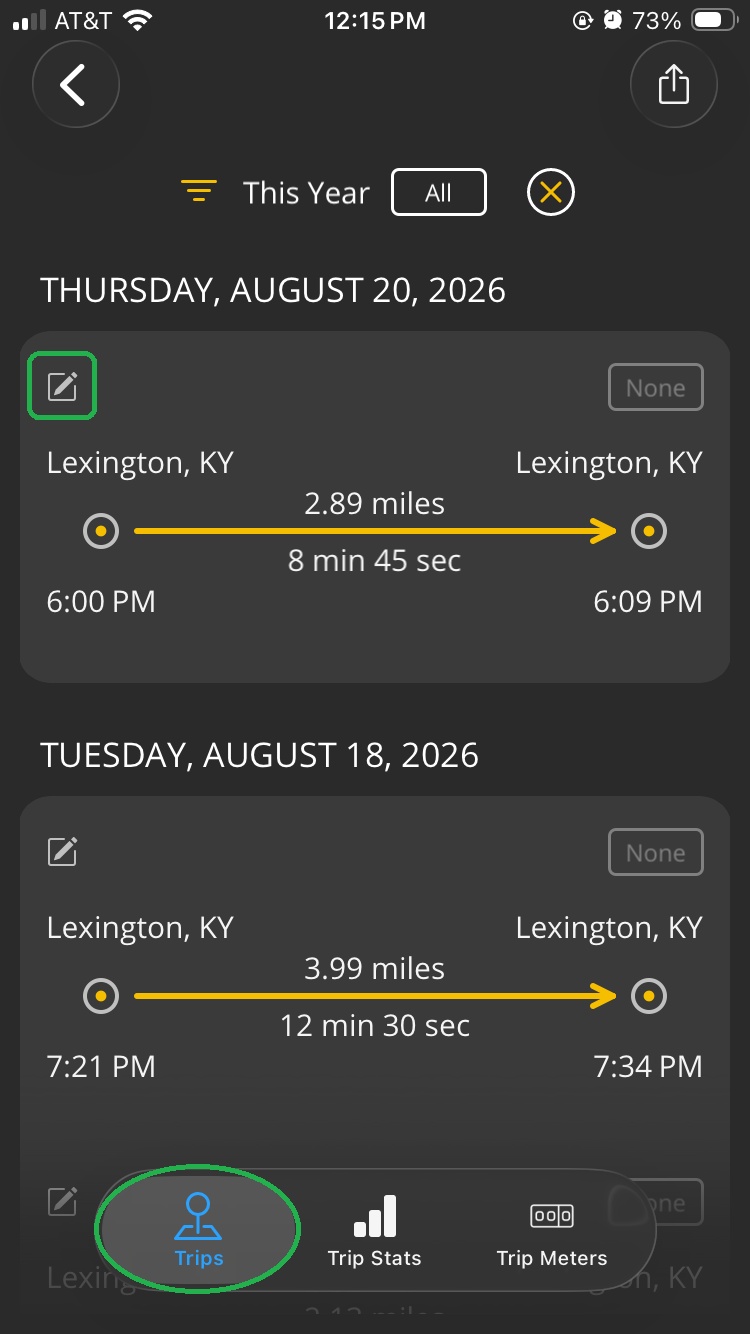
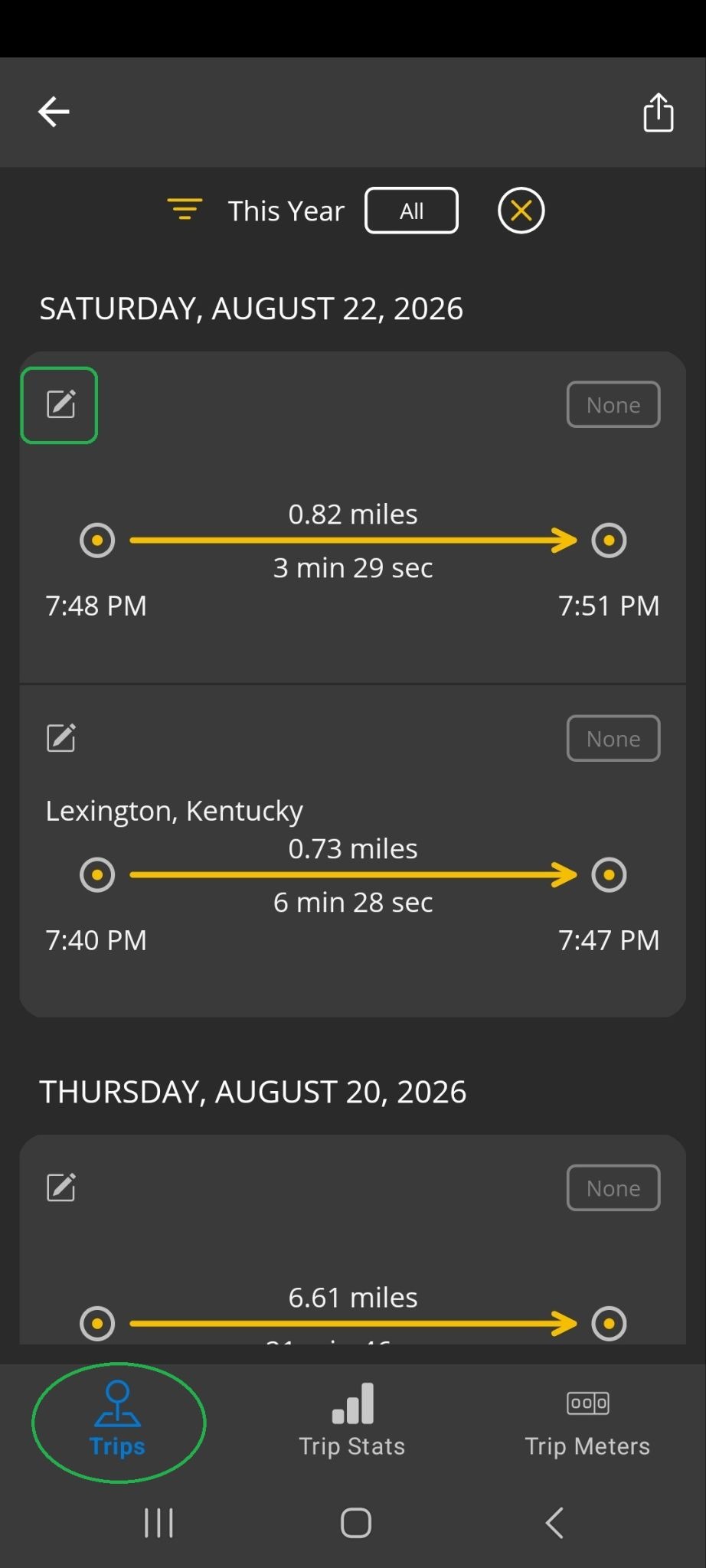
- Tap the Notes icon (highlighted) to add notes to a trip. Enter your text in the dialog, then tap OK.
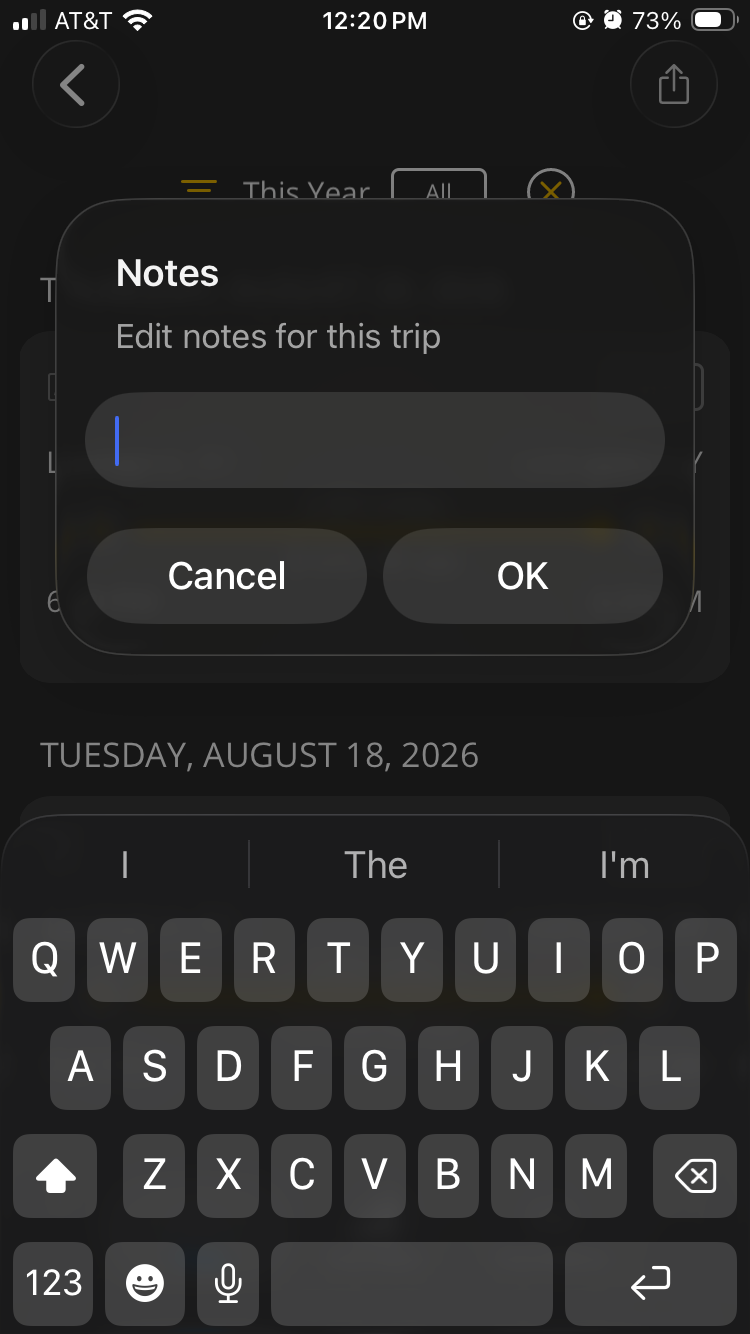
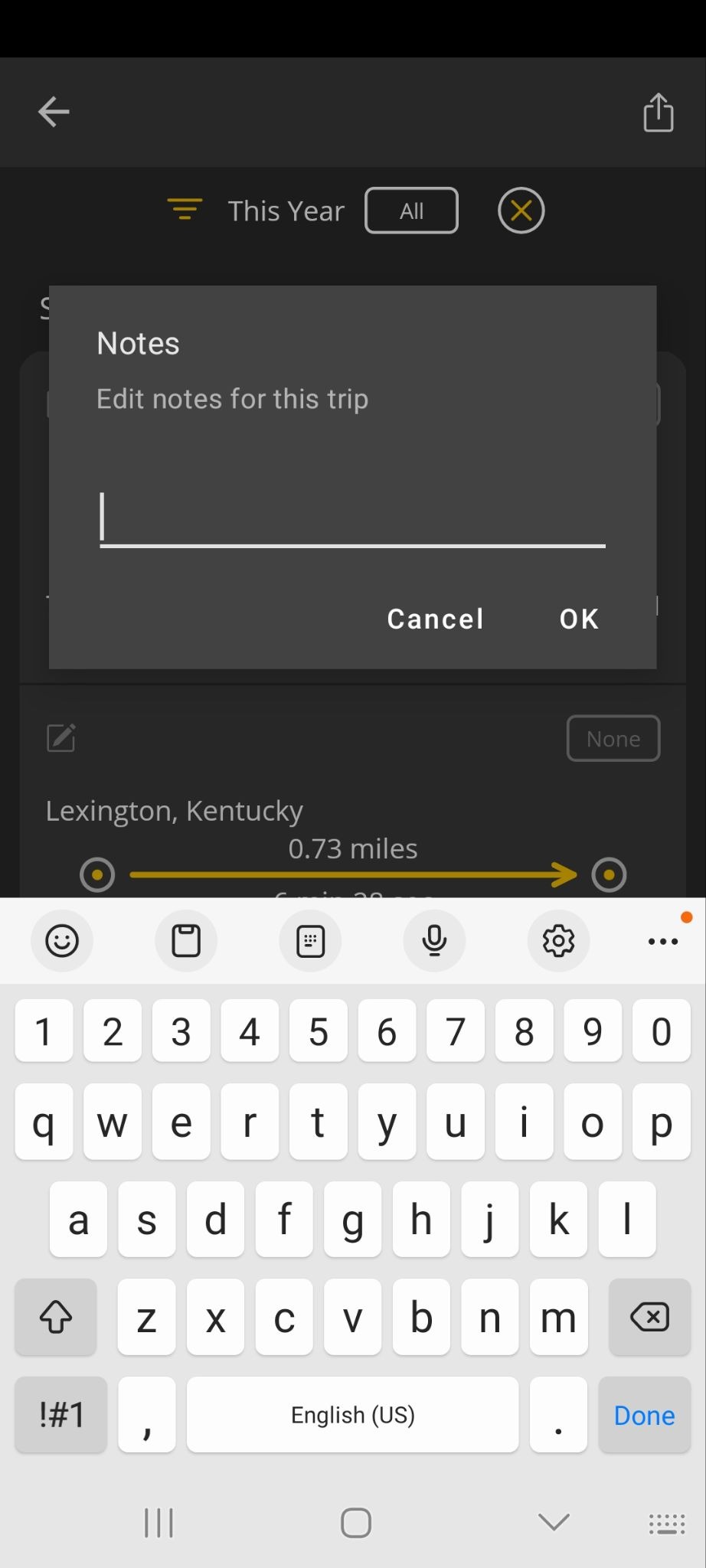
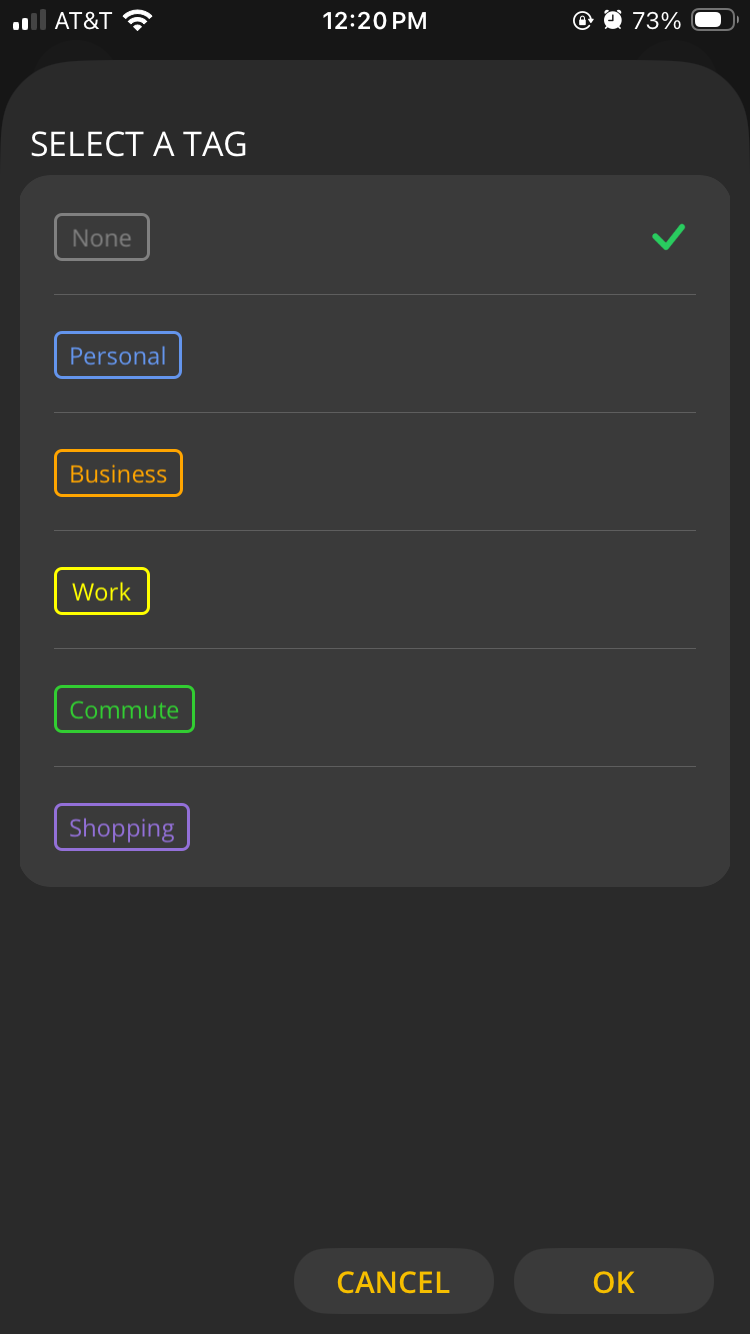
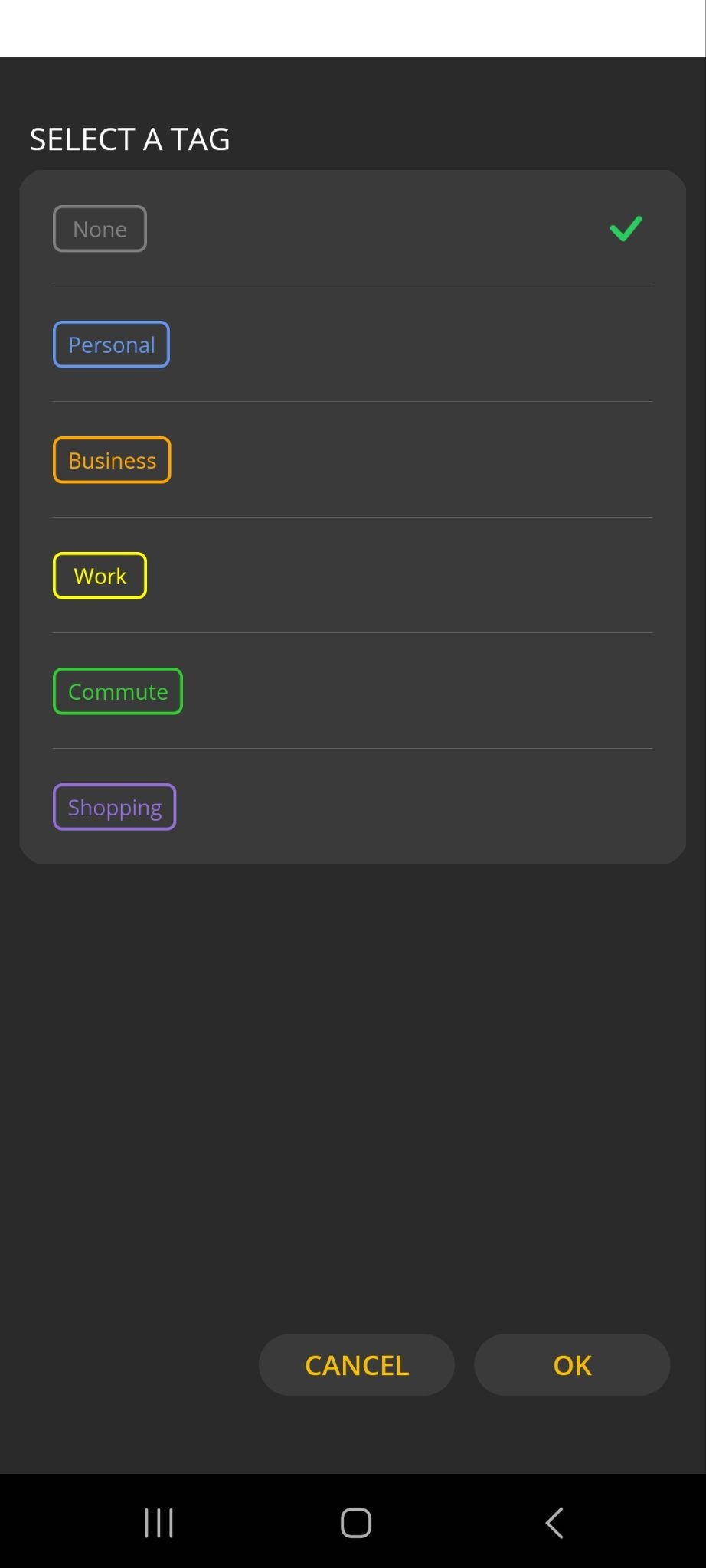
- Tap the Tag icon (highlighted) to add an identifier to a trip. Tap the Tag you want, then tap OK.
You can choose from a list of tags, including personal, work, commute, and others.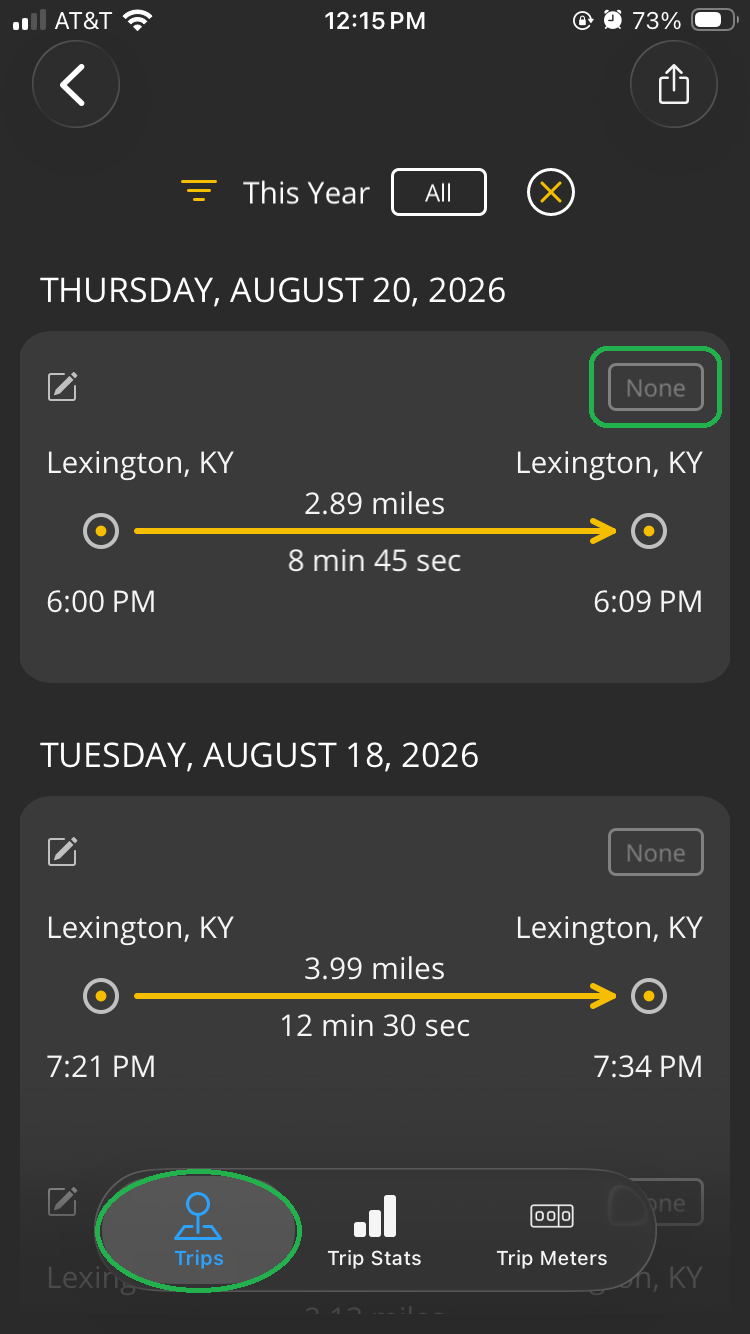
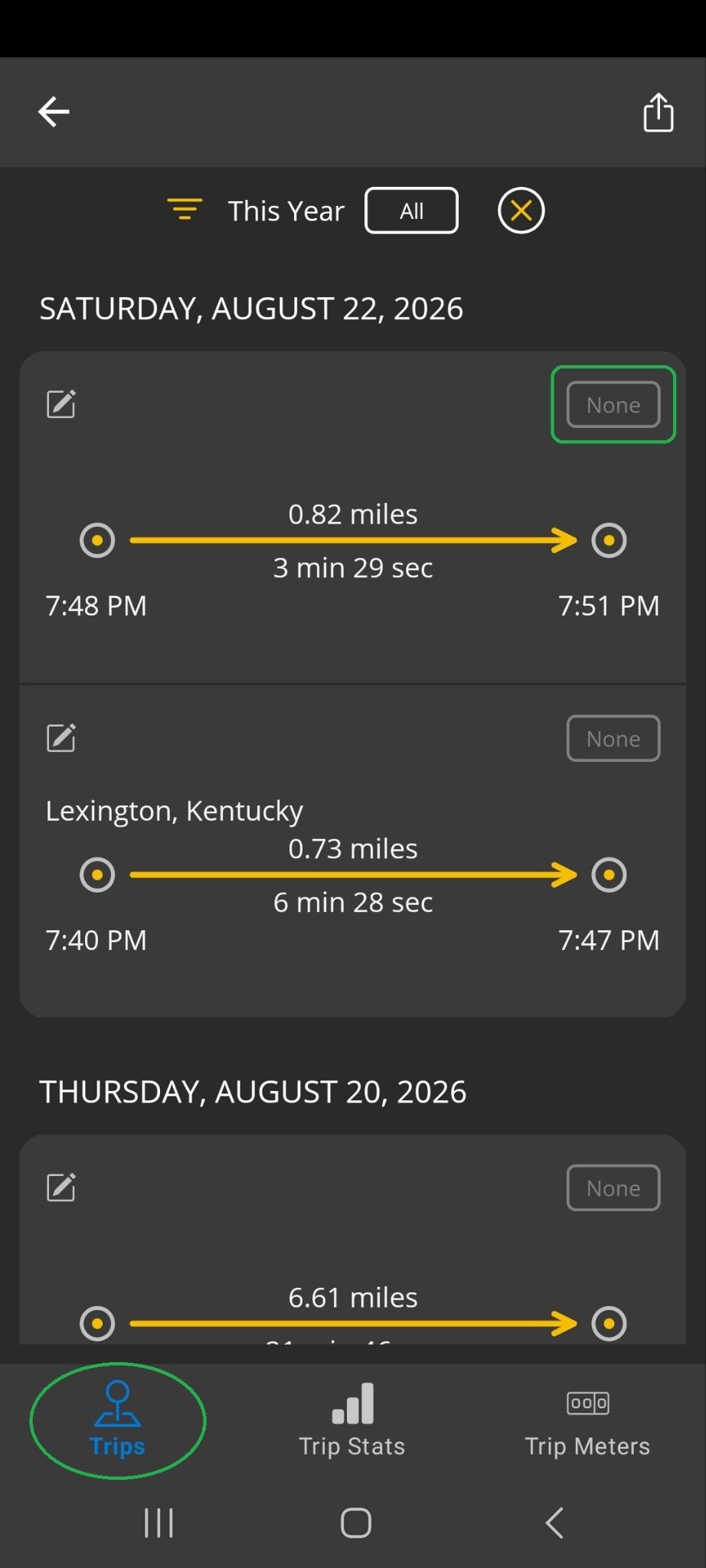
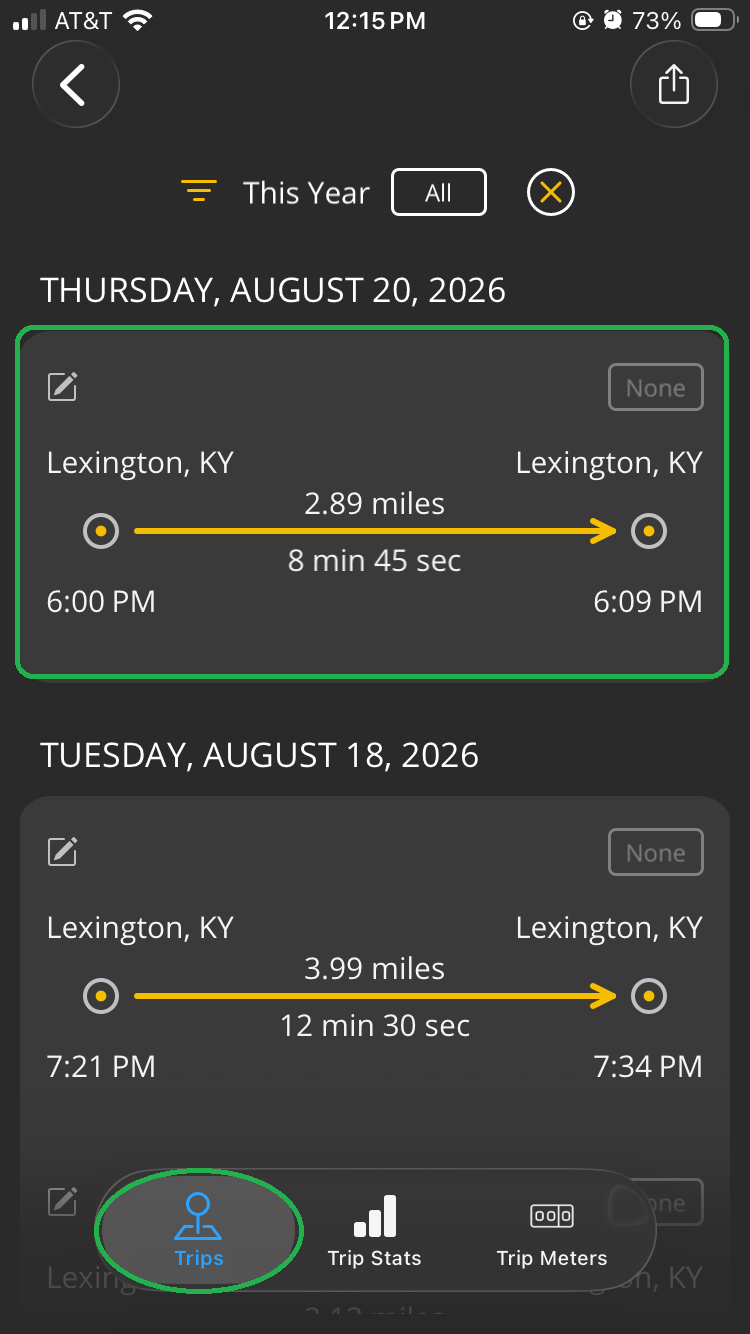
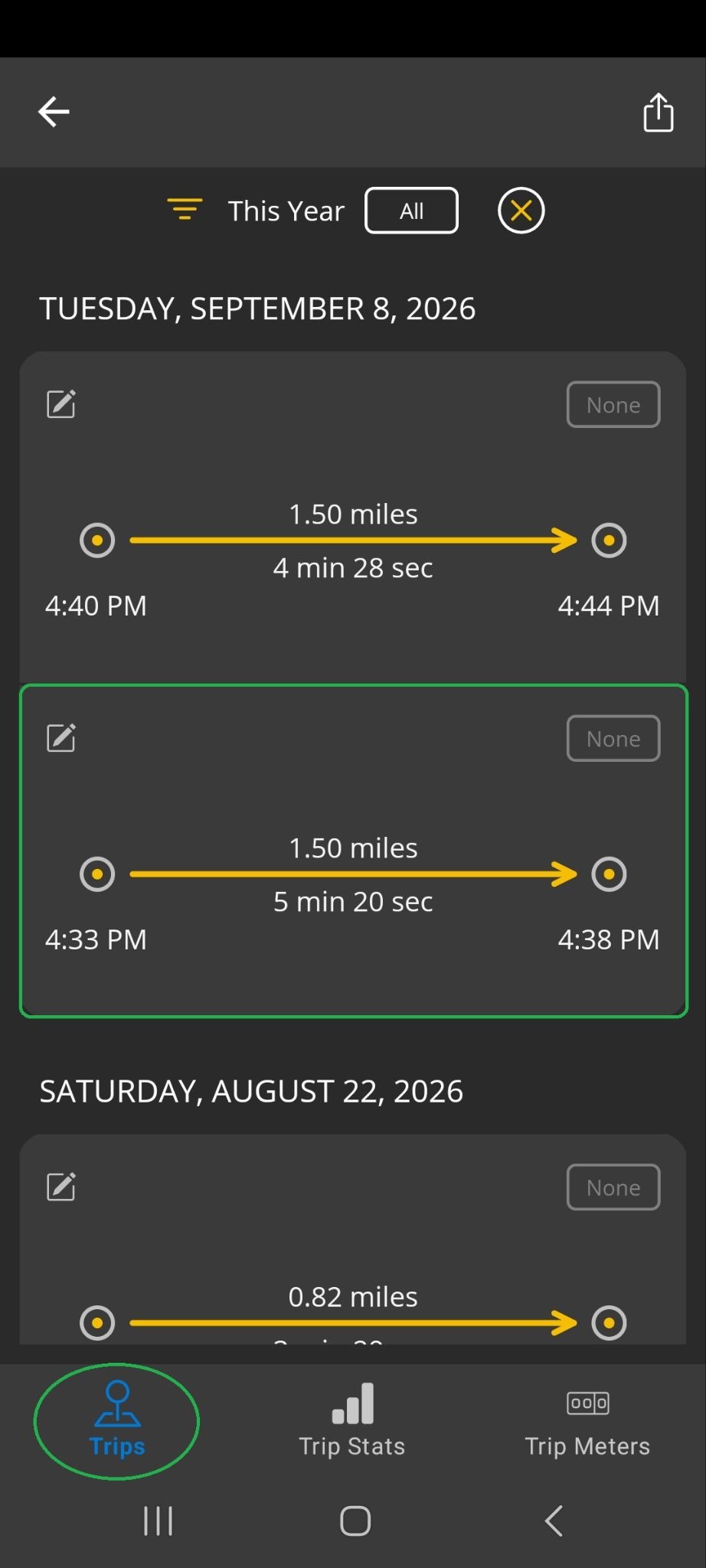
To open a trip, tap the details area (highlighted) for the trip you want to view.
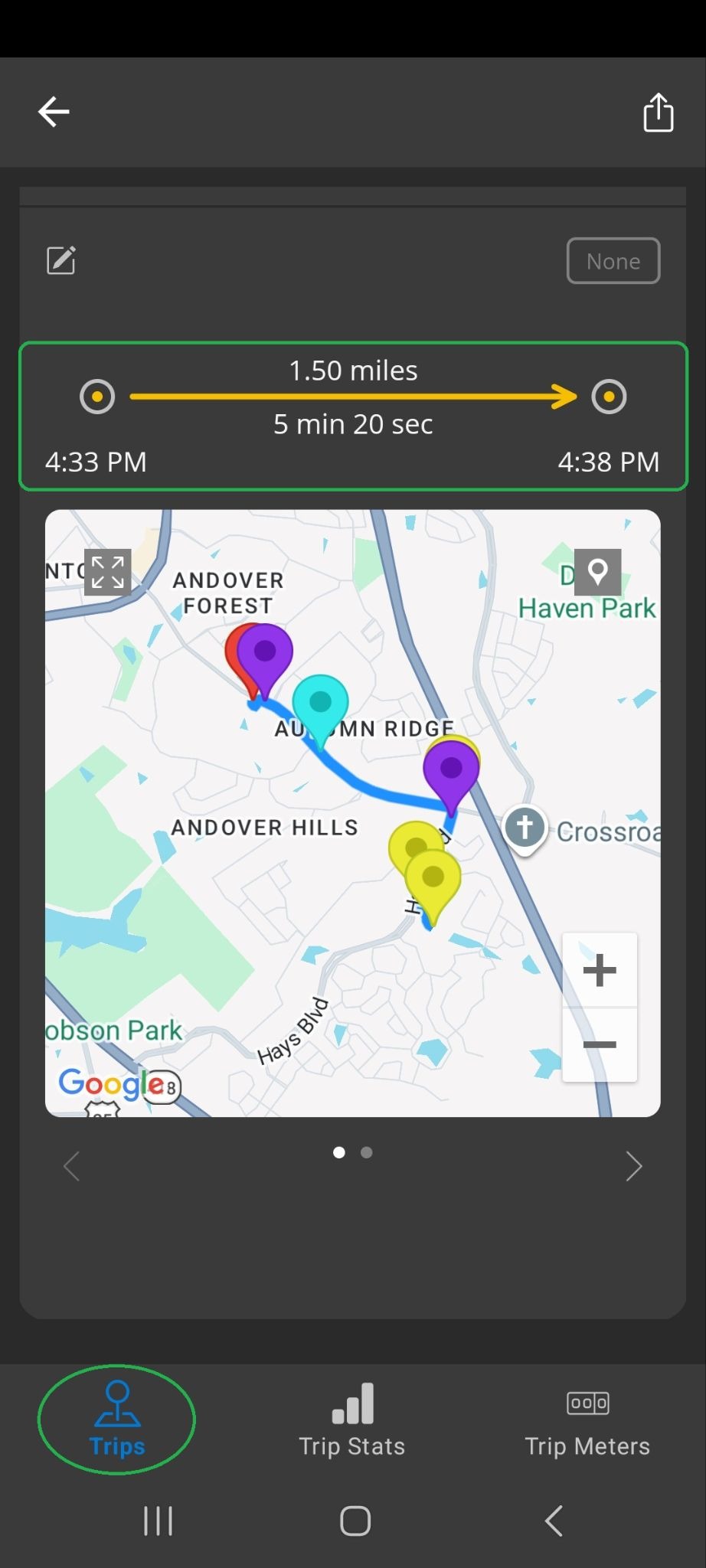
You will see trip details and a map of the trip.
Tap the Pin icon (highlighted) to open the pins list.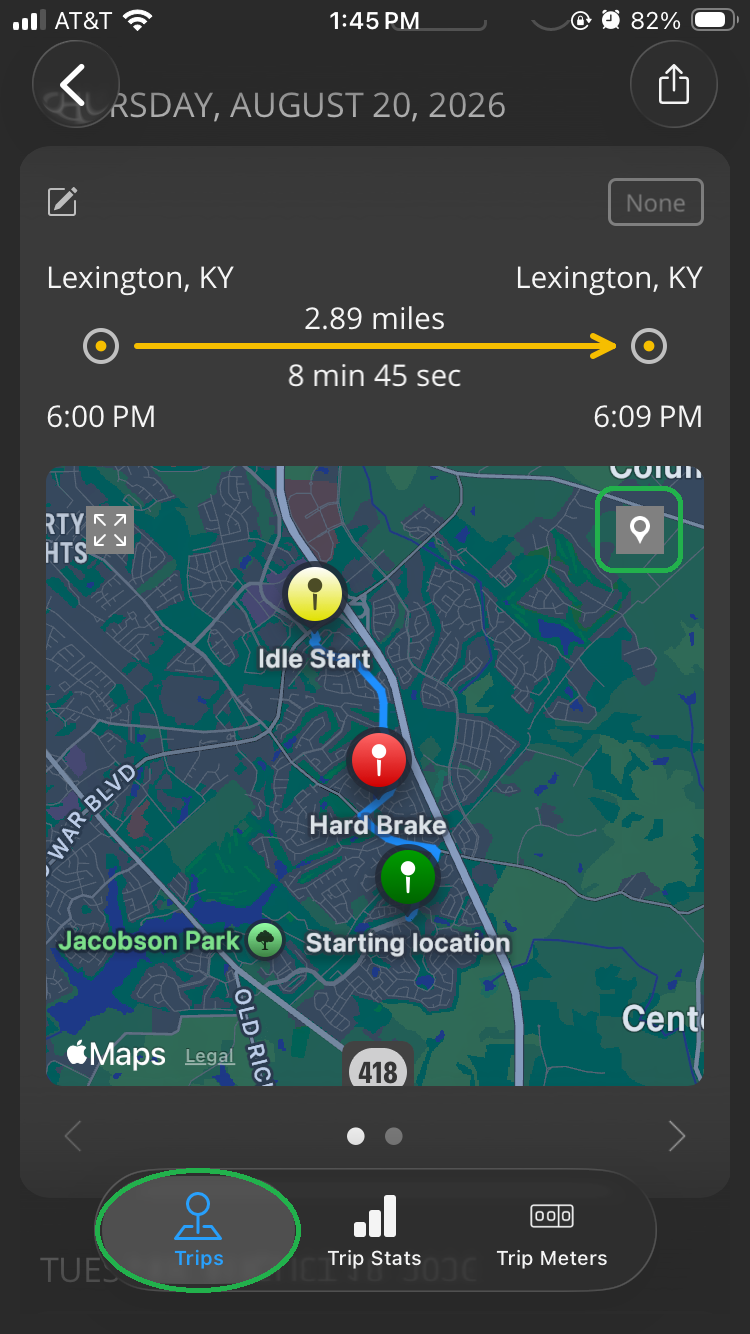
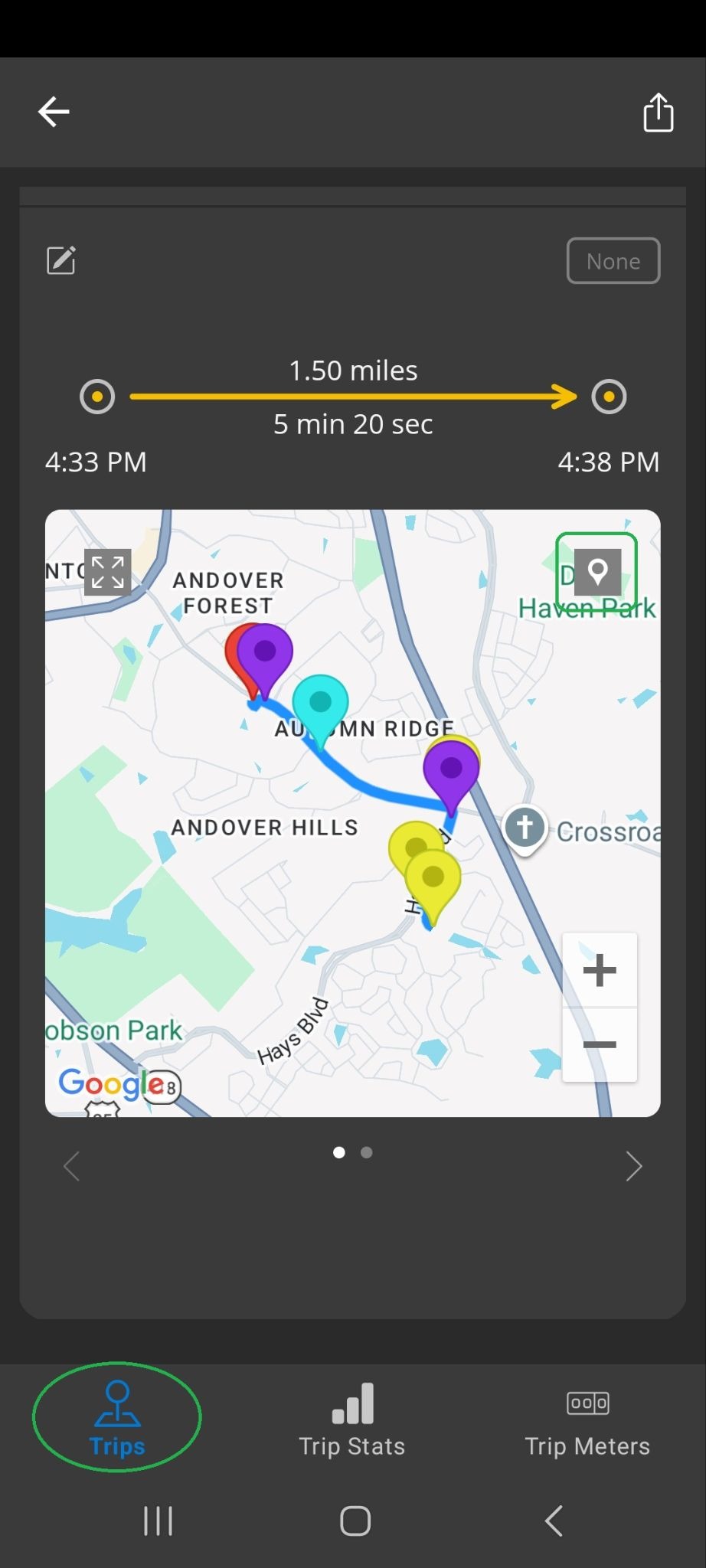
You will see a screen similar to the one below, showing various trip events tracked by the OBDLink app.
You can uncheck certain pins to make the map view less cluttered.
The iOS screenshot on the left shows the default setting, with all pins checked.
The Android screenshot on the right shows that we checked only the Alert Active and Alert Inactive pins.
Note: The Alerts option was recently added to the OBDLink app. If you don't see this option, download the latest version of the OBDLink app from the App Store (iOS) or Google Play (Android).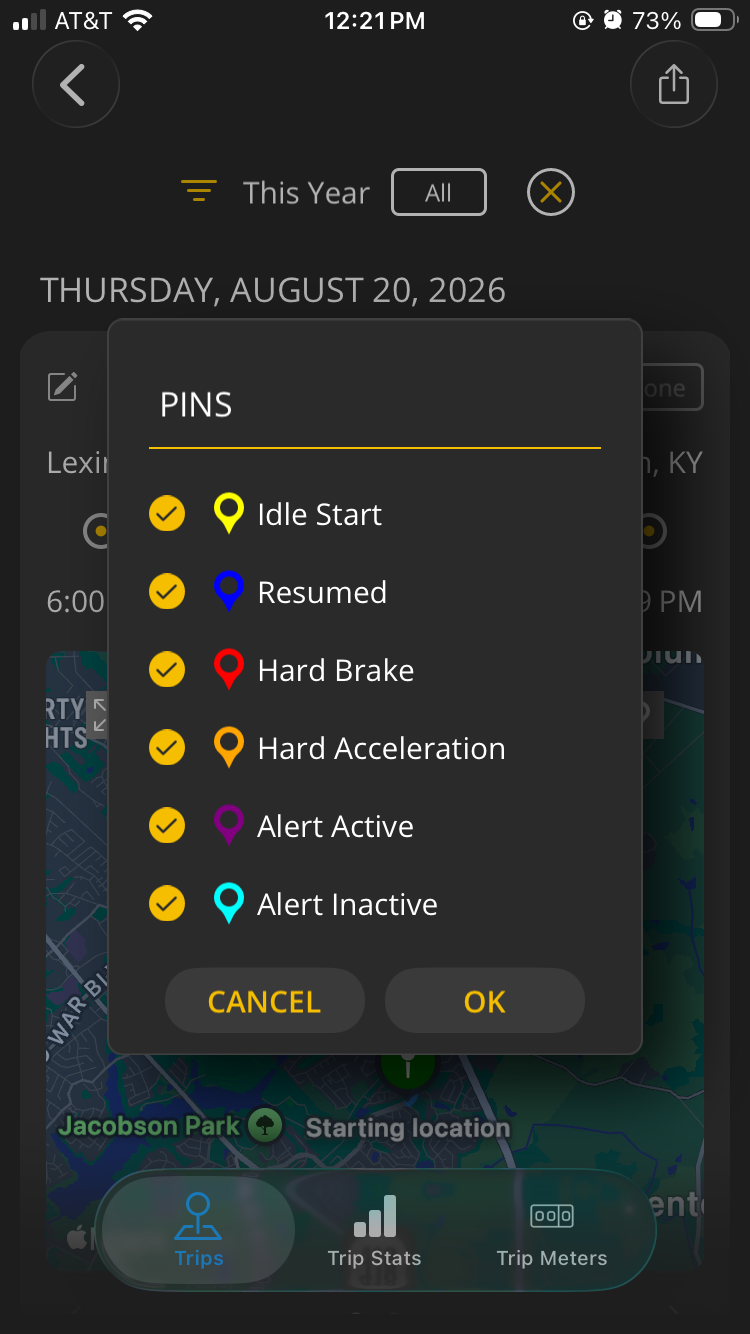
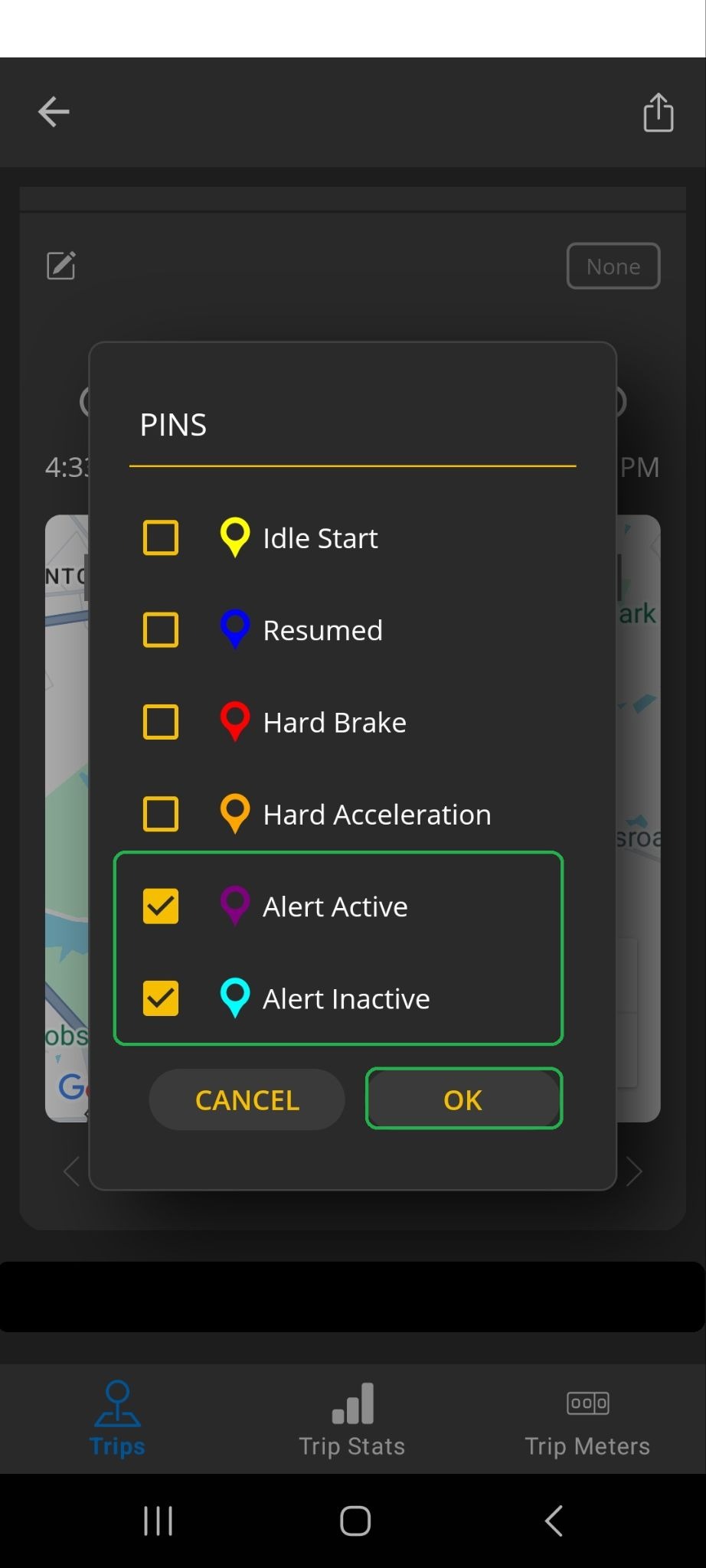
In our example, we saw these results:
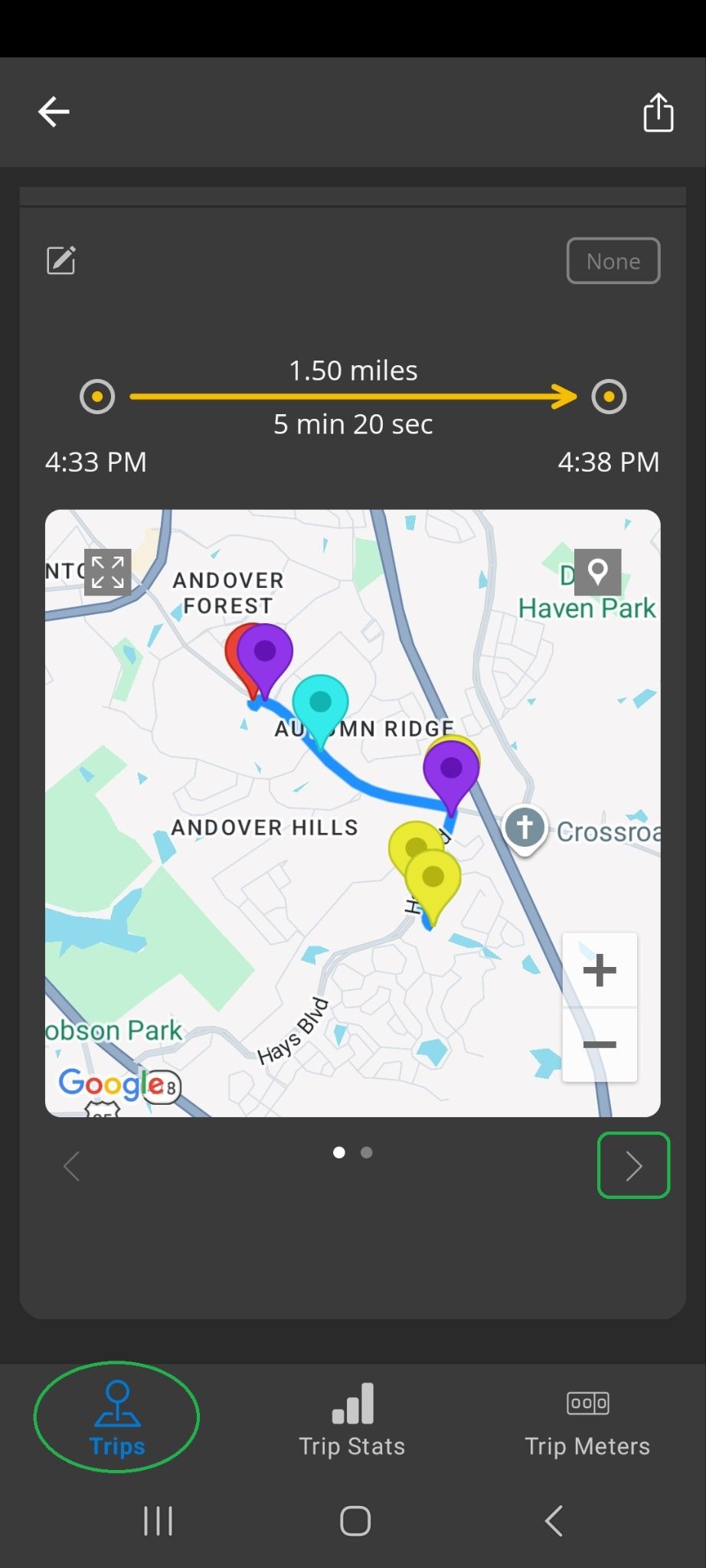
iOS: The Trip map display shows one red pin (highlighted) indicating the location when a hard brake occurred. Tap the pin to display the pin message.
Android: The Trip map display shows one purple pin (highlighted) indicating the location when an alert became active. Tap the pin to display the pin message.
Note: In our Android example, we set an alert to be active when the Engine Coolant Temperature is greater than
160 °F. We recommend that you add alerts for exceptional conditions and not for normal vehicle operation. This example is for demonstration only.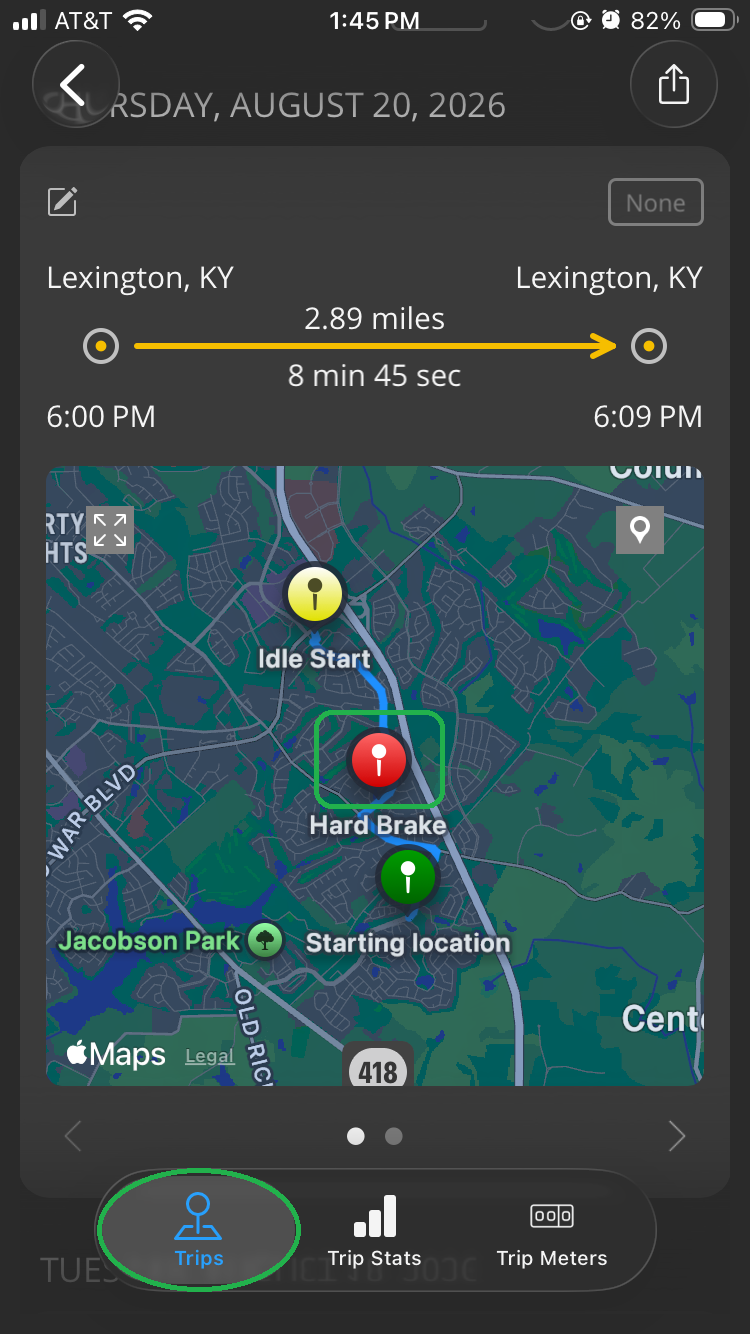
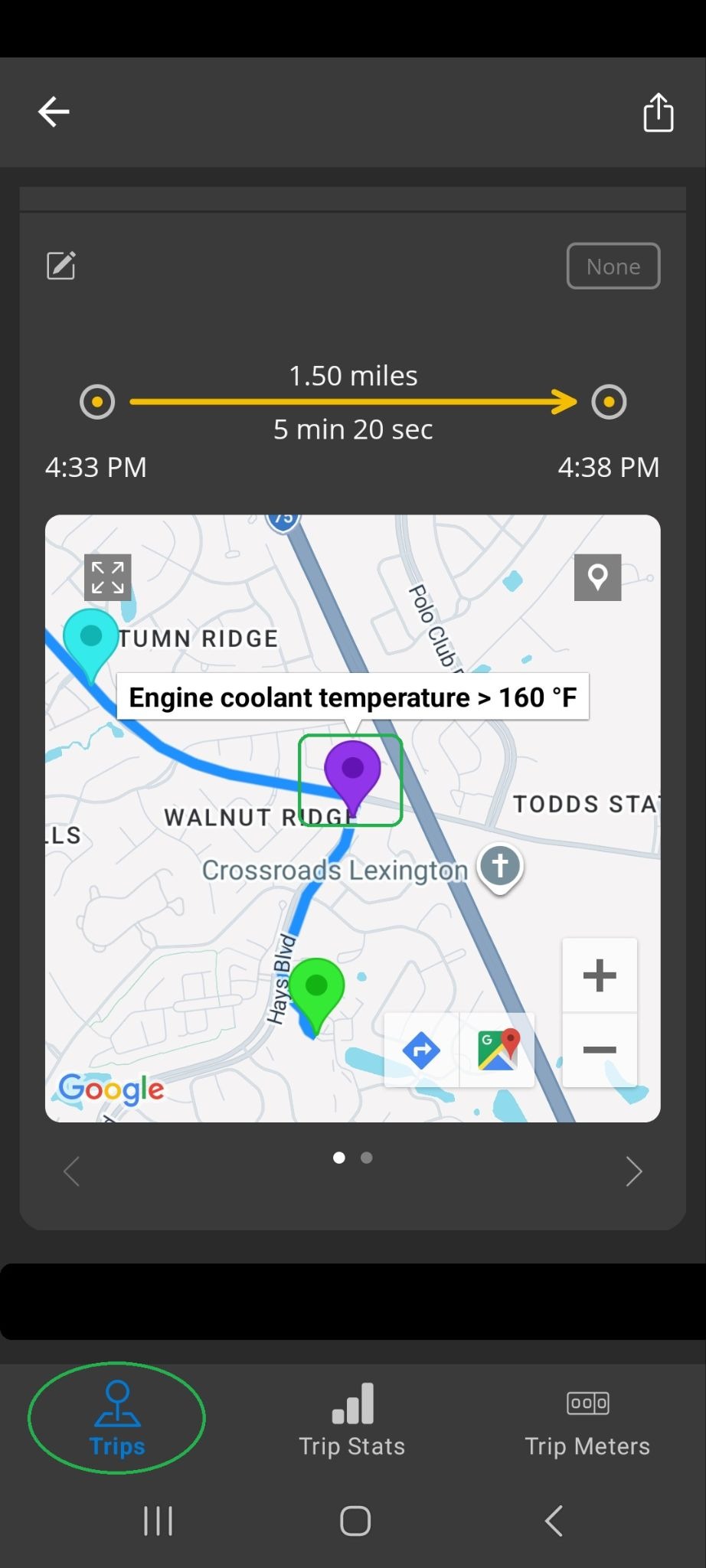
Android only: The Trip map display shows one light blue pin (highlighted) indicating the location when the alert became inactive. Tap the pin to display the pin message.
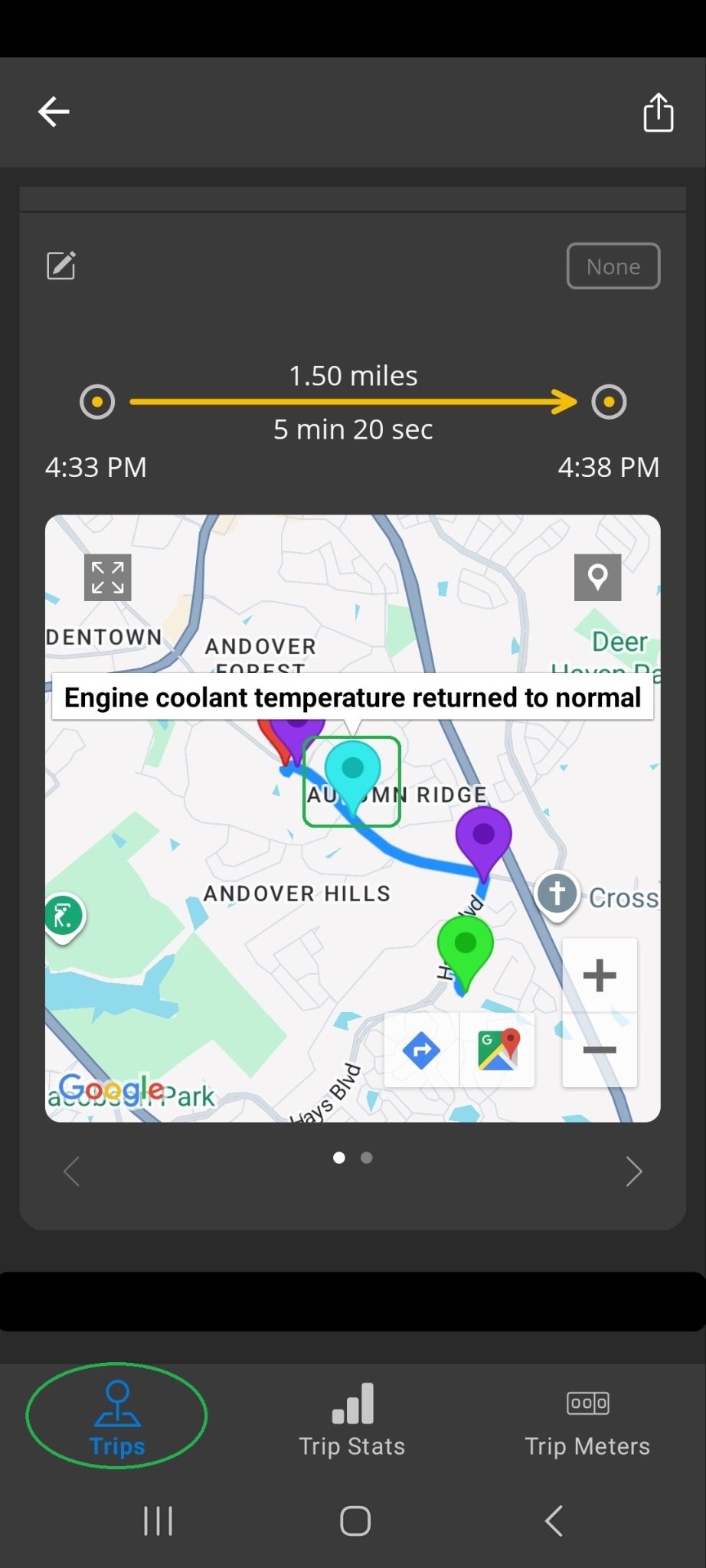
Tap the forward arrow (>) at the bottom of the map or swipe to display the second screen of trip details.
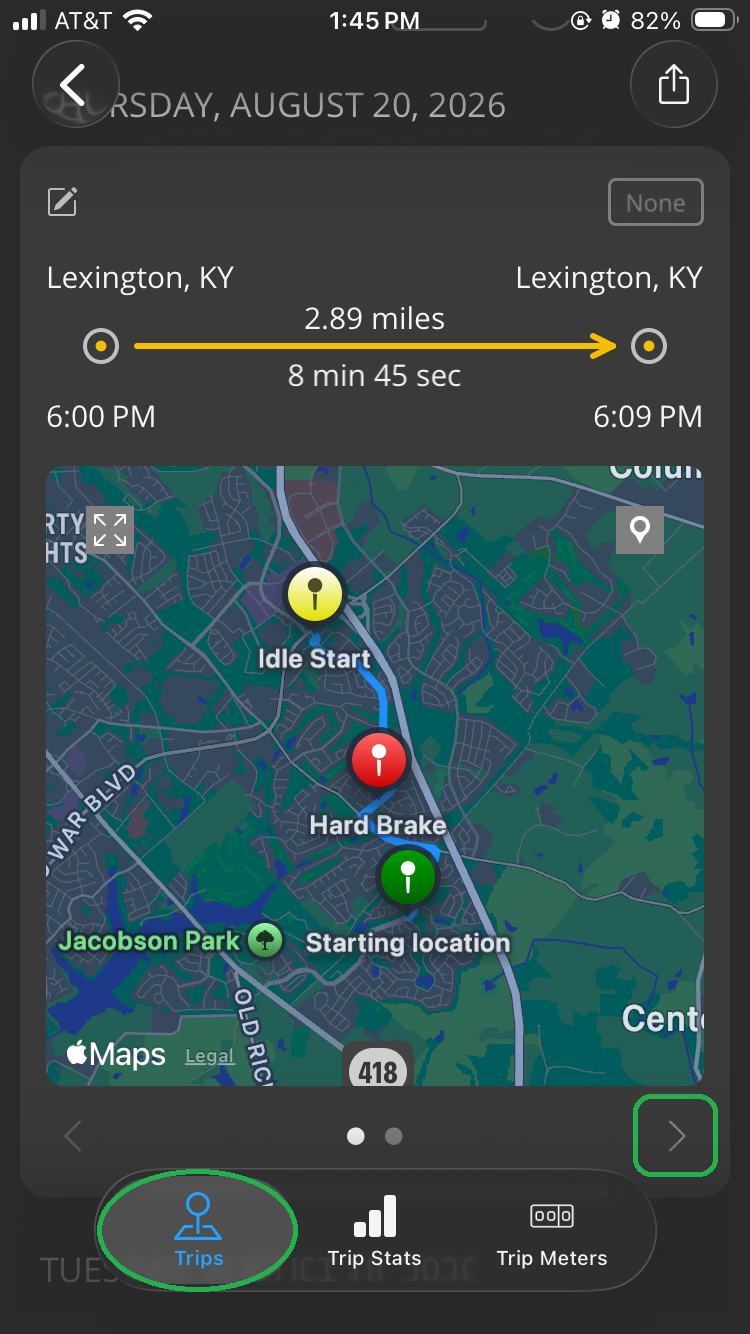
You will see additional trip details including fuel usage, fuel economy, fuel cost, and time idling.
Tap the back arrow (<) at the bottom of the details section or swipe to return to the map screen for the trip.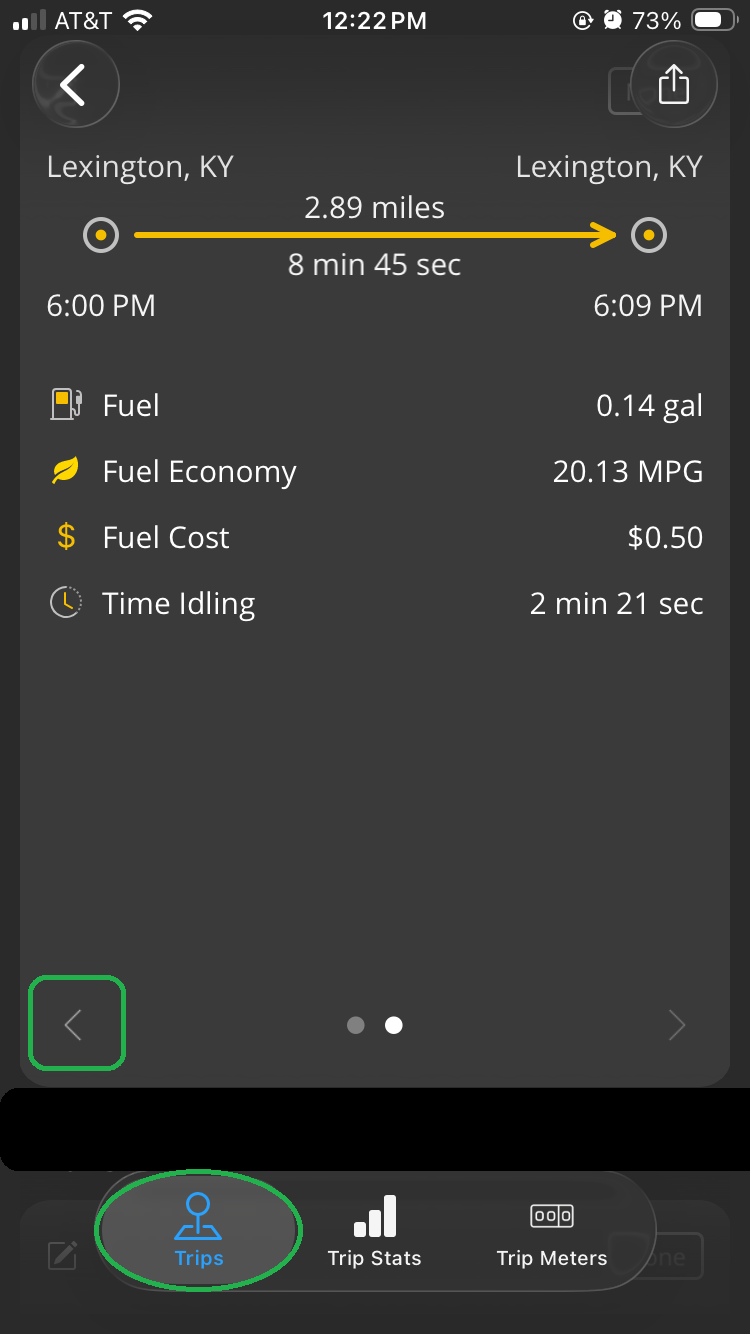
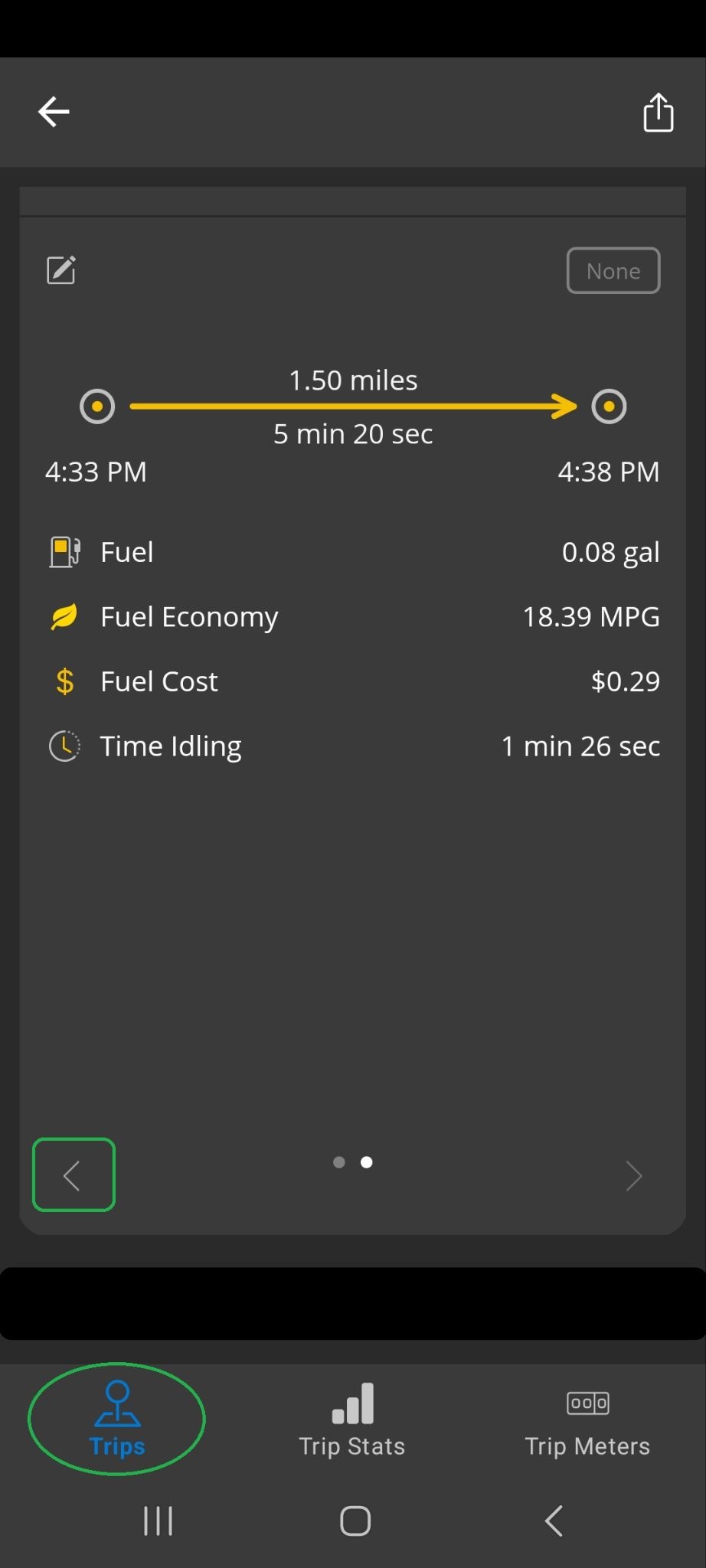
Tap the trip details area (highlighted) to return to the trips list.
Note: If you tap the back arrow (<) in the upper left, you will leave Trips and return to the app Home screen.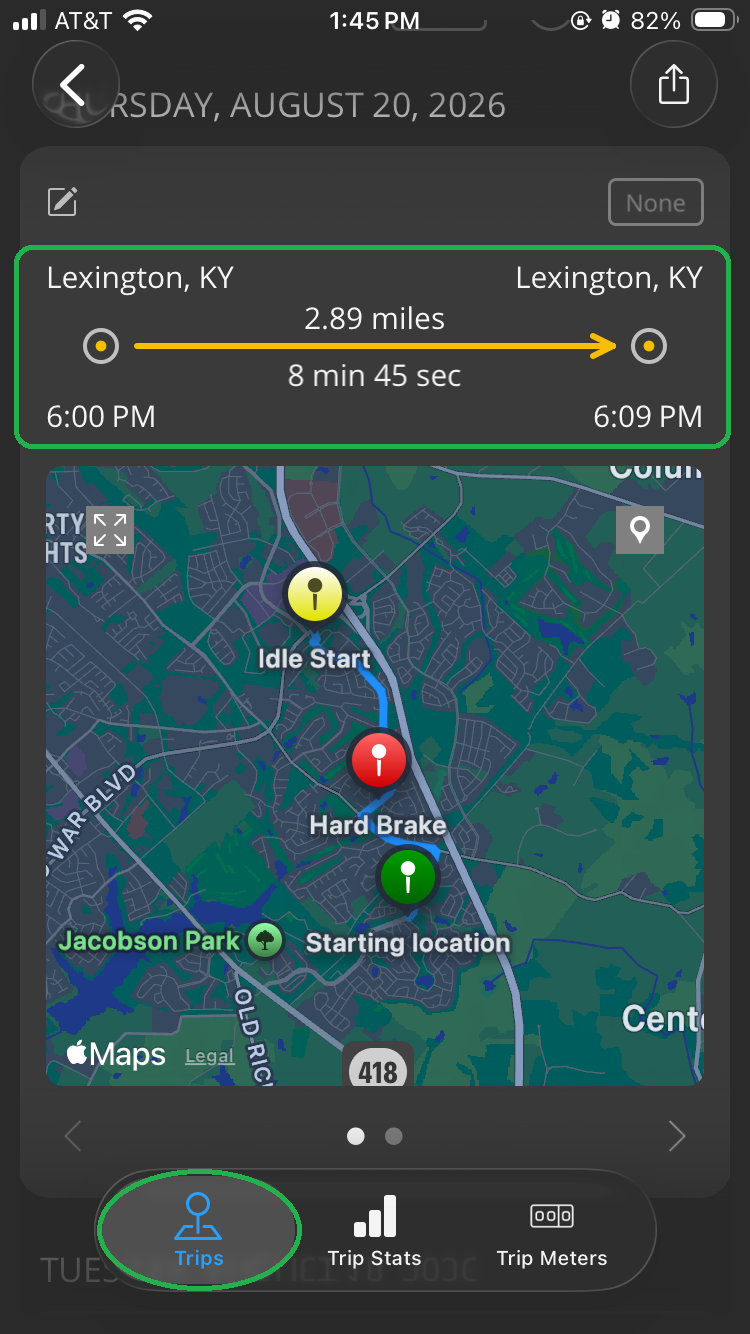
Trip Stats
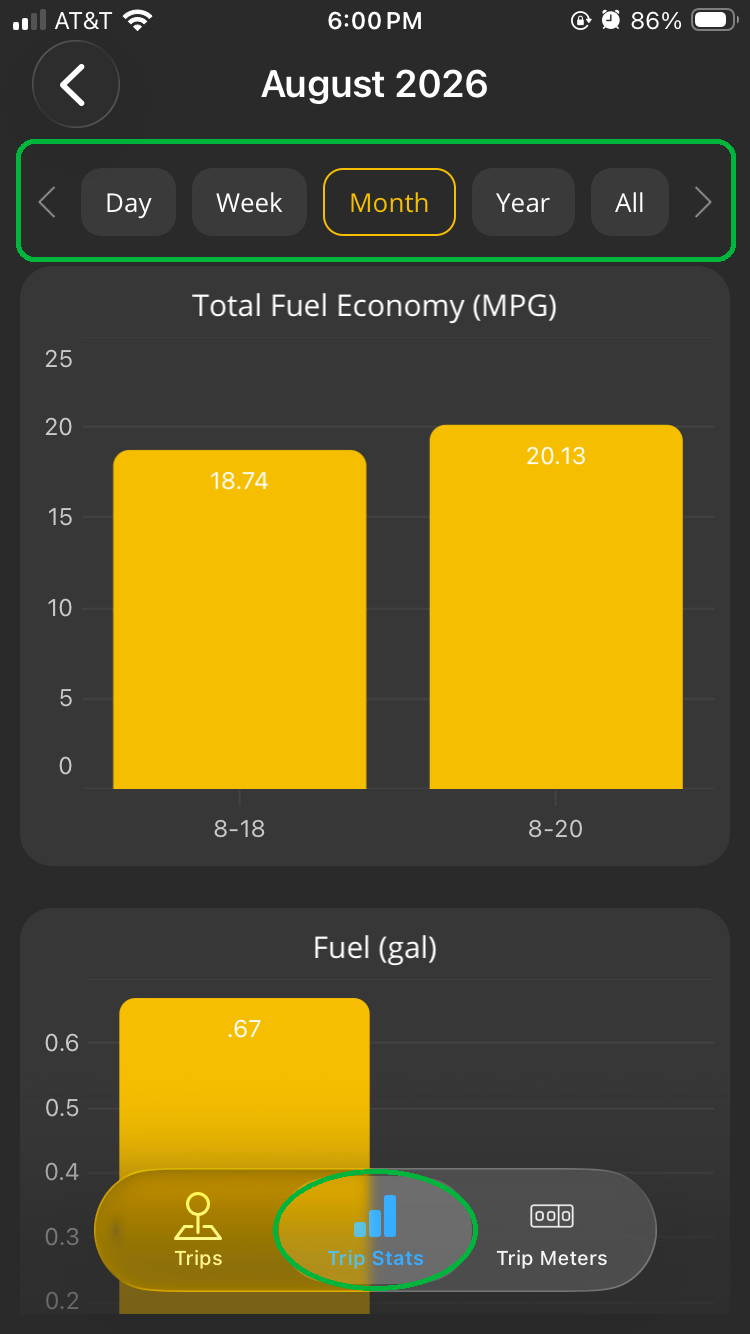
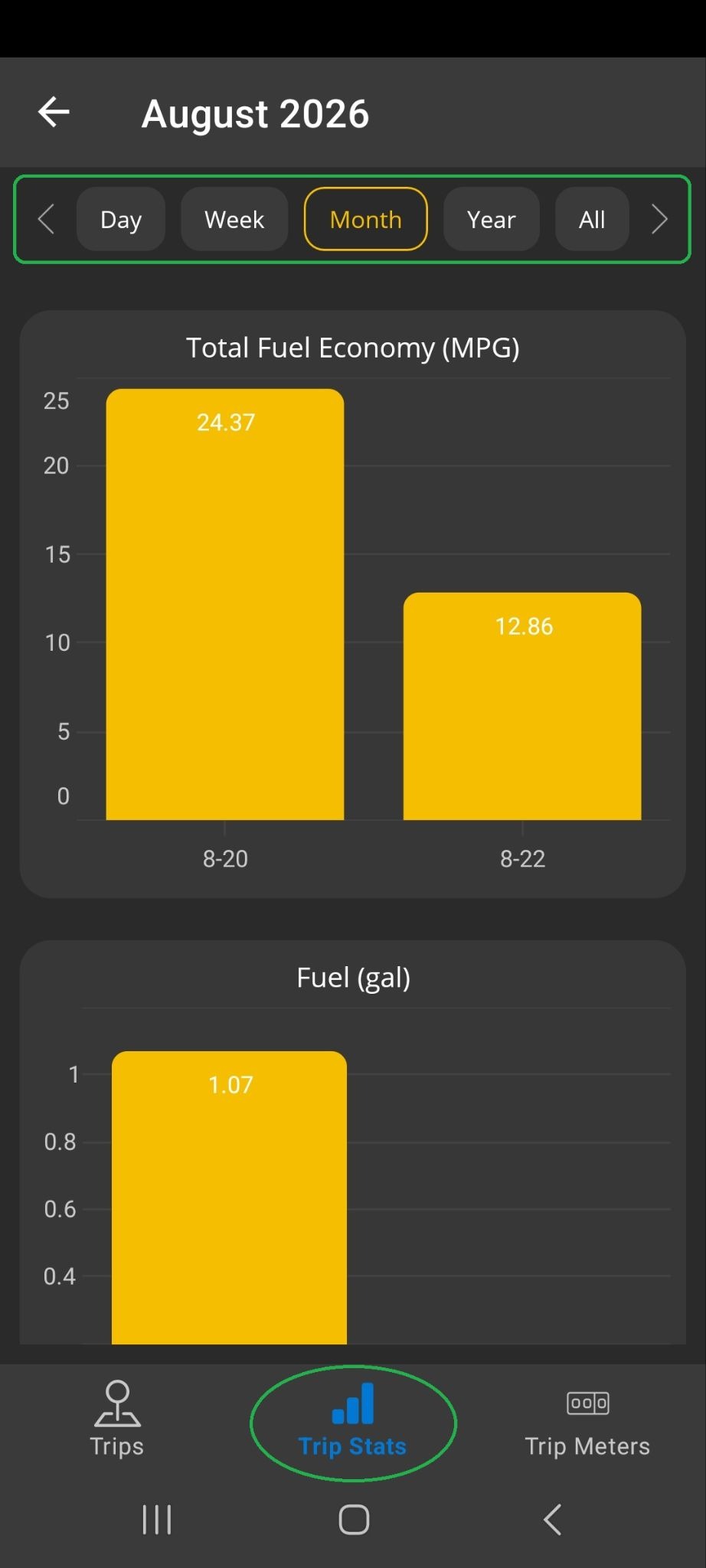
This tab shows trip information in graph format. This data is automatically captured for certain predefined PIDs, including Total Fuel Economy (MPG), Fuel (gallons), Fuel Rate, Max Speed (MPH), and others. Scroll down the page to see all the PIDs that are captured.
Note: Trip Stats was updated in a recent release of the OBDLink app. If you don't see the screens shown below, download the latest version of the OBDLink app from the App Store (iOS) or Google Play (Android).
To view the data over time, select the time period you want at the top of the screen, then use the forward/back arrows to move within the time period.
In our example, we selected Month in the top section (highlighted) and viewed trip details month by month.
 |  |
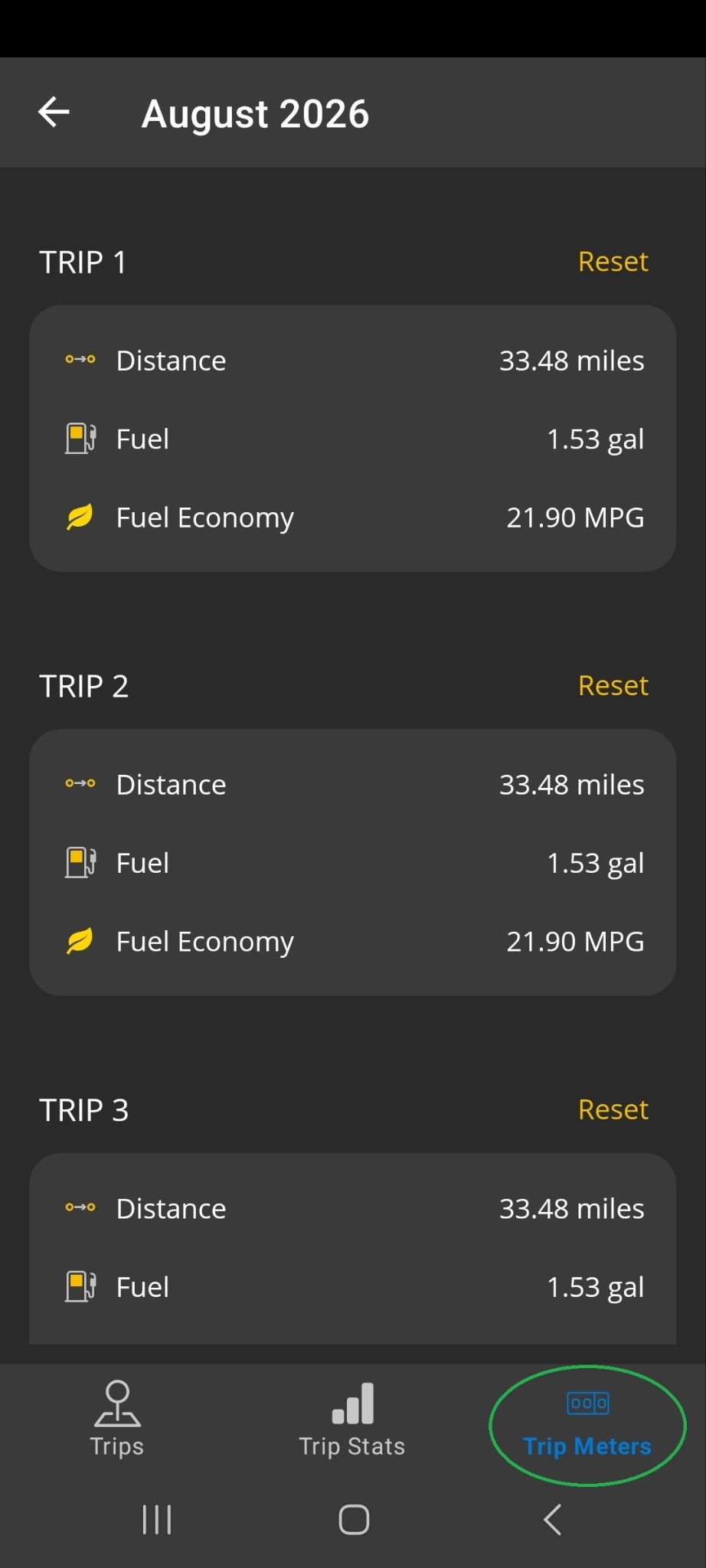
Trip Meters
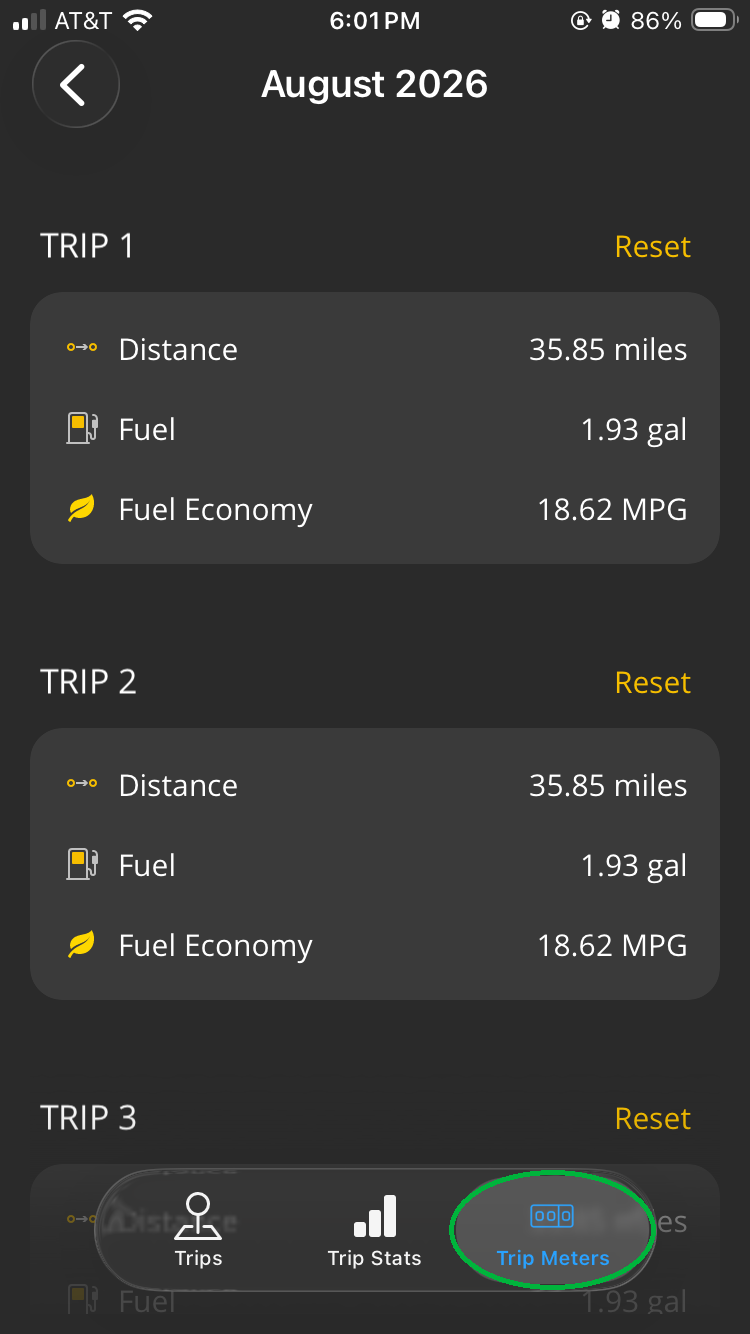
Every time the OBDLink app connects to your OBDLink adapter, it captures information. This screen shows basic trip information, similar to a trip counter that your vehicle may have. Tap Reset to reset a trip counter back to zero.
 |  |
Learn more
- The Trips function in the OBDLink app is linked to the Logs function. Read more in the Get Started with Logs article.
- For step-by-step details on setting up OBDLink alerts, see the Configure Alerts for Vehicle PIDs article.
- You can explore other OBDLink features and functionality using our support article knowledge base.
- For descriptions of terms used in this article, see the Glossary of Acronyms and Terms.
Need more help?
OBDLink® is a registered trademark of OBD Solutions, LLC.